How to Clean Up Mailbox Without Losing Important Mail
Learn how to clean up mailbox safely: sort mail, unsubscribe without phishing risk, keep important records, and set a routine that stops the inflow.

You're staring at thousands of unread messages, a storage warning, and a client thread you know is buried somewhere. Your first instinct is to select all and delete. Don't. That's how people lose receipts, contracts, and the one approval they need to prove later. If you're learning how to clean up mailbox safely, the work isn't deletion first. It's triage first, deletion last.
Sort Your Mail Into Four Categories Before Deleting
Sort first, delete last. Every message needs a decision before it needs a destination. Is it waiting on you, proving something, arriving on a schedule you don't want, or trying to trick you? Those four questions cover almost everything, and they stop you from treating a signed contract and a expired coupon as the same kind of clutter.
| Category | What It Includes | Action | Reversible? |
|---|---|---|---|
| Action required | Replies, approvals, open requests, unpaid invoices | Flag it or move it to a task folder | Yes, moving keeps the message |
| Reference or record | Contracts, receipts, tax documents, account confirmations | Archive under a label such as Records | Yes, archived mail stays searchable |
| Recurring low-value mail | Newsletters, promotions, automated alerts | Unsubscribe, then clear old messages after review | Unsubscribe is not undoable; check the list first |
| Suspicious mail | Unexpected links, fake login or unsubscribe pages | Report as spam and do not click | Yes, if you clicked nothing |
If you're new to archiving, read how to archive an email before you start moving reference mail out of the inbox. Archiving isn't deleting. It keeps the thread searchable while removing it from your daily view.
Why triage beats bulk deletion
The volume alone makes message-by-message willpower a losing strategy. The 2022 Inbox Intelligence survey of 560 U.S. adults aged 25 to 65 who use email for work found that 82% reported missing important emails because their inbox contained too much information. Supplementary data in that report estimated that 37% of messages remaining after automatic spam filtering were not of immediate value to the recipient.
That split is the point. More than a third of what's left after spam filtering carries no immediate value, yet it's sitting next to mail people can't afford to miss. Deleting by date or sender name alone doesn't separate those two groups. Sorting does.
Ten-minute test: Sort your last 50 unread messages into the four categories before you delete, archive, or unsubscribe from anything.
You'll usually find the pattern fast. A handful need action, a few are records, most are recurring, and one or two shouldn't be opened at all. Once you see that distribution in your own inbox, the cleanup stops feeling like a purge and starts looking like a set of smaller, safer jobs.
Run the Four-Pass Cleanup in Order
Order matters more than speed. If you delete historical mail before stopping the senders who produced it, your inbox refills while you're still congratulating yourself. Run these four passes in sequence and don't skip ahead.
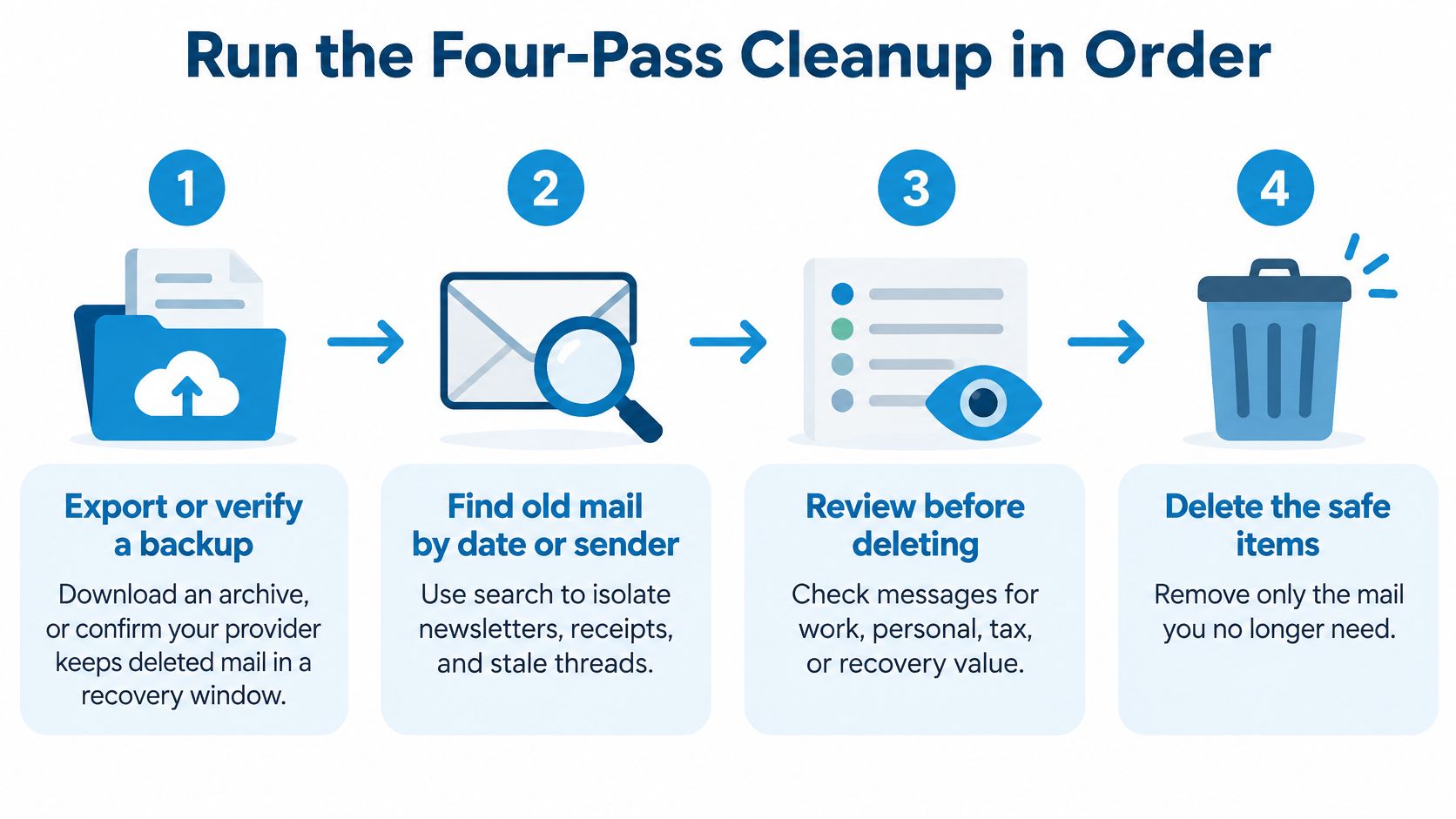
Pass 1 Export or verify a backup
1. Export or verify a recoverable backup. Download an archive if your provider offers one, or confirm how long deleted mail stays in trash or a recovery window. You're not being paranoid. You're making every later mistake reversible, which lets you move faster on the obvious bulk mail without second-guessing each click.
Pass 2 Find the high-volume sources
2. Identify what's taking space and attention. Use sender, mailing list, attachment size, and date searches instead of scrolling. In Gmail-style search, that means has:attachment larger:10M, older_than:1y, and is:unread older_than:5d. Other clients have equivalents, so use the same logic even if the syntax differs.
Size matters as much as count. According to Gmail's storage history, individual accounts now include 15 gigabytes of shared storage across Gmail, Google Drive, and Google Photos. A few large attachments can cost you more quota than hundreds of text-only newsletters, so I would always run the size search before the age search.
Pass 3 Process in a fixed order
3. Unsubscribe first, delete second, archive third, task last. Start with unwanted recurring mail, using only your client's unsubscribe control or the list-unsubscribe header. Then delete obvious bulk mail you've already reviewed. Next, archive anything with possible reference value under a label such as Records. Finally, move actionable items to a task folder so they don't get buried again.
This sequence comes from a simple failure mode. The ACM research on email behavior notes that people often use the inbox as a task manager, keeping items visible as reminders. Force it empty without giving those reminders a new home and you'll lose follow-up context, even if the count looks great.
Deleting old mail while the sender keeps sending isn't cleanup. It's mopping with the tap running.
If you're unsure what permanent deletion means in your client, check whether you can delete an email before you empty anything. Trash, archive, and permanent removal are three different actions, and confusing them is where recoverable mistakes become permanent ones.
Pass 4 Review trash before it's permanent
4. Review the trash and wait out the recovery window. Don't empty it the same day. Skim for anything that landed there by a bad search or an overbroad selection, restore what you need, and let the rest sit until you're confident. Permanent deletion should be the boring final step, not the dramatic first one.
A note on account access if you use a connected tool during cleanup. Removing a mailbox from Sickle deletes its stored credential straight away, and you can remove mailboxes and revoke AI assistants yourself at sickle.app. Check which account you're acting on before you remove access you still need.
Your first week and the Day 14 check
Spread the work over five short sessions instead of one exhausting purge:
- Day 1: Sort the last 50 unread messages and create Records and Review labels.
- Day 2: Unsubscribe from the five senders producing the most recurring mail.
- Day 3: Archive attachments above 10 MB and review mail older than a year.
- Day 4: Make one decision per item sitting in Review.
- Day 5: Empty trash only after the recovery window has protected you.
On Day 14, re-run the same searches. You're checking three numbers, the unread actionable count, your daily inbound volume, and the percentage of remaining messages that have a next action assigned. If inbound volume hasn't dropped, you didn't reduce the inflow. You only moved the pile.
Unsubscribe Safely Without Opening Phishing Links
Click unsubscribe on everything unwanted. That is standard advice, and it is sometimes dangerous advice. A fake unsubscribe link can confirm your address is active, expose credentials, or send you to a malicious page. During a cleanup you are clicking fast, which is exactly when you are least likely to check where a link goes.
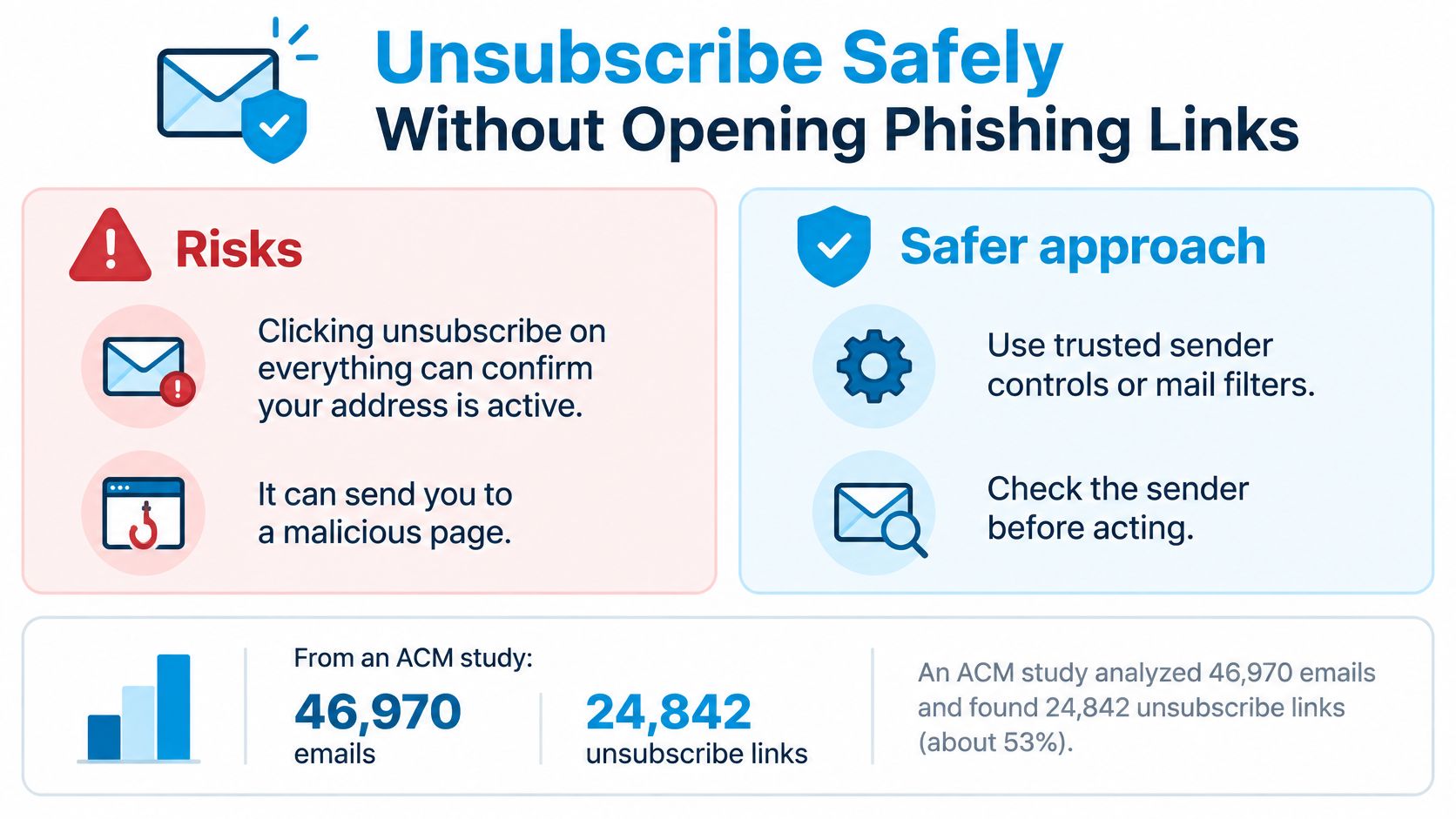
The ACM study of 46,970 emails from 24 subscription-bombing attack waves found that only 34.4% included an unsubscribe link in the header and just 16.2% supported the standardized one-click mechanism. Some unsubscribe links in unsolicited mail also lead to malicious sites, so a small risk per click becomes a real exposure across a large cleanup.
| Situation | Safe action | Risky action |
|---|---|---|
| Recognised sender you opted into | Use the client unsubscribe control or list-unsubscribe header | Click a link inside the message body |
| Unexpected message with an unsubscribe link | Do not click; mark it as spam | Click to unsubscribe |
| Sudden flood from many unfamiliar senders | Review account security, change password, enable two-factor authentication | Unsubscribe from each sender one by one |
| Order confirmation or password reset | Keep it and exclude it from bulk cleanup | Delete it with the newsletters |
| Keyword-only filter for cleanup | Review every match before deleting | Auto-delete all matches |
Use the safest control available. A client-level unsubscribe button or a list-unsubscribe header keeps you inside the mail app. A link in the message body asks you to trust the sender's page, which is the wrong default during a fast purge.
For a broader walkthrough of cutting unwanted mail at the source, you can stop unwanted emails with Gini Help and apply the same recognised-sender rule there. The principle travels even if the tool differs.
When a flood is an attack signal
A sudden burst of subscriptions you never requested is not a newsletter problem. It can be subscription bombing, sometimes used to bury a security alert or a fraudulent transaction notice in noise. Work the account first: check recent sign-ins, change your password, turn on two-factor authentication, and search for the one consequential message the flood may be hiding.
Keyword-only filtering carries the opposite risk. A filter hunting for words like sale or offer can sweep up receipts, shipping notices, and automated alerts you need. Review matches before deleting, and keep transactional messages out of bulk actions entirely.
If you did not opt in, do not click.
Keep Work and Personal Records Out of the Cleanup Pile
Some old mail looks like clutter and functions as evidence. A three-year-old thread can settle a client dispute, support a tax record, prove an expense, or get you back into an account. Age tells you when a message arrived. It tells you nothing about whether you'll need it.
The pressure to delete it anyway is understandable. If you want a visual sense of that records-versus-clutter tension, start here:

Citing Microsoft's 2025 Work Trend Index, Korn Ferry's summary of the no-reply era reported that the average knowledge worker receives 117 emails and 153 chat messages per weekday across 31 markets. It also cited a separate analysis of 16.6 million emails that found a median inbox size of about 12,300 messages. At that scale, delete everything older than a year starts to sound reasonable. It isn't.
Use a review queue instead of deciding under pressure
When a message is ambiguous, move it to a Review folder and keep cleaning. You're not avoiding the decision. You're scheduling it for a moment when you're checking facts instead of chasing a lower count. Preserve the sender context and attachments when you archive, and use labels such as Records or Payments with the year so the thread stays findable later.
Say a freelancer runs a work account and a personal account side by side. She finds a 2019 invoice thread about a client deposit, sitting between newsletters from the same period. The newsletters can go. That thread gets archived under Records, because it's the proof of what was agreed and paid.
This video walks through the organize-before-you-delete mindset in practice:
If an agent helps with the sorting, keep the same reversibility rule. No agent tool in Sickle deletes mail permanently, so agent moves and archives can be undone. That's the right default for any tool, an assistant should group and move, not destroy.
I would keep anything you'd need to prove a payment, a commitment, or your identity. Everything else has to earn its place.
Stop the Inflow With Fixed Processing Windows
A clean inbox refills if you keep grazing on it all day. The Microsoft Research field study of 40 information workers observed for 12 workdays found participants checked email an average of 77 times daily and spent nearly 1.5 hours per day on it. Greater daily email time correlated with lower perceived productivity and higher measured stress.
Earlier observational research cited there found employees were often interrupted about every five minutes, while configuring checks at 45-minute intervals could reduce possible interruptions to no more than 11 per day. You don't need to check less carefully. You need to check on a schedule, which is also the practical answer to email overload once the backlog is gone.
| Window | Purpose |
|---|---|
| Triage | Urgent messages and priority senders only |
| Processing | Replies, filing and unsubscribes |
| Final review | Resolve open items or move them to a task folder |
Try 9:00, 13:00, and 16:30 as starting times and adjust to your work. Set sender and list rules once so recurring mail routes itself, disable nonessential notifications, and keep VIP exceptions only for senders where a delay causes real harm. If constant checking is part of a wider reactive pattern, Jan Kutschera's advice to stop panic productivity and burnout pairs well with fixed windows.
Three pitfalls that undo the schedule
- Batching without a priority rule: Everything waits, including the one urgent item.
- Turning every message into a task: Your task list becomes a second inbox.
- Automatic deletion with no recovery path: One bad rule destroys mail.
Batching was associated with higher rated productivity in the field study, but the researchers found no evidence that it reduced stress. Pair the schedule with fewer notifications and a clear escalation rule, such as a phone call for anything urgent, instead of expecting timing alone to fix the pressure.
Clean Several Mailboxes in One Window
If you manage work, personal, and maybe a client-facing account, running this process separately in three apps invites inconsistency. You'll archive carefully in one mailbox and bulk delete in another because you're tired. A single window with the same sender grouping across accounts makes it easier to apply one standard.
That's the job Sickle is built for as a native Mac client, bringing multiple mailboxes into one cleanup view. Its connector can also work without the Mac app installed, so an agent can search and move mail when your computer isn't open. Permissions stay limited. An agent connector can search and move mail only with read and change permissions, and no agent tool deletes mail permanently, so moves and archives stay reversible.
Use identical Records and Review labels across every account so a decision means the same thing everywhere. Before removing anything, check the account list, because removing a mailbox deletes its stored credential immediately. You can remove mailboxes and revoke AI assistants yourself at sickle.app whenever you want to cut access.
This step is optional. The four-pass cleanup works in any mail client, and if you only have one mailbox, you don't need an extra tool to do it well.
Bring your work and personal mailboxes into one window, group senders and mailing lists, and run the same reversible cleanup across every account without permanent deletion. Visit Sickle to set up your mailboxes and start with the last 50 unread messages today.