How to Archive an Email: Archive vs Delete Explained
Learn how to archive an email in Gmail, Outlook and Apple Mail, what archiving keeps that deleting loses, and how to find archived mail later.
To archive an email, select the message and click Archive, or press E in Gmail. The message leaves your Inbox but stays searchable, while deleting sends it to Trash instead.
You're probably staring at a finished thread you don't want cluttering your Inbox, but you also don't want to lose the receipt, contract, or client decision buried inside it. That's exactly the job archiving does well, provided you know where the message went, which account owns it, and whether you can find it six months later. The five-minute search test in this guide proves that before you archive in bulk.
How to Archive an Email in Gmail, Outlook and Apple Mail
Start by finding your provider below, because the button is similar everywhere but the destination isn't. Knowing the destination tells you where to look when the message seems to vanish.
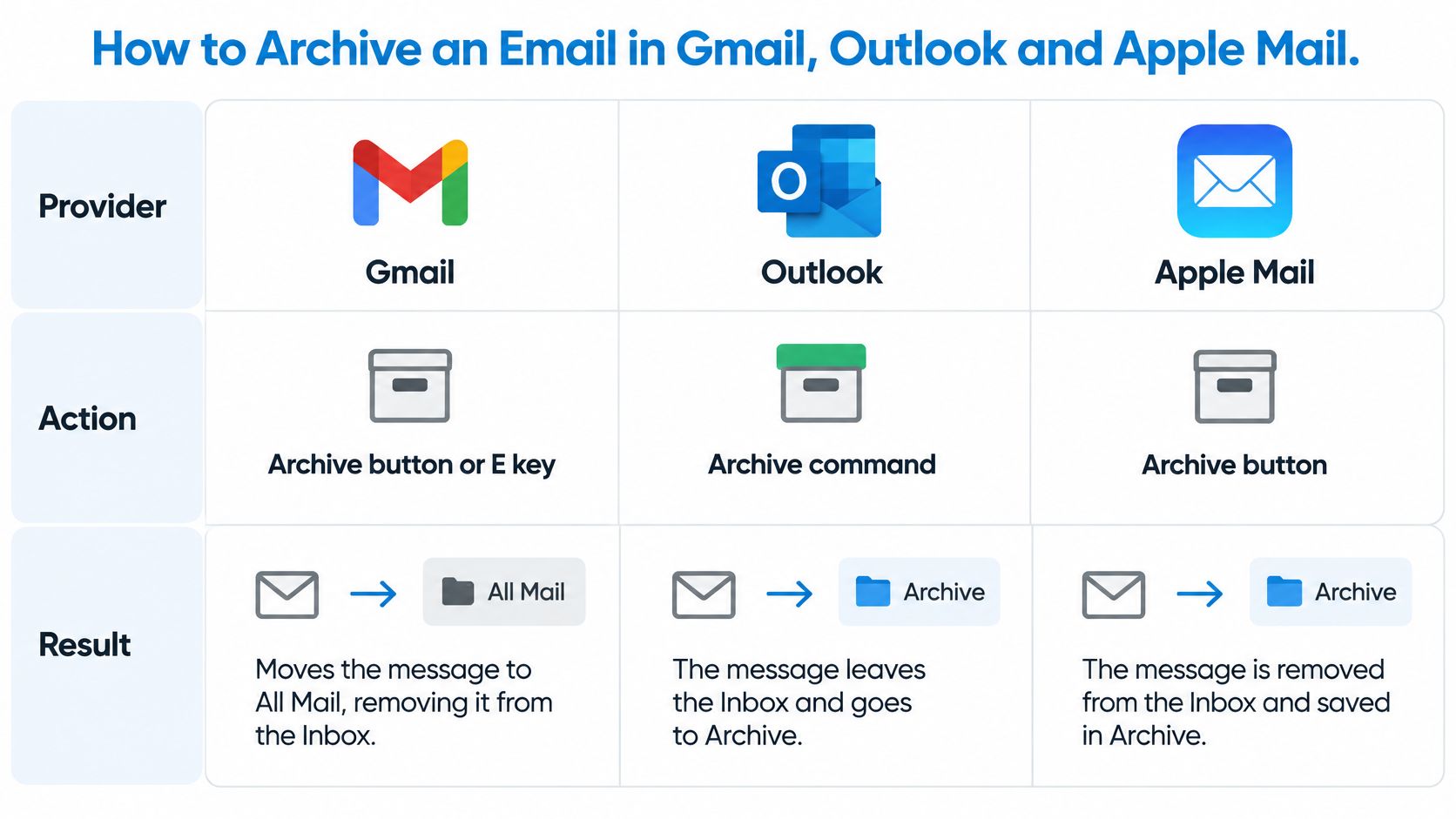
| Provider or app | Where the message goes |
|---|---|
| Gmail (web) | All Mail, removed from Inbox |
| Outlook (web and new Outlook) | Archive folder |
| Apple Mail (Mac) | Archive mailbox of the same account |
| iCloud Mail (web) | Archive folder |
| Yahoo Mail (web) | Archive folder |
Gmail doesn't use a separate Archive folder. Archiving removes the Inbox label, so the message remains under All Mail. Outlook, iCloud Mail, and Yahoo Mail move it into a folder named Archive. Apple Mail does the same in principle, but each account has its own Archive mailbox, so check which account received the message before you click.
The Three-Step Routine
- Open or select it. Open the message, or tick it in the list if you've already read it.
- Archive it. Click Archive in the toolbar, or press E in Gmail on the web.
- Confirm the move. Check that it's gone from the Inbox, and use the undo prompt straight away if you picked the wrong thread.
For several messages, select them together with Shift-click for a range or Command-click for scattered items, then archive once. I wouldn't bulk-archive hundreds of messages until you've run the search test on one thread. Bulk actions are efficient, but they also multiply a wrong-account mistake.
Archiving on Your Phone
On a phone, open the message in the Gmail or Outlook app and tap the archive icon in the toolbar, or use the swipe action if you've set a swipe to archive. Swipe settings differ per app and per account, so don't assume a left swipe archives everywhere. After sync, open Archive or All Mail on the phone and confirm the message is there, not in Trash.
Check before you trust it: The message should sit in the archive destination for that account, with its attachments intact, not in Trash.
That single check catches the two errors people make most often. They've archived into a different account than they expected, or they've deleted while thinking they archived.
What Changes for Your Messages
Archiving keeps the message and removes it from the Inbox view, while deleting sends it to Trash, where it's removed for good after a set period. That difference decides whether you can still search for the thread, reply to it, or recover it next year.
| Action | Leaves Inbox | Still searchable | Uses storage | How to get it back |
|---|---|---|---|---|
| Archive | Yes | Yes | Yes | Move back to Inbox or search for it |
| Delete (moved to Trash) | Yes | Until Trash is emptied | Yes, until emptied | Restore from Trash within the retention window |
| Delete permanently | Yes | No | No | Usually not, unless a backup exists |
Walk the table by consequence, not by button name. Archive changes visibility only, so search, replies, and storage use stay exactly as they were. Delete to Trash starts a countdown. Gmail empties Trash automatically after 30 days, while archived mail stays until you delete it yourself. Permanent delete ends the story unless you have a backup outside the mailbox.
What Archiving Preserves
An archived message keeps its headers, timestamps, attachments, and thread structure, so a reply still lands in context and search still finds the right message in a long chain. That preservation matters because email has always been a structured format. The RFC 822 specification published on August 13, 1982 defined fields such as sender, recipient, date, subject, and message body, plus date-time syntax with time-zone offset. Modern systems descend from that lineage, which is why retaining the complete original, not just the visible text, keeps chronology intact across countries and devices.
Archiving doesn't compress mail, encrypt it, or free up quota. It also doesn't remove sensitive content. A password or bank detail sitting in an archived thread is still sitting in your mailbox, still searchable by anyone who gets into the account.
A Simple Decision Rule
- Archive what you might need. Contracts, receipts, bookings, and client threads belong here, finished but retrievable.
- Delete what you don't want. Spam, duplicates of notifications, and offers you'll never reopen can go to Trash.
- Delete sensitive mail you no longer need. Don't archive a message holding a password or bank details and assume it's been made safe, because archiving changes location, not content.
Recovery follows the same logic in reverse. From an archive, search for the message or move it back to the Inbox, and it behaves as it did before. From Trash, restore it within the retention window, before automatic emptying makes the decision for you.
Finding Archived Mail When You Need It
Don't trust an archive you haven't searched. Archive one thread you know well, with an attachment, then prove you can get it back. The whole test takes five minutes.
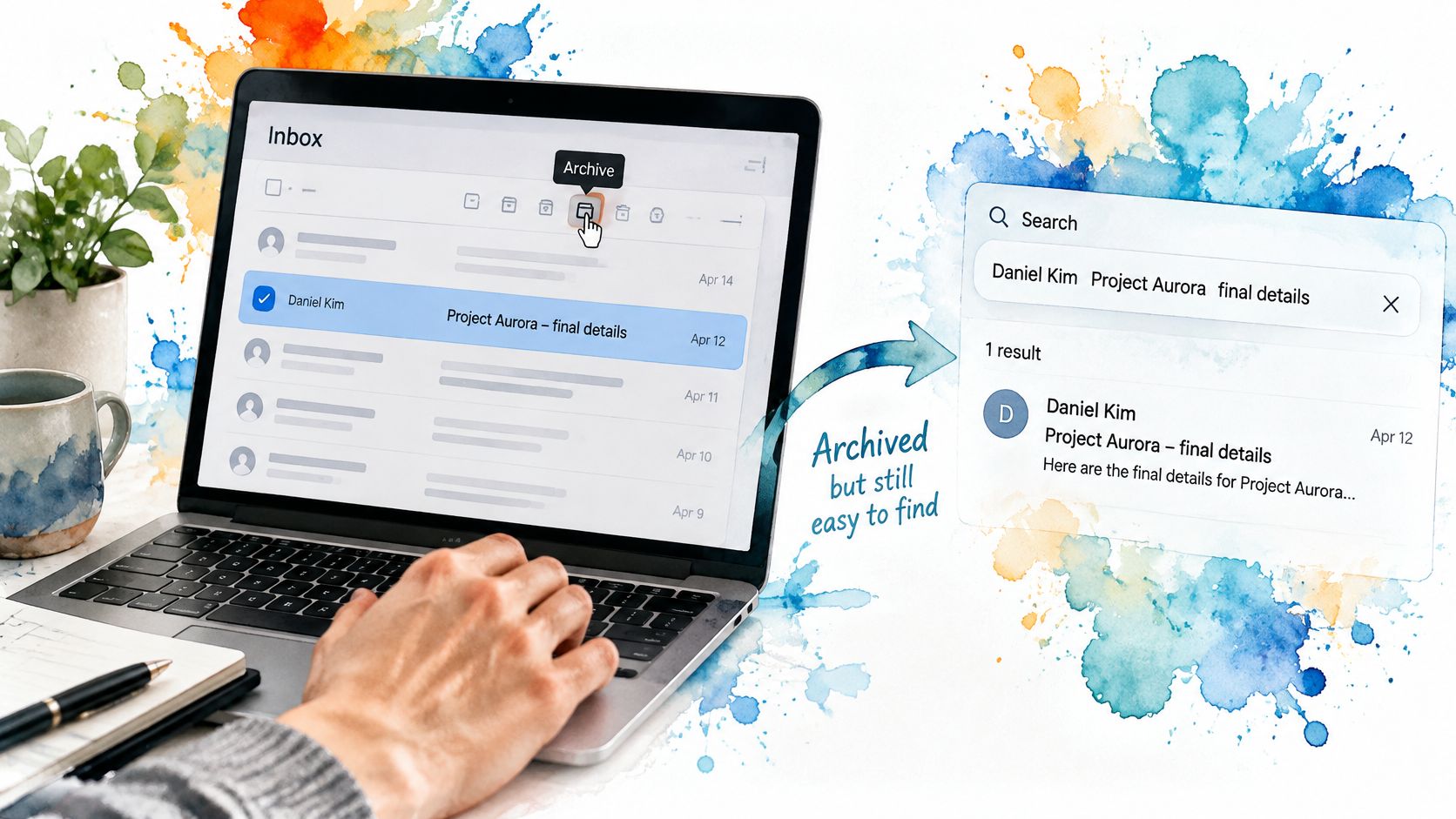
First, confirm the thread has disappeared from the Inbox. Then search for it four different ways: by sender name, by subject line, by a distinctive phrase from the body, and by attachment. In Gmail, combine a sender name with -in:inbox to surface archived results, and add has:attachment when you're hunting for a file. In Outlook, set the search scope to all folders, because a search limited to the current folder won't see the Archive folder at all.
Open one attachment and confirm it downloads and reads correctly. A message that opens without its file hasn't passed the test.
Why Search Quality Is the Whole Point
An archive is useful only if you can locate messages by sender, recipient, date, subject, body text, attachment type, and mailbox, not merely remember which folder you chose. The TitanHQ guide on email archiving compliance and retention calls for full-text indexing, metadata filters, saved searches, and auditability, so authorized users can retrieve conversations without unnecessary exports. That professional standard translates directly to personal mail. If your archive search skips attachment contents or only covers one account, important messages become effectively unfindable.
Watch the archive and search actions together before you repeat the test across your own accounts.
Now check the same thread on a phone and a second computer after sync, since archive status travels with the mailbox. Repeat the test for each connected account, because each one has its own archive folder and its own search results. Finally, search for mail sent to you and filter out threads you've replied to, so archiving hasn't hidden an unanswered conversation that still needs a response.
Archiving Safely Across Several Accounts
With several accounts in one app, the main risk isn't losing mail. It's archiving mail into the wrong mailbox, or triggering a change that appears everywhere that mailbox is connected before you've noticed.
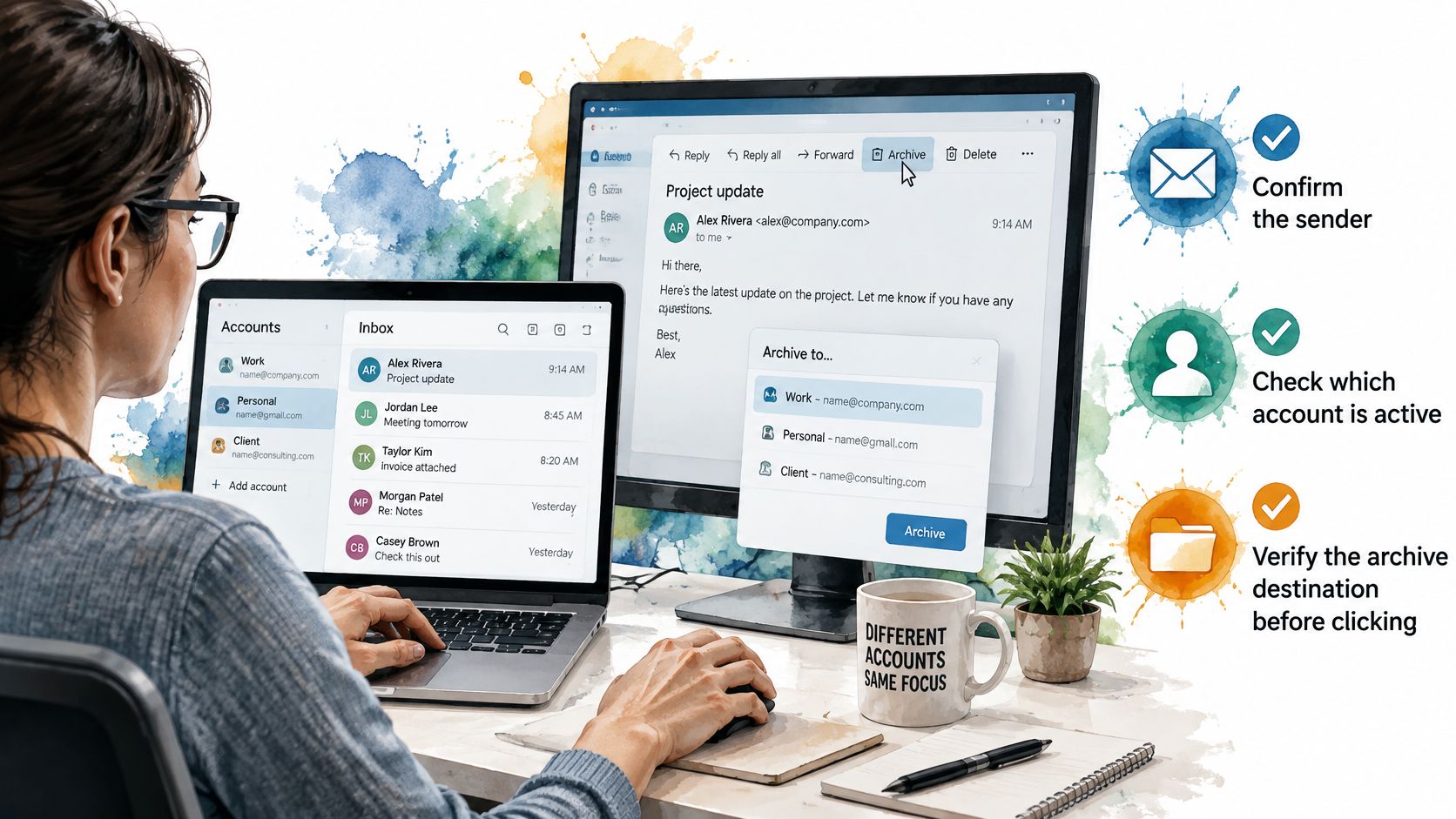
Say a client writes to your work address, but you're reading a combined view that also shows a personal Gmail account and a forwarded alias. Archive from the wrong context and you'll later search the wrong account, conclude the message is gone, and waste time in the wrong Archive folder. Run three checks before you click.
- Confirm the To line. Check the sender address and the To field so you know which account received the message.
- Archive from the receiving account. Don't act from a forwarding alias or shared address view if another account owns the original.
- Assign one archiver in shared inboxes. Agree on one person who archives finished threads, so two colleagues don't move the same conversation in different ways.
AI Assistants and Permissions
An assistant connected to your mail changes the stakes. With change permission, it can archive, move, or mark messages as read, and those changes reach every app showing the same mailbox. Mail that an agent archives is gone from the app, because all connected accounts share one mailbox. There's no separate assistant copy to fall back on.
Stage the access instead of granting everything at once. Start with read access, which lets an assistant list, search, and read mail without moving anything. Add change access only after you've run the search test on a sample thread and watched exactly where it landed. Keep send as a separate, deliberate grant, since read, change, and send are distinct permissions that should stop where you intended.
An assistant that can move mail should earn that permission on a test thread, not on your whole Inbox.
Revoke any assistant or client you no longer use rather than leaving dormant access in place. In Sickle, no agent tool deletes mail permanently, which limits the damage from a bad instruction, but an incorrect archive across accounts is still yours to untangle. For self-hosted IMAP servers, also check the archive folder mapping in your app's account settings. If no Archive folder is mapped, the button may be missing or may file mail somewhere you don't expect.
Common Archiving Problems and How to Fix Them
The most common complaint is simple. You archived a message, and then it came back to the Inbox as if nothing happened.
That behaviour is usually by design. In Gmail, a new reply in the thread returns the whole conversation to the Inbox, which helps when a discussion restarts and irritates when someone replies only to say thanks. Archive it again once you have read the reply, or mute the thread if you want the history to stay searchable without further replies resurfacing it.
| Symptom | Likely cause | Fix |
|---|---|---|
| Archived message returned to Inbox | New reply in the thread | Archive again, or mute the thread |
| Archive button missing or greyed out | Message in Drafts or Sent, or IMAP account without a mapped archive folder | Move the message to a folder, then check the account's archive folder setting |
| Archived mail missing on phone | Account not yet synced | Wait for sync, then check the Archive or All Mail folder |
| Storage not freed after archiving | Archived mail still counts toward the quota | Delete old archived threads you no longer need |
| Attachment missing on mobile | Partial download | Open the message on a desktop or re-download it |
Reading the Symptoms Correctly
A missing Archive button often means you're looking at a message in Drafts or Sent, where archiving doesn't apply the same way, or at an IMAP account with no mapped archive folder. Check the folder you're in first, then the account's folder settings. Archived mail that appears under the wrong account usually arrived through an alias, so re-check the original To line before moving anything further.
Storage complaints follow a predictable pattern. People archive thousands of messages, watch their quota stay flat, and assume archiving failed. It didn't fail, because archived mail still counts toward your quota. Only emptying Trash or permanently deleting mail frees space, so if quota is your actual problem, sort archived threads by size and delete the ones with large attachments you no longer need.
A missing attachment on mobile is often a partial download, since phones sometimes fetch headers and a preview first. Open the message fully, force a re-download, or confirm on a desktop before assuming the file is gone. Apply the same caution to an IMAP folder or a quick local export. A reliable archive is one you can search and verify, so confirm that archived messages and their attachments can still be found and opened before you treat the job as done. A casual export can omit sent mail, attachments, headers, or messages deleted before synchronization.
If archiving keeps failing, stop trying bulk actions. Move a single message, then search for it by sender or subject inside that account's archive folder. Finding it there takes under a minute and proves the archive worked, while failing to find it points to the folder mapping rather than the button itself. Scale back up only after that one message lands where you expect.
Set Up an Archive Routine You Can Trust
Make archive by default your standing decision, and delete only spam or mail with content you do not need to keep. That single rule removes most daily hesitation, because you stop re-deciding the same question for every finished thread.
Retrievability is where routines earn their keep. The 2020 U.S. National Archives and Records Administration federal agency report found that only 45% of federal agencies reported email records were retrievable during the normal course of business, and only 36% had identified permanent email records and maintained them until eligible for transfer. Large organizations struggle with exactly your problem at scale. Keeping messages isn't enough if nobody can find them under documented rules.
The Monthly Routine
- Run the search test per account. Do it once for each connected account whenever you add one, because each has its own archive folder.
- Do a monthly sweep. Archive finished threads, then check Trash before you empty it, so a mistaken delete gets caught while recovery is still easy.
- Review sensitive messages. Find mail containing passwords or bank details and delete the ones you no longer need instead of archiving them indefinitely.
- Audit permissions. Review AI assistant and client access every few months, and revoke anything you no longer use.
- Keep one view of all accounts. A single window over every mailbox means the sweep covers everything in one pass, with no account skipped.
For Mac users juggling several providers, Sickle brings Gmail, Outlook, iCloud, and IMAP accounts into one window with a colour for each account, which makes the receiving account obvious before you archive. You can remove mailboxes and revoke AI assistants yourself at sickle.app when the quarterly permission check turns up access you don't recognize.
The whole routine takes about five minutes a month. It prevents the archiving mistakes that cost people time: searching the wrong account, trusting an untested assistant, and discovering too late that Trash emptied itself.
If you're archiving across Gmail, Outlook, iCloud, and IMAP accounts and losing track of which mailbox owns which thread, Sickle puts them all in one native Mac window with a colour per account, so you archive from the right account every time. Connect your accounts, run the five-minute search test on a sample thread, and give AI assistants read access first before you let them move a single message.