How to Organize Email Folders Without Overbuilding Them
Learn how to organize email folders with five core folders, a four-pass inbox cleanup and safe rules for personal and work accounts.

Your Gmail or Outlook inbox mixes a client question, a bill, a delivery update and newsletters you haven't opened. You know an important reply is buried somewhere, but the folder sidebar isn't helping. There's a Projects folder, an Old Projects folder and several client folders whose names no longer mean much.
Learning how to organize email folders starts with reducing those decisions, not adding more places to put messages. Use folders to show what needs attention, keep records where they belong and let search handle the details.
Start With Five Folders That Cover Most Mail
Start with Action, Waiting, Reference, Receipts and Archive. These are working categories, not a filing taxonomy. You should be able to place a message without debating whether it belongs under a sender, subject or year.
Keep the inbox for newly arrived or unresolved mail. Once you've decided what a message means, either act on it or give it a deliberate destination. Moving unread mail somewhere else just to clear the screen doesn't resolve it.
Starter folders and what belongs in each
| Folder | What Belongs There | Review Rhythm |
|---|---|---|
| Action | Mail that needs your reply or decision | Clear at the end of each workday |
| Waiting | Messages where someone else owes you a response, with a follow-up date | Check Monday and Thursday |
| Reference | Information you intend to keep and revisit, such as contracts or travel details | Review quarterly |
| Receipts | Purchase confirmations and invoices for tax or returns | File monthly |
| Archive | Finished threads kept for search | Not reviewed; search when needed |
Action should contain identifiable work: approve the estimate, answer the question or choose a meeting time. Clearing it at the end of the workday means completing the work or scheduling it in a task manager, not pretending every request can be finished immediately.
Waiting holds requests you've already handed off. Add a reminder or calendar entry when you file the message, so checking the folder isn't your only protection against a missed deadline.
Reference is for information you consciously intend to consult again. Contracts, travel bookings and meeting notes belong here; messages you haven't decided about don't.
Receipts separates purchase records from correspondence. During the monthly filing session, capture anything needed by your accounting system and check returns or reimbursements before archiving completed paperwork.
Archive is the destination for finished conversations that don't deserve a special category. Use your provider's existing archive destination rather than creating a duplicate with a similar name.
Practical rule: Every folder needs an obvious action attached, whether that's replying, chasing, consulting, recording or searching.
If you can't describe what you'll do when you open a folder, merge it into another one. A folder called Miscellaneous is usually a postponed decision, not a useful destination.
Choose One Organizing Axis Before Building Folders
A message can concern a project, come from a particular client, discuss a topic and require a reply. Trying to represent all those attributes with separate folders forces you to choose which version of the message matters most.
Choose one primary organizing axis per account. For daily correspondence, I'd use action as the default and reserve specialist folders for genuine exceptions.
Choosing a primary organizing axis
| Axis | Best For | Weakness | Pick When |
|---|---|---|---|
| Project | Time-bound work with many replies | Fragments once the project ends | You revisit the whole set while it runs |
| Sender | Clients or vendors with separate records | Breaks when one sender serves many projects | A retention or access rule applies |
| Topic | Reference material such as travel or tax | Overlaps and fragments mail | Information must be kept, not just decided on |
| Action | Daily work you owe or are owed | Needs a review rhythm | You must reply, decide or chase |
A project folder earns its place when you repeatedly review a conversation set, such as approvals for an office move. It's less useful for a purchase that produces a confirmation and a delivery notice.
A sender folder makes sense when you need a predictable collection for handover or recordkeeping. But a consultant who works across unrelated projects shouldn't automatically determine your entire filing structure.
Topic folders need the strictest boundaries. A travel invoice could fit Travel, Finance, Receipts or a client's name. Choose the destination that supports the required recordkeeping, then use search for the other attributes.
Test the reason before creating the folder
Ask what opening the proposed folder will help you do. If the answer is only that the messages share a subject, Reference or Archive may be sufficient.
Skip manual filing when there's no follow-up, retention requirement or recurring project review. Archive useful correspondence and delete disposable mail. Neither needs a new category merely because it arrived.
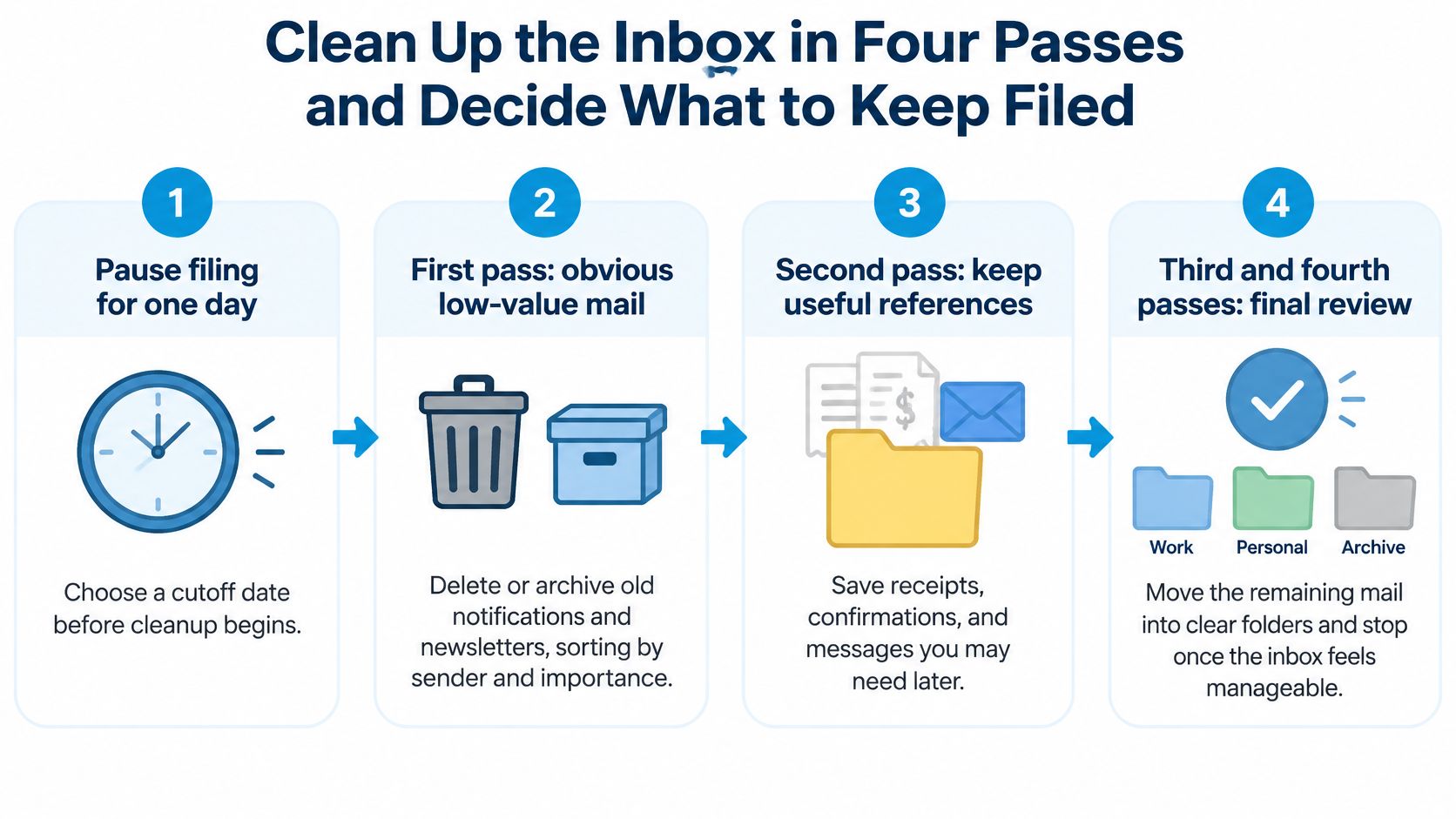
Clean Up the Inbox in Four Passes and Decide What to Keep Filed
Pause routine manual filing for a day and choose a cleanup cutoff date. Treat older mail as the backlog, while keeping fresh requests visible so the cleanup doesn't interfere with current work.
Use search first, shallow folders second. Before creating any additional destination, try finding a representative message by sender, distinctive subject words or date. If that route is straightforward, you may not need the folder.
Run the cleanup passes
- Remove obvious low-value mail. Group old notifications and newsletters by sender, then delete or archive batches after checking their contents. The common slip is reading each message chronologically instead of clearing predictable groups.
- Handle work-critical messages. Reply when the response is quick and certain; otherwise move the message to Action and record the next step. Don't let one complicated request consume the cleanup session.
- Check important senders. Search clients, colleagues and other people whose requests you can't afford to miss. Move outstanding requests to Waiting with follow-up dates, but don't assume every message from an important person requires action.
- Separate keepers from undecided mail. Save useful information in Reference and put research-dependent replies in Action with a task. Leave undecided messages in the inbox rather than hiding them under Reference.
The Microsoft Research email-triage study found that 46% of reported triage actions handled easy-to-delete or easy-to-archive mail first, while 28% focused on work-important messages. These are sensible starting priorities, not quotas for your cleanup.
Use the visual as a broad cleanup overview, while keeping the action decisions explicit.
Choosing between a folder, search and the inbox
| Mail Type | Best Handling | Why |
|---|---|---|
| One-off thread with no follow-up | Archive and search later | Avoids browsing a folder you rarely open |
| Ongoing project with many replies | Project folder | You revisit the whole set while the project runs |
| Client messages that must be kept | Client folder or rule | Retention and handover need a predictable location |
| Newsletters and automated alerts | Rule to one folder, or unsubscribe | Keeps them out of the inbox without manual sorting |
| Mail you cannot decide on yet | Leave in the inbox | Undecided mail filed by rule or by hand gets lost |
Filing isn't automatically better retrieval. An ITnews account of IBM's email study describes 345 users and approximately 85,000 retrieval attempts, finding that filing users were no more successful at locating messages and were marginally slower.
For finished conversations, learn how to archive an email in your provider before moving large batches. For scheduling the work, AIDictation's inbox triage and batching system offers a useful companion to folder cleanup.
Record the unresolved count when you finish. Over subsequent sessions, track missed follow-ups, the share left unresolved and median retrieval time for messages you need. Use consistent subject keywords and project identifiers in new correspondence so you're not dependent on remembering a folder path.
Keeping Folders Consistent Across Personal and Work Accounts
Say a freelancer uses personal Gmail, work Outlook and a client's company IMAP mailbox. Action could contain a household bill, a team deadline or an invoice dispute. The folder's meaning should stay constant, even though the responsibilities differ.
Keep the account identity visible alongside the familiar folder names.

Translate the scheme, not the responsibility
Gmail uses labels, so a message can carry several classifications. Outlook and conventional IMAP folders generally place a message in a particular folder. In Gmail, removing the Inbox label isn't the same operation as adding an Action label, so check both when establishing your workflow.
For the freelancer, Action should always mean that the account owner owes a response or decision. In the client mailbox, that owner may be a team rather than an individual. Make assignment explicit in a shared task system instead of assuming everyone knows who will reply.
Use separate client destinations only when access, reporting or retention requirements justify them. Don't copy company correspondence into a personal mailbox merely to make searching easier.
The accompanying video offers another way to think through the folder setup.
Make account boundaries unmistakable
Give accounts distinct display names or colours, then check the sending identity before replying. A consistent folder scheme should transfer your habits, not blur who you're representing.
- Same names: Use the same core vocabulary across accounts.
- One purpose per folder: Don't let Waiting mean delegated work in one mailbox and unread mail in another.
- One review rhythm per account: Set account-specific review appointments that match its obligations.
When migrating old folders, stop adding to the obsolete structure first. Keep legacy folders searchable, then consolidate only where retention rules and permissions allow it. You don't need to manually re-file years of correspondence to improve tomorrow's workflow.
Automating Rules Without Misfiling Important Mail
Start with predictable bulk mail, not client correspondence. A newsletter's dedicated sending address or a receipt notification is a safer rule target than a broad keyword such as invoice, which could also appear in an urgent dispute.
Use exact senders where possible. A domain-wide rule is too broad when the same company sends both automated notices and messages from people.
Build rules in a controlled order
- Define workflow states. Establish the core destinations before letting rules move anything.
- Add justified exceptions. Create account or project destinations only for separate retention, access or reporting needs.
- Route predictable mail. Test newsletter, receipt and routine notification rules on a small sample.
- Leave ambiguity visible. Keep messages requiring interpretation in the inbox.
- Audit monthly. Inspect false positives, overlapping rules and destinations you no longer open.
For Gmail's implementation details, How to Contact explains how to automate your Gmail inbox. When comparing broader email automation tools, prioritise visible rule conditions and reversible actions over elaborate rule chains.
Check what the rule could hide
A receipt rule should match the store's notification address, not every message containing purchase. Test without moving existing mail first, inspect the matches, then enable the destination action.
Historical corporate mailbox research in Microsoft Research's folder study found an average of 133 folders, while the average proportion of failed folders remained 16%. Adding destinations doesn't guarantee that people will use them successfully.
Automation should remove a predictable decision, not make an uncertain decision invisible.
Never enable automatic moves for key clients or compliance-relevant senders until you've verified the matches. Also check that Waiting items still have reminders and that Reference contains deliberate keepers, not everything a rule couldn't classify.
Letting AI Tools Touch Your Email Folders Safely
Separate AI access into read-only, change and send permissions before connecting a mailbox. Reading can expose confidential content even when the tool can't alter anything. Change and send permissions introduce different consequences.
AI access levels and safe first uses
| Access Level | What the Tool Can Do | Safe First Use | Main Risk |
|---|---|---|---|
| Read-only | List and search messages | Identify newsletters and unanswered mail | Confidential content is exposed during reading |
| Change | Move, label or mark messages | Move mail only after a rule passes a small-sample test | A wrong classification hides client mail |
| Send | Reply on your behalf | None until you approve each message | Accidental disclosure to the wrong recipient |
The trade-off is practical: less manual handling can mean broader access to sensitive correspondence.
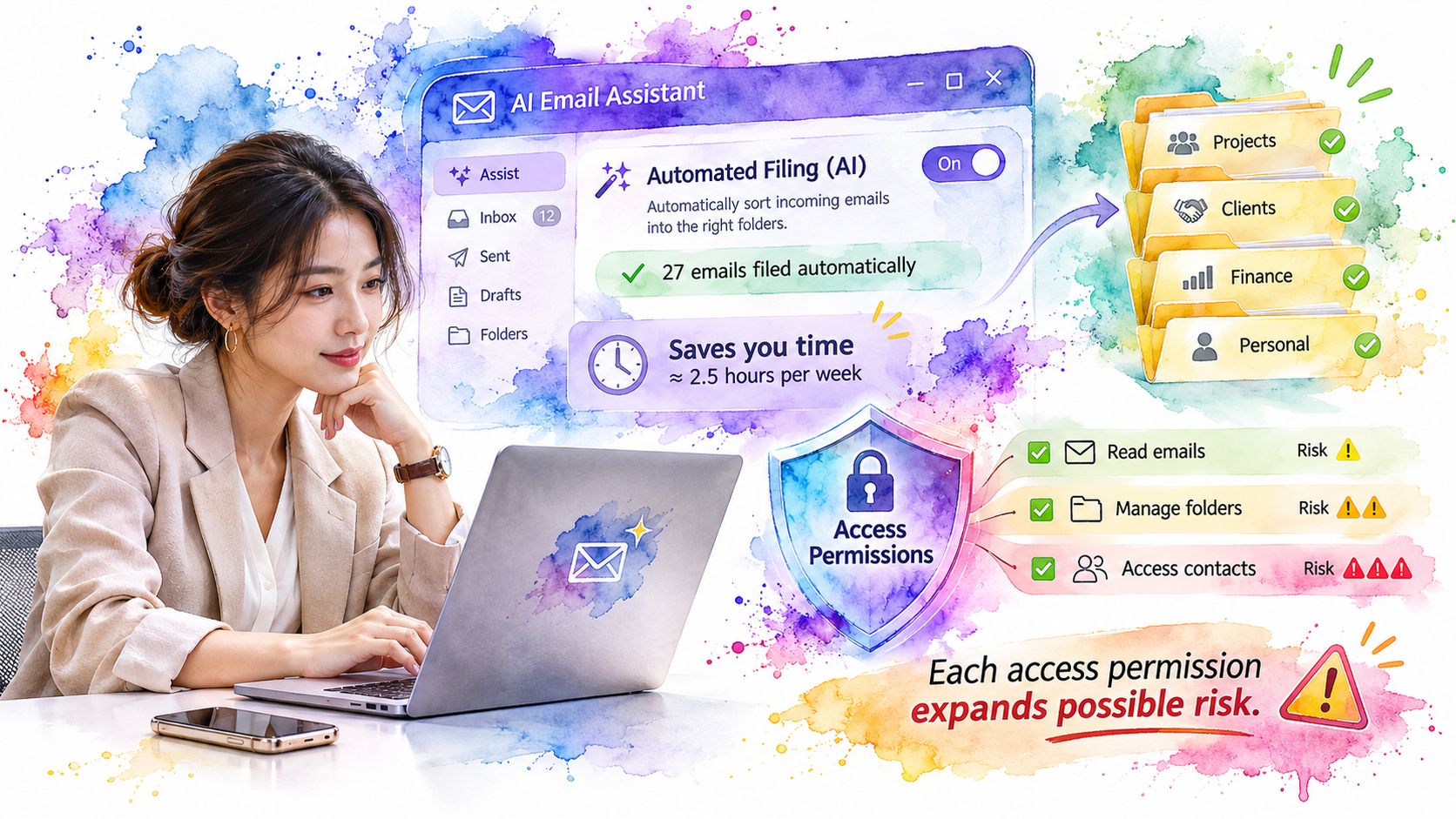
Start with suggestions rather than moves. Ask the assistant to identify likely newsletters or unanswered requests, inspect its selections and only then consider allowing changes. Privacy deserves a separate decision from convenience, a distinction also raised by MDaemon's discussion of inbox clutter.
Check access beyond the folder action
Before granting email permissions, establish whether message content leaves your device, who processes it and how long copies remain. Require an activity history that lets you inspect changes, and confirm how to revoke access.
- Limit the scope: Connect only the accounts needed for the task.
- Check authority: Get approval before connecting shared or company-operated mailboxes.
- Plan recovery: Confirm how to reverse moves and identify affected messages.
Client confidentiality, employment records and regulated information can coexist in one mailbox. The most efficient setup isn't automatically the safest: broad access may save filing work while making a single mistaken disclosure much more consequential.
Set Up Your First Folder Set This Week
Treat this as a short implementation project, not a complete historical reorganisation. Choose your main account first, and leave the others unchanged until the workflow is usable.
Follow a three-day setup plan
- Day one, create and define: Add the starter folders and write a sentence describing what belongs in each. Put the review appointments on your calendar, including the Waiting check.
- Day two, process the backlog: Run the cleanup passes against your chosen cutoff. Record the unresolved count and make sure every Action message has an identifiable next step.
- Day three, test one rule: Choose a newsletter or receipt sender, inspect a small sample and verify that ordinary correspondence won't be moved with it.
Don't judge the result by how tidy the sidebar looks. Test whether you can find a recent attachment, identify your next reply and see which requests need chasing.
The most important takeaway: Build the smallest folder system you can review reliably, not the most detailed system you can design.
Bring the other accounts into the routine
Add the remaining accounts individually, using the same definitions while respecting their separate obligations. For Mac users, our native Sickle mail client brings Gmail, Outlook, iCloud, Fastmail and any IMAP mailbox into one app, with a colour per account. That makes it easier to check which identity you're handling without maintaining different filing habits.
If you connect an assistant, review its actual permissions rather than relying on a general access label. Read permission lets it list, search and read mail; change permission also permits marking messages as read, moving them, moving them to Trash, saving drafts and attaching files to drafts.
Revoke access you no longer need. Our agent tools don't permanently delete mail, which limits the consequences of a mistaken cleanup action, but moving a message to Trash still deserves scrutiny.
Finish by scheduling Monday's Waiting review. Open the folder, check each follow-up date and chase the requests that are due. That appointment is what turns a set of folders into a maintained system.
Sickle brings your existing mailboxes and folders into one Mac app, with distinct account colours to help you keep personal, work and client correspondence separate. Visit Sickle to put your starter folder scheme to work across providers, then add assistant access only with the permissions you need.