Email Permissions Explained: Read, Change and Send Access
Learn what email permissions control, how read, change and send access differ, and how to limit and revoke AI agent access safely.

You gave an AI assistant access to your inbox a few weeks ago. It summarised a long thread, drafted two replies and filed a pile of invoices. Then a colleague asks what exactly you handed over, and you open the settings screen to find three toggles, a connected mailbox and no clear memory of which ones you approved.
Many users meet email permissions at that moment: after the fact, on a screen full of words like read, modify and scope. The consent dialog that created them took four seconds to click through. The distance between that click and what it authorised is where nearly all the confusion lives.
Getting it right is a short piece of learning. A mailbox permission is a small, named set of abilities. It can be read off a settings page, checked, narrowed and withdrawn. Once you can name the level you granted, you can decide whether it was the right one.
What Email Permissions Control and Why They Matter
Think about the key card a hotel hands you at check-in. It doesn't open every door in the building. The front desk programs it for your room, the gym and maybe the car park, and nothing else. Hand it back and it stops working. An email permission behaves the same way. It isn't a copy of your password and it isn't a promise of good behaviour. It's a programmed right to open specific doors inside one mailbox.
Stated plainly, an email permission is the right an app or an AI assistant holds to act on a named mailbox. The important part is the timing. The permission is set when the account is connected, not when a message is read. That's why the effects arrive later than the decision, and why people are surprised by them.
The two questions every grant answers
Whatever the provider calls its settings, a permission settles two things.
- Scope: what the connection can see. Envelope-level data such as senders, dates and labels sits at one end; full message bodies and attachments sit at the other.
- Control: what it can do. Reading and summarising leave the mailbox untouched. Moving, labelling, drafting and sending change it or reach other people.
Keep those two questions separate and most consent screens become readable. Google's own Gmail documentation splits its scopes along exactly this line, with some granting visibility only and others granting read or write operations.
One connection, several mailboxes
A personal Gmail account, a work Outlook mailbox and a company IMAP server are three separate connections, even when one assistant reaches all of them. Each carries its own grant and each has to be reviewed on its own. This is the single most common blind spot: people approve a new account for one narrow job and assume the assistant's existing access stays where it was. It doesn't widen. It does keep running.
If the plumbing is unclear, the explanation of what an MCP server does in AI covers how an assistant talks to a mailbox in the first place.
Three actions run through everything that follows: read, change and send. Each can be granted or withdrawn independently, and the work is choosing the level, checking it, and taking it back when the job is finished.
Read, Change and Send Permissions Compared
Four levels cover almost every real task, and each maps to a named permission you'll see on a consent screen. The table is the whole subject in one view.
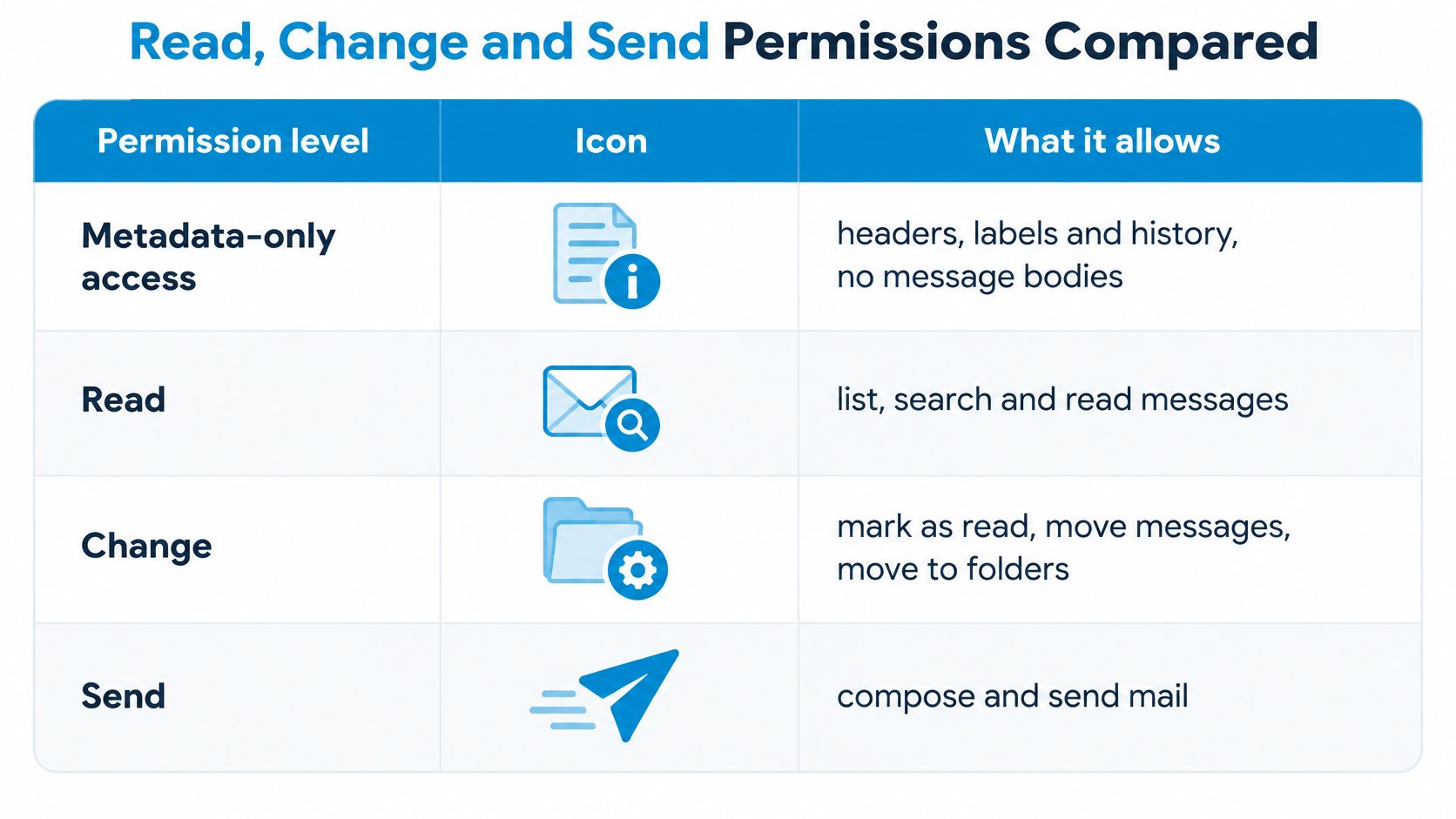
| Permission level | What the agent can do | Gmail scope equivalent | Main risk if misused |
|---|---|---|---|
| Metadata only | See headers, labels and history, not message bodies | gmail.metadata | Exposure of who contacts you and when |
| Read | List, search and read messages | gmail.readonly | Exposure of private message content |
| Change | Mark as read, move, move to Trash, save drafts, attach files to drafts | gmail.modify | Mail moved or trashed by mistake, though Trash is recoverable |
| Send | Send email to external recipients | gmail.send | An outgoing message that cannot be recalled |
Google's Gmail API scopes reference sets out the ladder precisely. The metadata scope exposes headers, labels and history but not message bodies or attachments. The read-only scope reads messages and settings. The send scope sends without read or modify privileges. The modify scope covers read and write operations that exclude immediate permanent deletion. Google also classifies many Gmail scopes as restricted and subjects them to additional verification, and its guidance recommends requesting the minimum scope needed.
Walk the rows in order and the risks sort themselves by severity.
Metadata only is the envelope, not the letter. You learn who writes to you and how often. For anyone scanning for unanswered client mail, this is often enough and it exposes no content.
Read opens the message itself. It cannot send and it cannot permanently erase, which makes it the safest way to let an assistant summarise a thread or find a confirmation number.
Change is where a mistake becomes visible. Mail can land in the wrong folder or in Trash. Trash is recoverable, so this level is an inconvenience at worst rather than a loss.
Send is the only level that leaves your account entirely. A message delivered to an external recipient cannot be pulled back, which is why it deserves separate approval rather than being bundled into a broad grant.
A connector that follows this ladder, such as the one Sickle runs, exposes read, change and send as three separately revocable permissions, and marks the send tool so the assistant's app asks you to approve every message. One layering detail is worth knowing: the provider grant and the connector's split are two different things. When a Gmail mailbox is connected through Sickle, Google is asked for the full Gmail access scope, and the read, change and send split is enforced inside the connector on top of it.
Outlook and Microsoft 365 mailboxes, and plain IMAP servers, support the same three levels under different names. Read the grant screen against this table rather than assuming the labels mean the same as Google's.
Matching the Right Permission to Each Task
The useful habit is to start from the task and work backwards. What is the smallest ability that finishes this job and nothing more?
| Task | Minimum permission | Reason |
|---|---|---|
| Triage unanswered mail by sender | Metadata only | Headers and labels reveal patterns without bodies |
| Summarise a thread | Read | Message content is needed, nothing changes |
| Draft a reply for review | Read plus change | Drafts can be saved without sending |
| Archive or move newsletters | Change | Moving to Trash stays reversible |
| Send a reply on your behalf | Send, approved per message | External side effect that cannot be recalled |
| Permanently delete mail | Not granted by default | The connector's tools do not permanently delete messages |
Read the table as a budget. Each row buys a specific capability and charges a specific risk. Triage costs almost nothing because the assistant never sees the writing inside the envelope. Summarising costs privacy but not control. Drafting costs both, yet stops short of the one action you can't undo. Sending is the only row where the charge lands on somebody else.
Here's how the rows combine in practice. Say a consultant handles client correspondence through a personal Gmail account and a company IMAP mailbox on the same assistant. She begins with metadata on both, because she mainly wants to know which clients are waiting on a reply. After a week, the pattern is clear, so she adds read access to the client mailbox only, since summarising those threads is the actual job. Drafting comes next, because saving a draft is reversible and takes the typing out of the reply.
Sending stays off. When she does enable it, she reviews each outgoing message before it leaves, and she knows the approval prompt exists because the connector flags it.
Start narrow, widen on demand. The smallest permission that completes today's task is almost always the right starting point, and it costs one extra minute to add a level later.
The principle generalises past email. Any time a tool offers you a broad grant with a friendly label, ask which row of the table it corresponds to, then pick the row rather than the label.
Email Permission Myths That Lead to Over-Granting
Four beliefs account for most over-granting, and each one is wrong in a specific, checkable way.
"Connecting an account only lets an app read what I see on screen." The grant is a standing right. It continues whether or not you're looking at the app, whether the window is open or the laptop is shut. Nothing about your attention limits it.
"A permission on one account covers all of my accounts." Each mailbox connection carries its own grant. A Gmail connection, an Outlook connection and an IMAP connection are three separate approvals, and reviewing one tells you nothing about the other two.
"If the agent sends nothing today, it cannot send later." A send permission stays live until somebody revokes it. An unused send grant isn't dormant, it's available.
"Closing the Mac app removes the agent's access." Access belongs to the connected account, not to the open window. Mailbox sign-ins are held by your Sickle account, which is exactly what lets an assistant reach your mail while the Mac is switched off. Confirm the current behaviour in the app before you rely on a habit.
There's a second meaning of the phrase that trips people up in vendor documents. In marketing, email permission means consent to receive messages, and the legal models differ sharply. The CAN-SPAM Act of 2003 set a US baseline built on opt-out: prior permission isn't always required, but senders must offer a working way to stop future messages, use accurate headers and a valid postal address. The EU's GDPR, enforceable since May 2018, requires consent that is freely given, specific, informed and unambiguous, and organisations must be able to show how and when it was obtained.
The consequences are not theoretical. Pizza Hut was fined $2.5 million in 2024 for sending spam to consumers without consent, per the Australian Communications and Media Authority. And broad requests earn suspicion: a 2017 study summarised by Marketing Week, surveying 1,180 consumers and 310 marketers, found only 6% of consumers would opt in to all contact requests, against 19% of marketers who expected they would.
Mailbox access is a different question from marketing consent. Don't let one set of rules answer the other.
Safeguards That Limit an AI Agent's Mailbox Access
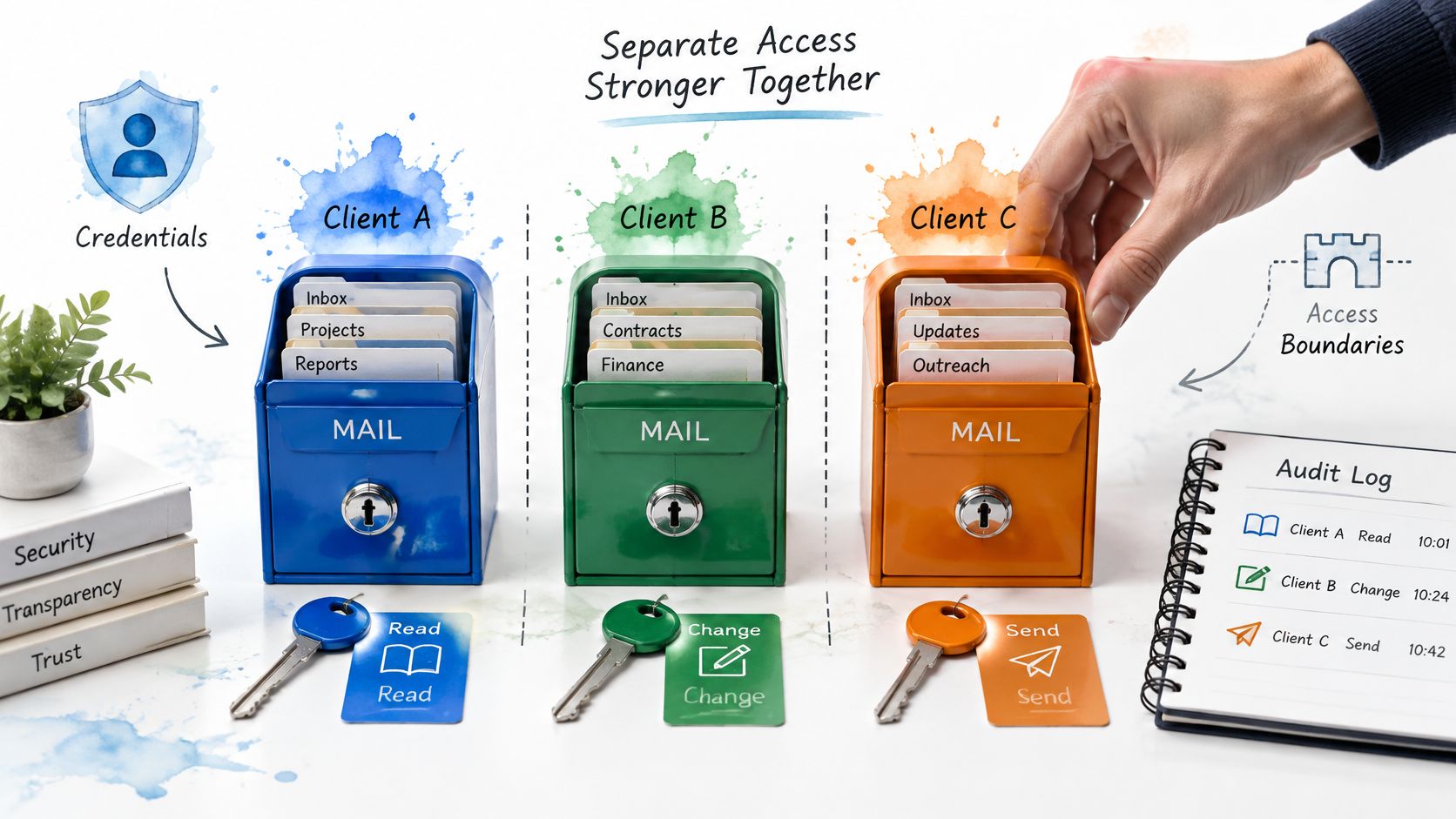
A mistaken instruction can turn into a real mailbox change. Safeguards work like separate controls on a set of keys: one limits what an assistant can inspect, another what it can change, and a third whether it can send. The useful question is how those controls limit exposure if an agent acts on the wrong instruction or encounters a hostile message.
Can you limit what the assistant can do? Sickle offers separate read, change and send permissions. Read allows an assistant to list, search and read mail. Change allows it to mark messages as read, move them, move them to Trash, and save drafts with attachments. Choose only the access needed for the task.
Does sending require a separate approval? Sending reaches people outside your mailbox, so treat it as a distinct permission. Sickle marks its send tool so the assistant's app asks you to approve each send.
The walkthrough below shows how an assistant can reach a mailbox without the Mac app running.
Can the assistant permanently delete messages? Sickle's connector tools do not permanently delete mail. Moving a message to Trash is a change, but it is not the same as permanent deletion.
What happens to mail and credentials used by the connector? Mail fetched, drafted or sent through the connector is not retained by Sickle. Mailbox credentials used by the connector remain in server memory for up to five minutes to keep repeated calls fast. These limits reduce stored data, but they do not replace choosing narrow permissions or reviewing access over time.
Permissions shape what an assistant can do; they cannot ensure it interprets every message safely. For another layer of protection, read about securing AI agents against prompt injection. If you are connecting an assistant to other tools too, this guide to AI agent plugins and their access explains how those connections add permission boundaries.
Auditing and Revoking Agent Access Safely
Here's the uncomfortable part. Granular scopes do not equal granular accountability. A permission screen describes what an agent may do; it says nothing about whether you can end that access cleanly once it's running. The questions that matter are operational. Does revocation cut the connection? Does it reach every mailbox the agent could touch?
The 2025 IETF draft on agent authorization requires revocation mechanisms but leaves the practical handling of delegated-token revocation open. The same work notes that a consent screen naming only an application is insufficient when a downstream agent acts for you, because you need to know which specific agent holds which scopes.
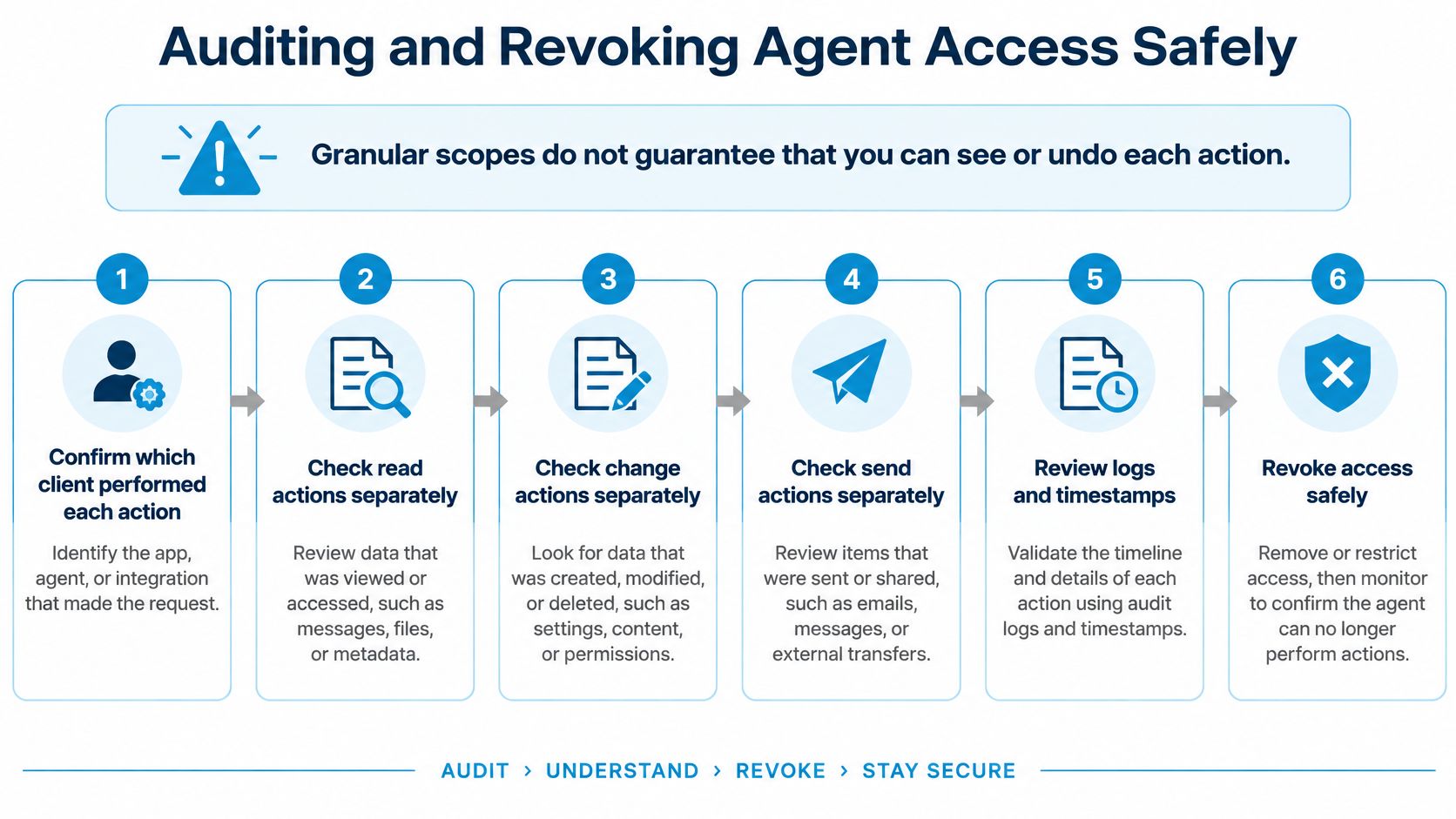
The good news is that revocation is a short sequence, and it works the same way whether you're ending one assistant's access or pulling a mailbox out entirely.
The revocation sequence
- Name the assistant you're disconnecting and what it holds. Agent access sits on scoped keys issued per client, with separate read, change and send permissions. Your revocation target is that assistant, so confirm which grants it was given before you remove them.
- Revoke the assistant. Its read, change and send access ends together, which is the point of scoping keys per client rather than per mailbox.
- Remove the mailbox only if you're disconnecting it too. Mailbox sign-ins are kept by your account rather than your Mac. That's why an agent can reach your mail while the Mac is off, and why a connected mailbox stays connected until you remove it.
- Verify the revocation. Ask the agent to read a mailbox and confirm the request is refused. With delegated-token revocation still unsettled across current standards, a failed request is the only reliable evidence the grant is gone.
Sickle users can revoke AI assistants and remove mailboxes themselves at sickle.app, without contacting support or waiting for a cleanup job.
If a request still succeeds after revocation, revoke again and then check the provider's own security settings for the account. That combination catches the two realistic causes: a credential that outlived its revocation, and a grant made outside the tool you thought you'd removed.
Confirm Permissions Before You Connect Another Account
One more mailbox is always a small convenience and never a small grant. Run this before you approve the next connection.
List every connected mailbox with its purpose and owner. Write the two beside each address: what this connection is for, and whose data sits in it. A work mailbox and a personal one carry different obligations, and the list is what stops a forgotten grant from hiding.
Record the sign-in method. Gmail and Outlook or Microsoft 365 accounts sign in over OAuth, and every other mailbox connects over IMAP. The distinction matters because OAuth grants and stored IMAP credentials get revoked in different places, and a review that only covers one of them leaves half the access intact.
Verify each agent holds only what its task needs. Read where summarising happens, change where organising happens, and send switched on only for a workflow where a reviewed draft is the final step. If you can't name the task, the permission has no justification.
Check whether the grant survives changes you made for other reasons. A previously approved integration can keep its access until somebody revokes it, even after your workflow or your organisation's rules moved on. Security reporting on AI tools and persistent OAuth access describes exactly that pattern: mailbox and cloud access that outlives the controls introduced later, and unused grants that stay active until a person finds and removes them.
Set a review date. Once a quarter is enough. Put it in the calendar as an actual task, because permission sprawl doesn't announce itself. It accumulates one reasonable-sounding approval at a time.
The sprawl risk in one line: a single forgotten grant on a multi-account connection exposes every mailbox that connection reaches, not just the one you were thinking about.
Pulling several providers into one window makes this easier to audit, since the inventory already exists in one place, as this overview of an email aggregator explains. It also makes the stakes clearer: one list, one review.
Then make the call. If every line on the checklist is answered, connect the account at the level the task requires. If the purpose isn't clear yet, connect it read-only and leave it there until it is.
Sickle is a macOS email client that also runs a hosted connector, so the mailboxes you read in the app can be opened to an assistant under separate read, change and send permissions you can revoke yourself. If this piece changed how you think about access, the practical next step is to connect one mailbox, switch on reading only, and watch what the assistant does before you allow a single send. You can start with a seven-day trial at Sickle, which includes the app, every connected account and the agent connector.