Unsubscribe from Mailing List: How to Stop Emails for Good
Learn how to unsubscribe from mailing list emails in Gmail, Outlook and Apple Mail, fix messages that keep coming and clear old newsletters.

You bought something from a retailer, and its newsletter has arrived almost daily ever since. You finally click unsubscribe, see a confirmation, and then another offer lands in your inbox. Before you repeat the click, check which list the new message belongs to.
Unsubscribing stops a subscription, not necessarily every email from a company. The practical fix is to identify each remaining list, close the ones you don't want, and separate future subscriptions from the old newsletters already filling your mailbox.
Where the Unsubscribe Option Lives in Your Inbox
Start at the top of the message, not the bottom. Gmail and Yahoo can display an Unsubscribe control beside the sender's name, while Outlook can show an unsubscribe banner above bulk email. These controls save you from hunting through a long promotional footer.
If there's no header control, scroll to the message footer. A footer link may remove you directly or open a preferences page with separate options for promotions, product updates and events. Read that page before confirming, especially if you want to stop everything promotional rather than reduce the frequency.
Unsubscribe methods and what each one stops
| Method | Where you find it | What it stops | Reliability |
|---|---|---|---|
| Header unsubscribe button in Gmail or Yahoo | Beside the sender name at the top of the message | The mailing list tied to that message | High for bulk senders with working unsubscribe support |
| Outlook unsubscribe banner | Above the message body on bulk mail | The mailing list tied to that message | High where the sender supports one-click |
| Footer link | Bottom of the message | Often the sender's marketing list; other lists may stay active | Medium; some links open a preferences page |
| Reply asking to be removed | Your own reply to the sender | Only what the sender's team processes | Low; unmonitored addresses may ignore replies |
| Spam report | Report spam button in your mail app | Helps your provider filter unwanted mail, rather than cancelling a subscription | Medium; a filtering signal, not a dependable opt-out |
A spam report isn't interchangeable with an unsubscribe. Your provider may use complaints to adjust filtering, and some senders receive complaint feedback, so don't assume reporting is either a private block or a confirmed removal.
In 2024, the average email unsubscribe rate was 0.14% across all industries in GetResponse's benchmark dataset. That measures unsubscribe activity, not whether an individual subscriber will eventually leave, but it's a useful reminder that unwanted subscriptions don't disappear by themselves.
Practical rule: Use the header button first, then the footer. Reply only when neither exists and you trust the sender.
For a reply, keep the request simple: ask the sender to remove your address from its marketing lists. Don't include account passwords, order details or other information it doesn't need.
How to Unsubscribe Step by Step in Gmail, Outlook and Apple Mail
The labels differ across apps, but the decision is the same: use the mail app's unsubscribe control when available, then use the sender's footer if you need broader preference choices. Start in the app where the unwanted message arrived.
Use your mail app's unsubscribe control
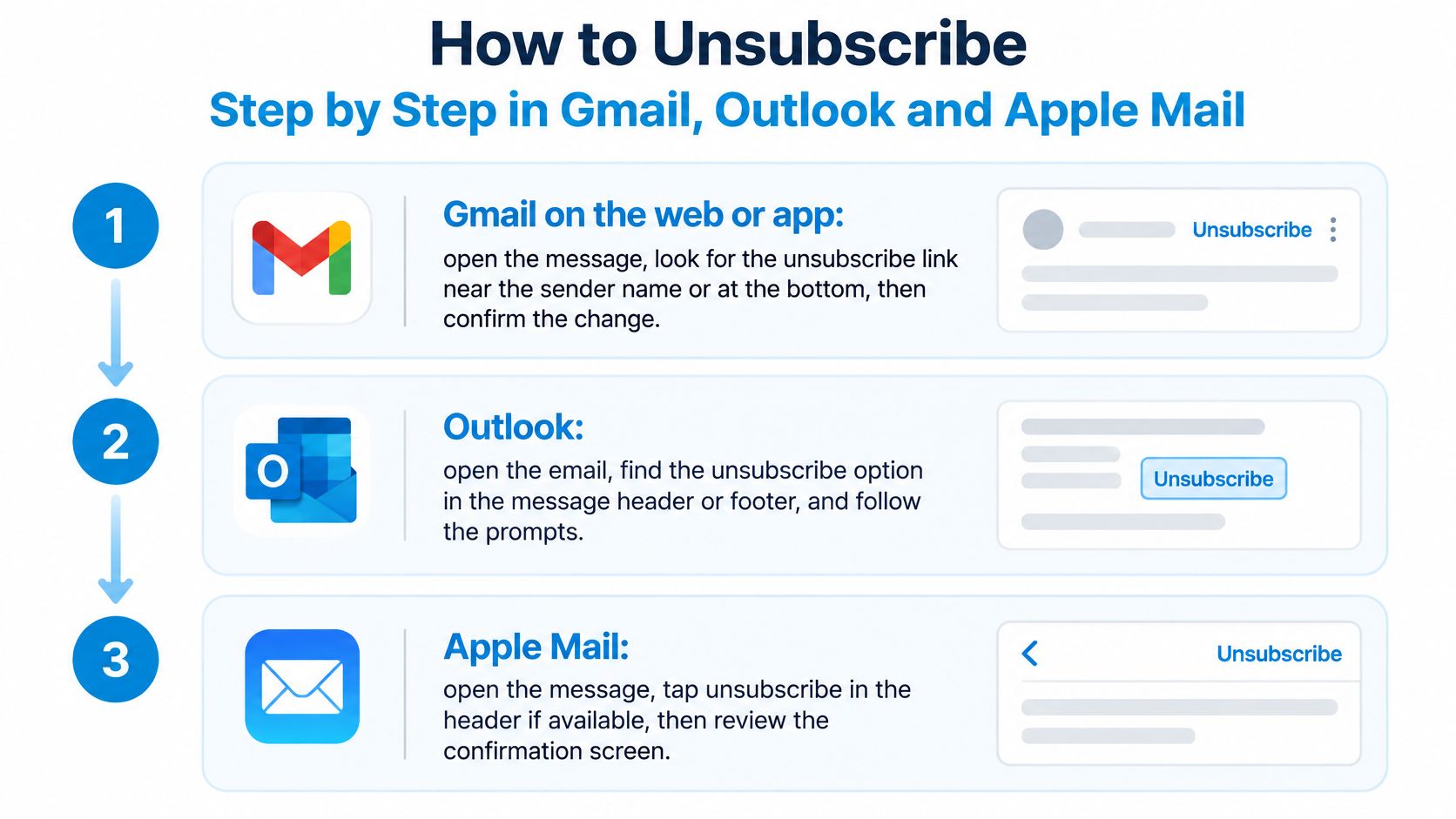
Gmail on the web or app. Open the newsletter, look beside the sender name for Unsubscribe, and select it. Confirm if Gmail displays a dialog; this submits the request without making you visit the sender's promotional page.
Outlook. Open the message and look for an Unsubscribe banner above the body or an unsubscribe option in the header. Select it and follow the prompts; if it isn't available, use the footer route below rather than searching account settings.
Apple Mail on macOS. Open the message and click Unsubscribe in the header when Mail offers it. If there's no control, scroll to the footer, because the absence of a header option doesn't mean the sender has no opt-out mechanism.
Yahoo Mail on the web. Open the email, select Unsubscribe beside the sender's name when available, and confirm. Check that you're acting on the newsletter you want to stop, rather than another message from the same brand.
iPhone Mail. Open the message and tap the unsubscribe link in the header when it appears. Otherwise, use the footer link and review the sender's preference page before saving.
The illustrated routes help you locate the controls without confusing them with delete or archive.
Finish the request on the preference page
Use the footer in any app. Follow the unsubscribe link and choose between leaving the current list and stopping all available marketing. The sender defines these choices, so check the wording beside each checkbox rather than assuming the largest button removes you.
Save and record the result. Complete any final confirmation, then note the sender, list name, receiving account and request date. Save a confirmation screen or message if the sender provides one, so you have something concrete to refer to if delivery continues.
Say a clothing store offers sale emails, new-arrival alerts and a monthly digest. Choosing the digest reduces delivery but keeps your subscription active; choose the full marketing opt-out if you don't want any of those messages.
A confirmation screen proves the request was accepted. The absence of later messages from that list proves it was applied.
Don't confuse deleting the current newsletter with unsubscribing. Delete and archive organise messages you already have; they don't tell the sender to stop the next campaign.
Spotting Real Unsubscribe Links and Avoiding Traps
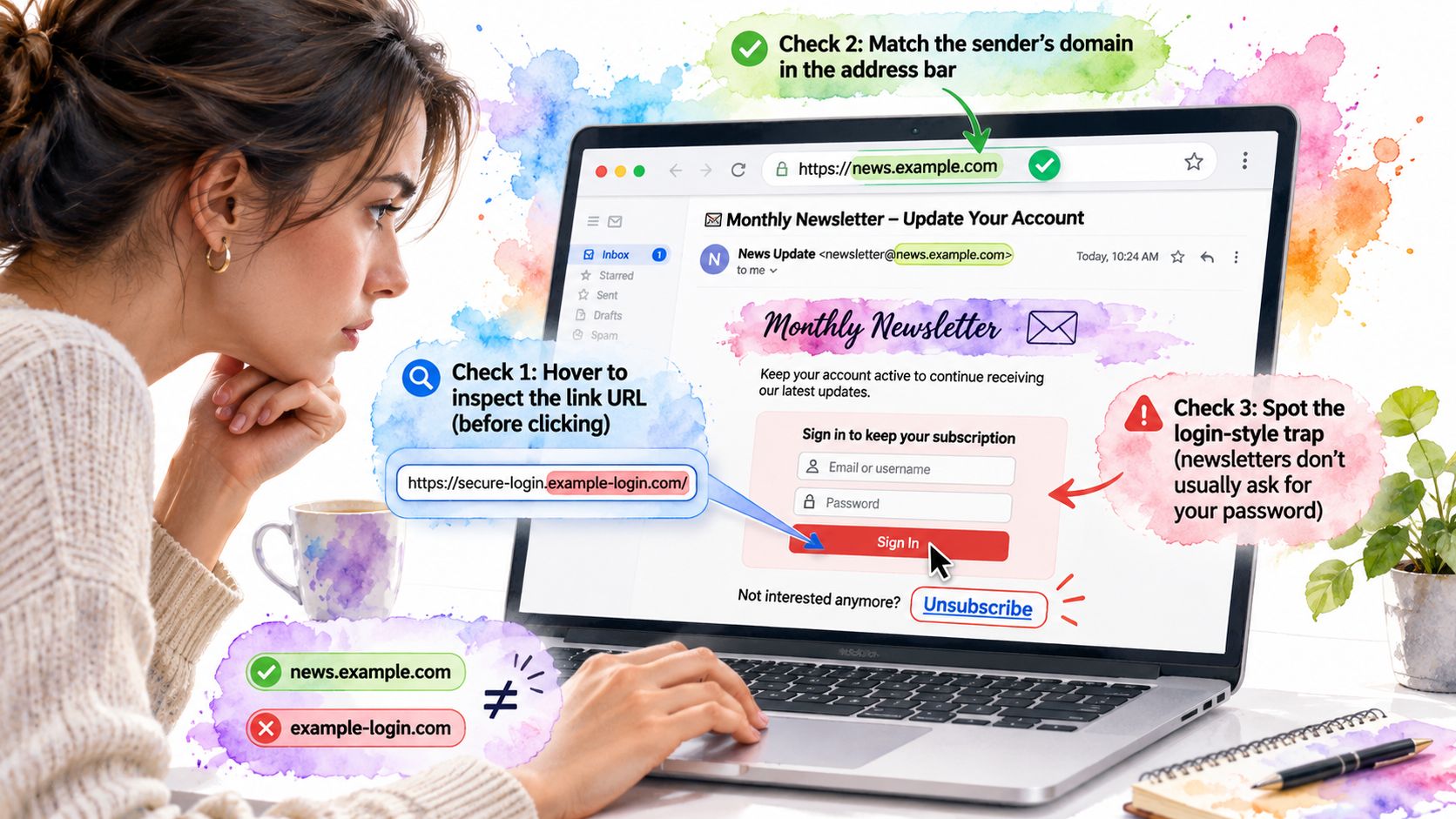
A message can look like a familiar retailer's newsletter and still send you to a page built to steal your login. Treat an unsubscribe link with the same caution as an unexpected payment request.
Check the destination and the request
- Inspect the destination. Hover over the link on a computer, or preview it carefully on your phone. A misspelled brand domain is a warning. A different domain may belong to a legitimate email platform, but check that it makes sense for the sender.
- Reject credential demands. Leaving a marketing list should not require your password, payment details or identity document. If a shipping notice's unsubscribe link opens an unrelated login page, treat it as suspicious.
- Read the confirmation wording. Confirming an opt-out is different from confirming a subscription. Don't submit a form that says it will subscribe you, reactivate your account or grant fresh marketing consent.
A polished email layout does not prove that a link is safe. For legitimate senders, Wecomeet's phone-first email layout guidance offers context on readable controls, but the destination still needs checking.
Understand why a confirmation page can be legitimate
Security scanners may follow ordinary links automatically. A body link can therefore open a confirmation page before changing your subscription. Valimail's explanation of unsubscribe methods describes how standard one-click requests use a different mechanism to reduce accidental opt-outs. A confirmation click can be reasonable; a request for account credentials is not.
An unsubscribe applies to a specific list. If other messages from the sender continue, check whether they come from a separate list before deciding the original request failed.
If the email looks fraudulent, don't click or reply. Mark it as phishing or spam, then delete it. For a practical way to sort the remaining legitimate clutter, follow this mailbox cleanup routine.
Clearing Months of Old Newsletters at Once
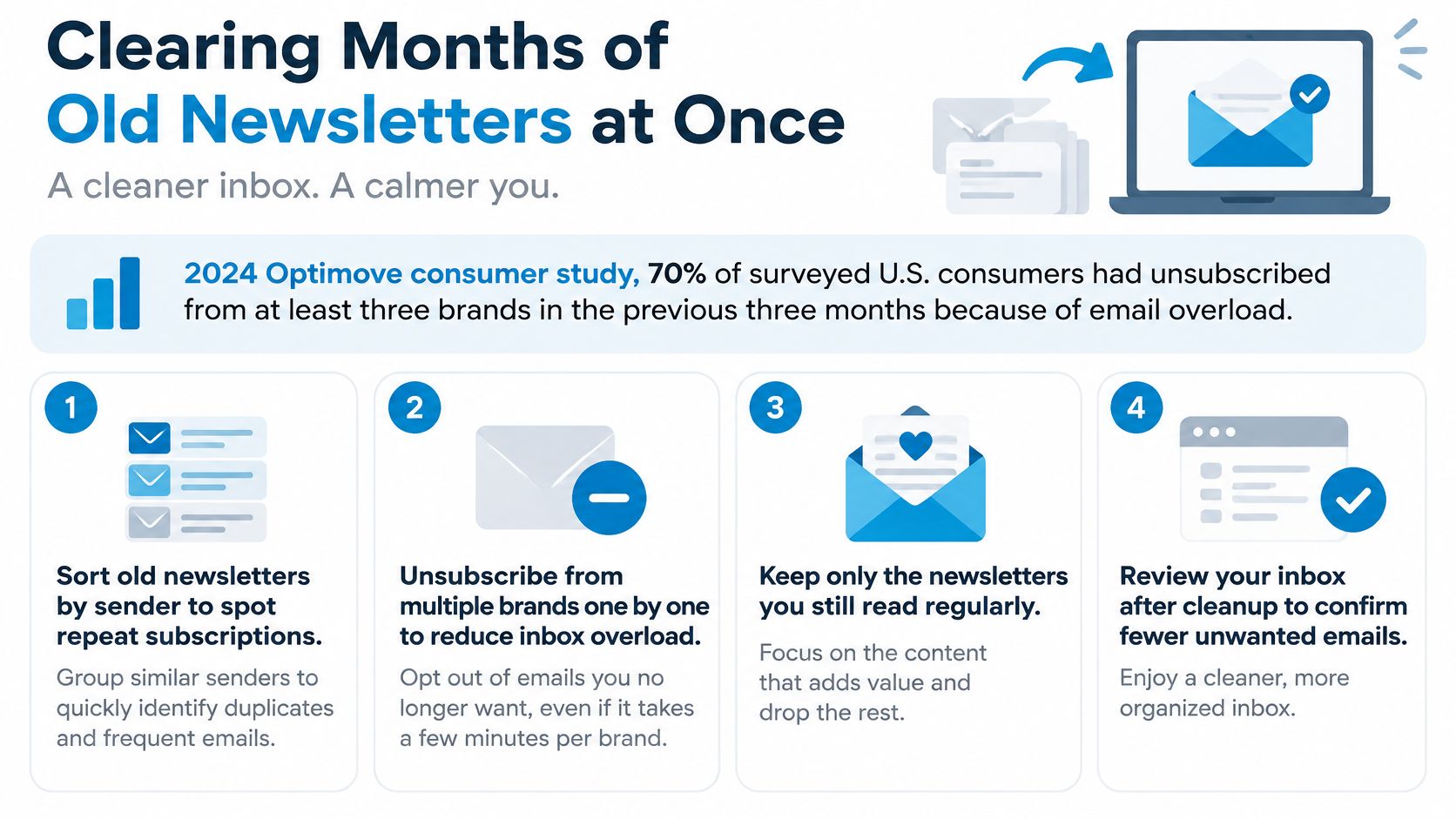
In 2024, 70% of surveyed U.S. consumers had unsubscribed from at least three brands in the previous three months because of email overload, according to Optimove's consumer research reported by MediaPost. Leaving those lists addresses future delivery, but it doesn't automatically remove the backlog in an ordinary inbox.
For Mac users, our Sickle Email cleaner, opened with ⌘⇧K, brings mailing lists, old unread messages and mail grouped by sender into one view across connected accounts. Unsubscribing there also clears that list's old emails, and the unread filter groups messages that have been unread for more than five days for review together.
Work by sender rather than message
- Open the cleaner and review sender groups. Repeated senders are easier to assess together than scattered newsletters between work conversations. Check the receiving account before making changes.
- Unsubscribe from lists you no longer read. Review the group before confirming, because clearing the associated history is part of this action. Keep a newsletter only if its content still earns your attention.
- Review the unread filter. Read useful messages together and clear the rest after checking them. An unread label signals unfinished review, not necessarily important content.
- Keep receipts and account records. Separate invoices, warranties, booking details and active order correspondence from promotions. A shop can send both useful records and unwanted advertising.
The checklist keeps the focus on removing repeat clutter rather than deleting isolated messages.
Use search if you prefer manual cleanup
In another email app, search for unsubscribe, then narrow the results with a sender filter. In Gmail, for example, combine unsubscribe with from: and the sender's address, then inspect the matching messages before selecting them.
Search isn't a perfect newsletter detector. It can miss messages without that word and include forwarded conversations containing a newsletter footer, so don't delete the whole result set without checking.
Keep the records, remove the repetition. Sender-based cleanup is useful only when you separate promotional history from documents you may need.
If you're comparing manual searches with a dedicated tool, this email unsubscribe app guide helps frame that choice. The useful distinction is whether you need to stop future delivery, clear accumulated mail, or do both.
How Long Unsubscribing Takes and Your Legal Rights
A legal deadline is a ceiling, not a recommended waiting period. A sender can apply your request promptly; you don't need to accept unnecessary promotional mail because a legal processing window exists.
The rules concern commercial or direct-marketing communications, not ordinary personal messages from people you know.
| Rule | Deadline or obligation | Source |
|---|---|---|
| United States commercial-email opt-out | Honour the request within 10 business days; keep the opt-out mechanism operational for at least 30 days after sending | FTC CAN-SPAM compliance guide |
| United Kingdom electronic direct marketing | Offer a simple, free opt-out and respect objections by keeping and checking a do-not-contact list | ICO direct-marketing guidance |
Compliance isn't guaranteed: in its 2005 review, the FTC found that 9 of 83 online retailers failed to honour at least one opt-out request, according to the FTC retailer compliance report. That's historical evidence of incomplete processing, not a measurement of today's newsletter senders.
Keep evidence that identifies the request
- Save the confirmation. Retain the screen or email that says the request was accepted.
- Record the receiving address. An opt-out for a personal account doesn't identify a subscription sent to your work address.
- Keep a later example. Preserve the full message if you need to demonstrate continued marketing.
Once the applicable processing window has passed, continuing commercial mail deserves investigation. It may indicate an ignored request or another subscription, but a familiar logo alone doesn't tell you which.
Why Emails Keep Coming After You Unsubscribe
A successful unsubscribe doesn't necessarily stop every message bearing the same brand name. A clothing company might run sale announcements, restock notifications, local event invitations and product launches as separate subscriptions.
Gmail's one-click action is scoped to the mailing list associated with the message, not necessarily every independently subscribed list the organisation operates, as Suped's unsubscribe guidance explains. The next message may reveal a remaining subscription rather than a failed click.
Identify what is still arriving
Compare the sender address, footer subscription name, subject style and receiving account. Don't rely on the display name: a company can use the same name across several sending addresses, and you may have subscribed through more than one mailbox.
Why mail continues and what to do
| Cause | How to recognise it | Fix |
|---|---|---|
| Separate list from the same sender | Same brand, different subject style such as sales or restock alerts | Unsubscribe from each list separately |
| Transactional message | Receipt, password reset or order update | Keep it; these usually stay active after you leave marketing |
| Unprocessed or ignored request | Marketing keeps arriving after the sender's deadline has passed | Use the spam report button and contact the sender's privacy address |
| Old address on another account | Same newsletter appears in a second mailbox | Unsubscribe in the account it reaches |
| Regional or event list | Local offers or event invitations from the same company | Unsubscribe from that regional or event list |
Transactional messages support something you've bought or an account you use. Leaving a marketing list ordinarily shouldn't prevent delivery of a requested password reset or an order update, so don't block an entire company domain just to eliminate a sale newsletter.
On the sender's side, removal needs to persist across future campaigns and list imports. Purple Engage's guide to suppression lists for hotels provides useful context for the distinction between deleting an address from a campaign and retaining a record that it must not receive marketing.
Verify the result against your record
Keep a short log with the sender, list name, receiving mailbox and request date. Add the outcome when you review it, rather than repeatedly clicking unsubscribe without knowing which request you're checking.
- If the same list continues after its deadline, report the unwanted mail. Use your provider's spam control to help filter further delivery, and retain an example before clearing it.
- Contact the sender's privacy channel when needed. State the receiving address, the request date and the list still sending. For a regulated business, use its published privacy contact rather than a promotional reply address.
- Close a separate subscription. Follow that message's opt-out and add it as a separate entry in your log. Check another connected mailbox if the recipient address doesn't match your original request.
- Leave useful account messages alone. Keep receipts and security correspondence; if a sender remains impossible to stop, create a narrowly targeted filter for its promotional address.
Review unresolved entries monthly, especially if you're managing work and personal accounts together. A wider email overload routine helps keep newsletters from obscuring correspondence that needs a reply.
This week, choose the lists responsible for most of your unwanted mail, submit their opt-outs, and set a reminder to verify the result after the applicable processing window. Judge success by whether the identified lists stop sending, not by whether the brand disappears entirely.
Sickle brings connected email accounts into one Mac app, with an Email cleaner that groups mailing lists and clears their old messages when you unsubscribe. Visit Sickle to organise your newsletter cleanup across your personal and work inboxes.