How to Clean a Mailbox: The 6-Step Method That Works
Learn how to clean a mailbox in six steps: unsubscribe from newsletters, clear old messages, archive what matters, and keep clutter from coming back.

Mail arrives faster than anyone clears it. The Radicati Group's email statistics report estimated worldwide business and consumer email traffic rising from 319.6 billion messages per day in 2021 to 376.4 billion per day in 2025, an increase of 56.8 billion messages, or approximately 17.8%, with annual growth holding between 4.1% and 4.3%.
That growth is why a one-time cleanup fails. The flow refills at a predictable rate, so the job is maintenance, not a spring clean. The method that survives contact with a real inbox attacks the biggest senders first, makes keep-or-delete calls from a table rather than a hunch, unsubscribes without confirming your address to strangers, and skips the deletion theater that burns half an hour to save a few grams of carbon.
How to Clean a Mailbox in Six Steps
Cleaning a mailbox means cutting incoming clutter and clearing stored mail without losing records you may need. Get the order right and one 30-minute session does both. Get it wrong and you either delete something you needed or spend three evenings reading newsletters you never wanted.
Here's the sequence to work from, whether you're clearing 300 messages or 30,000.
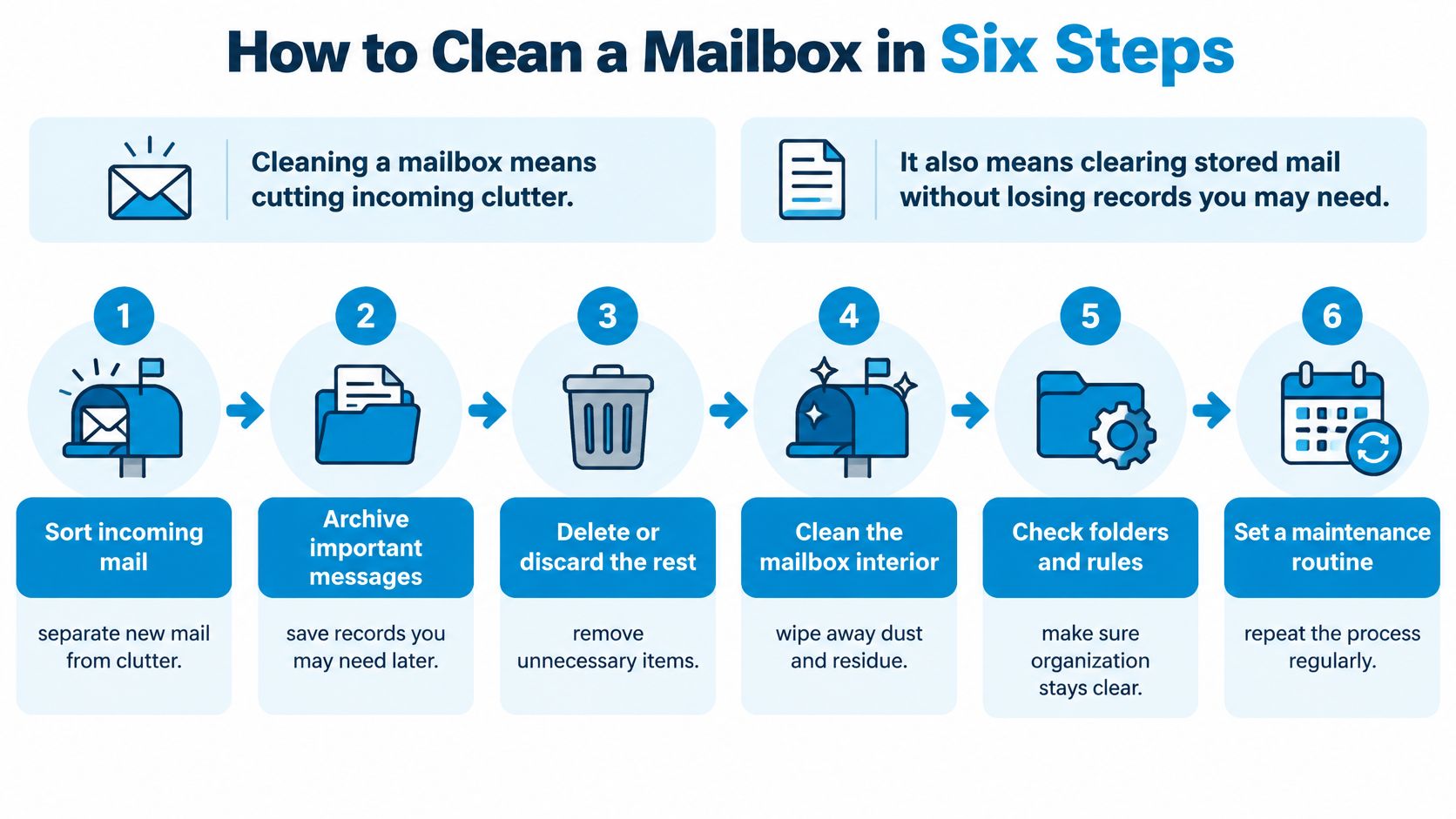
The rule underneath the order matters more than any single step: classify first, act with reversible tools (unsubscribe, archive, Trash), and only consider permanent deletion at the end. A 2025 SaneBox study reported in Stripo's roundup of email overload statistics found roughly 76% of business-inbox messages were insignificant, while only about 24% were relevant and important. You can't tell which is which from a preview pane, which is exactly why sorting comes before deleting.
- Timebox one 30-minute session and start with a single account. A timer stops the job from turning into an afternoon. If you run several accounts, add them to one view first so you don't clean the same mailing list three times.
- Sort by sender before you touch a message. Type
from:plus an address, or use your client's sender grouping. One retail promo sender can account for thousands of messages, and every one of them gets the same verdict. - Unsubscribe from the lists you don't read. First pull password-reset, payment, shipping and breach alerts into a labeled folder so the sweep can't touch them. Then unsubscribe from legitimate marketing: some clients also clear that list's older messages the moment you unsubscribe, which turns one click into a bulk cleanup.
- Bulk-delete the obvious low-value mail. Old newsletters, social notifications, calendar digests, duplicates. Move it to Trash rather than deleting permanently, and sample 20 to 50 results per sender before you commit, especially where the same address also sends receipts or account alerts.
- Archive what has value but no action. Receipts, contracts, closed support cases, finished threads. Archiving takes a message out of the inbox and leaves it searchable, which is the behavior you want for reference material.
- Build a filter, then verify. One rule per recurring low-value category. Then check three things: unread count, storage usage, and a search for a receipt you know should still exist.
The three mistakes that undo a cleanup
Most damage comes from a short list of errors, and all three come from moving too fast. Confusing archiving with deletion is the first: archive keeps the mail, delete doesn't. Removing a whole thread because one message is irrelevant is the second, and it's how a contract disappears along with its cover note. Unsubscribing from transactional mail you rely on for billing or security is the third.
One clarification on the phrase itself. If you meant the box at the end of the driveway, the USPS published Mailbox Improvement Week guidance on May 14, 2024 for inspecting and improving a residential mailbox. The steps here are about email.
Start With the Senders That Flood Your Inbox
Message-by-message triage feels productive and scales terribly. Sender-level grouping wins because one decision clears hundreds of messages at a time. An anonymized dataset of approximately 16.6 million analyzed messages reported a median inbox size of about 12,300 messages, a median of 85 messages per deleted sender, and approximately 14.5% of deleted senders holding more than 1,000 messages, according to MailMop's state of the inbox analysis.
Read those figures as a work order. Start with the sender holding 2,000 messages, not the three-message thread that happens to be at the top of the list. Work down through the senders with hundreds of messages, then stop. The long tail of one-off humans isn't worth a decision each.
Read the newest and oldest message, then decide
Take the worst offender from the last 12 months rather than the oldest message in the box. Open its newest message to see whether you still want it arriving, and its oldest to see what you'd lose by clearing the history. If both are promos, the block goes. If the newest is a shipping notification, you've found a keep, and the sender belongs in a folder rather than on the chopping block.
| Sender type | Examples | Stop future mail | Handle existing mail |
|---|---|---|---|
| Newsletters and promotions | Substack digests, retail promos, daily deals | Unsubscribe | Delete old copies |
| Social network notifications | LinkedIn, Facebook, X | Turn off or filter to a folder | Delete existing |
| Order receipts and shipping | Amazon, Stripe, carriers | Keep receiving | Label and archive |
| Account and security alerts | Bank, password resets, breach notices | Never unsubscribe blindly | Keep |
| Work distribution lists | Team updates, client threads | Filter to a folder | Archive after reading |
| App and calendar reminders | Jira, Google Calendar, Slack digests | Filter or switch to a digest | Delete old |
Unsubscribe is prevention, deletion is cleanup
Deletion only removes what already arrived. Unsubscribing stops the next thousand, which is why it earns its own step instead of riding along with a bulk delete. For shared or regulated mailboxes, log the rule, sender, date range, action and operator. Before anything is set to run permanently, confirm the retention requirement and the recovery path are both documented.
Gmail users can run the whole pass from the search bar. from: isolates a sender, has:unsubscribe surfaces mailing lists, older_than:1y finds stale mail, and larger:10M finds the attachment-heavy messages worth reviewing first. Other clients expose the same filters under different names.
One wrinkle: when a sender turns out to be a supplier mailing scanned purchase orders and PDF invoices, those are records, not clutter. Parsing chat and scanned PDF orders into a structured archive is the better move for that traffic, because a searchable order history beats a mailbox you can't query.
After each sender, verify. Check the unread count and the storage figure, then search for one message you know must survive, such as a receipt or a signed contract. If the search comes back empty, the bulk selection caught more than you intended, and Trash still has it.
Unsubscribe Safely and Handle Suspicious Senders
Use two doors: recognized sender, unsubscribe; unknown or spoofed sender, spam report and delete. Do not click links inside mail you cannot place, even when the cleanup urge is strong.
Third-party bulk unsubscribe services look like a shortcut and behave like a liability. Independent testing found they could take days or weeks to produce results, reduce rather than eliminate unwanted mail, and require users to share private data, which is why built-in unsubscribe controls, filters, aliases and spam reporting are the recommended route, according to research on subscription bombing and unsubscribe risk. Treat opt-out as a preference rather than a guarantee; keep filters and spam reporting as the backstop when a sender keeps mailing.
If you use Sickle, open the Email cleaner with ⌘⇧K, work the mailing-list view first, and unsubscribe there; removing a list also clears that list's old messages, which keeps the pass tied to sender volume instead of scattered deletions.
When the flood is the attack
A thousand mailing-list confirmations landing on a Tuesday morning, the same week a bank card expires, has the shape of a subscription bombing attack: an attacker floods a mailbox with mailing-list messages so a real security alert gets buried in noise. Clicking unsubscribe on each one confirms your address is live and sends you to sites you have never dealt with.
Handle it in a fixed order. Search for password-reset, payment, shipping and breach alerts first. Change the password on anything that looks compromised. Then filter the flood by sender and report it as spam. Leave every embedded link alone during the flood; confirm domains from a signed-in session or a bookmark, not from the message.
The one-line rule: a sender you recognize gets the unsubscribe link. An unknown or suspicious sender gets marked as spam and deleted without a single click.
For step-by-step list removal, use this guide to unsubscribe from a mailing list.
Shared inboxes carry the same risk at higher stakes. Write verification into the workflow and train staff to verify requests before anyone pays, replies, or changes bank details, because a mailbox that mixes customer correspondence with marketing is exactly where a spoofed invoice hides.
Decide What to Keep, Archive or Delete
Two questions settle almost every message: does it have future value (legal, financial, operational), and what does it cost to keep? The table below makes the call for the message types that fill most cluttered mailboxes.
| Message type | Action | Why |
|---|---|---|
| Receipts, invoices, warranties | Keep in a labeled folder | Taxes, returns, disputes |
| Contracts and legal notices | Keep | Compliance and reference |
| Active client or work threads | Leave in the inbox | Awaiting action |
| Old newsletters and promotions | Delete | No continuing value |
| Automated notifications | Delete or archive | Replace with a filter |
| Emails with large attachments | Save the file, then delete | Attachments dominate storage |
| Duplicates and CC noise | Delete | Redundant copies |
What storage actually costs
Attachments, not text, are what fill a mailbox. A 2025 ACM study on "e-litter" estimated that storing 1 gigabyte of data for one year could require approximately 0.55 kilowatt-hours once data-center overhead is included, and its illustrative comparison equated 500 megabytes of email with either about 6,700 promotional emails or about 100 emails containing photo attachments, per the ACM study on e-litter and mailbox storage.
That ratio is the practical instruction. A single photo attachment costs roughly what 67 promotional emails cost. So work the attachment search first, save the file you need to your drive or document system, and only then delete the message that carried it.
Those numbers don't describe every mailbox. Energy use varies by provider, infrastructure, retention policy and electricity mix. What they do support is a priority order: large attachments, repeated newsletters, automated notifications, then anything with no continuing legal or business value.
Archive is not delete
Archived mail leaves the inbox and stays searchable, which is precisely what an old receipt or a finished thread wants: out of the way, still findable. Deleted mail goes to Trash and then doesn't exist. If you're unsure which one you're doing, this guide to how to archive an email spells out the difference in each major client.
A first pass that removes a fifth of the box is normal. In the ACM study's behavioral experiment, participants deleted roughly 22% of their inbox on average, which is a realistic expectation for one honest session, not a disappointing result.
The deletion safeguard
Empty Trash on a delay, about seven days, and spot-check by sender before you do. Anything that came from a sender who also sends receipts, invoices or customer mail deserves a second look at the newest examples. If a message turns out to matter, restoring it from Trash takes seconds. Recovering it after a permanent purge usually doesn't happen at all.
Keep the Mailbox Clean and Book the Next Session
A cleanup decays within weeks, which is why the volume keeps coming back. The fix is small and unglamorous: a short weekly sweep, a quarterly deep clean sorted by sender, and a rule that stops you deleting the same newsletter for the fourth time.
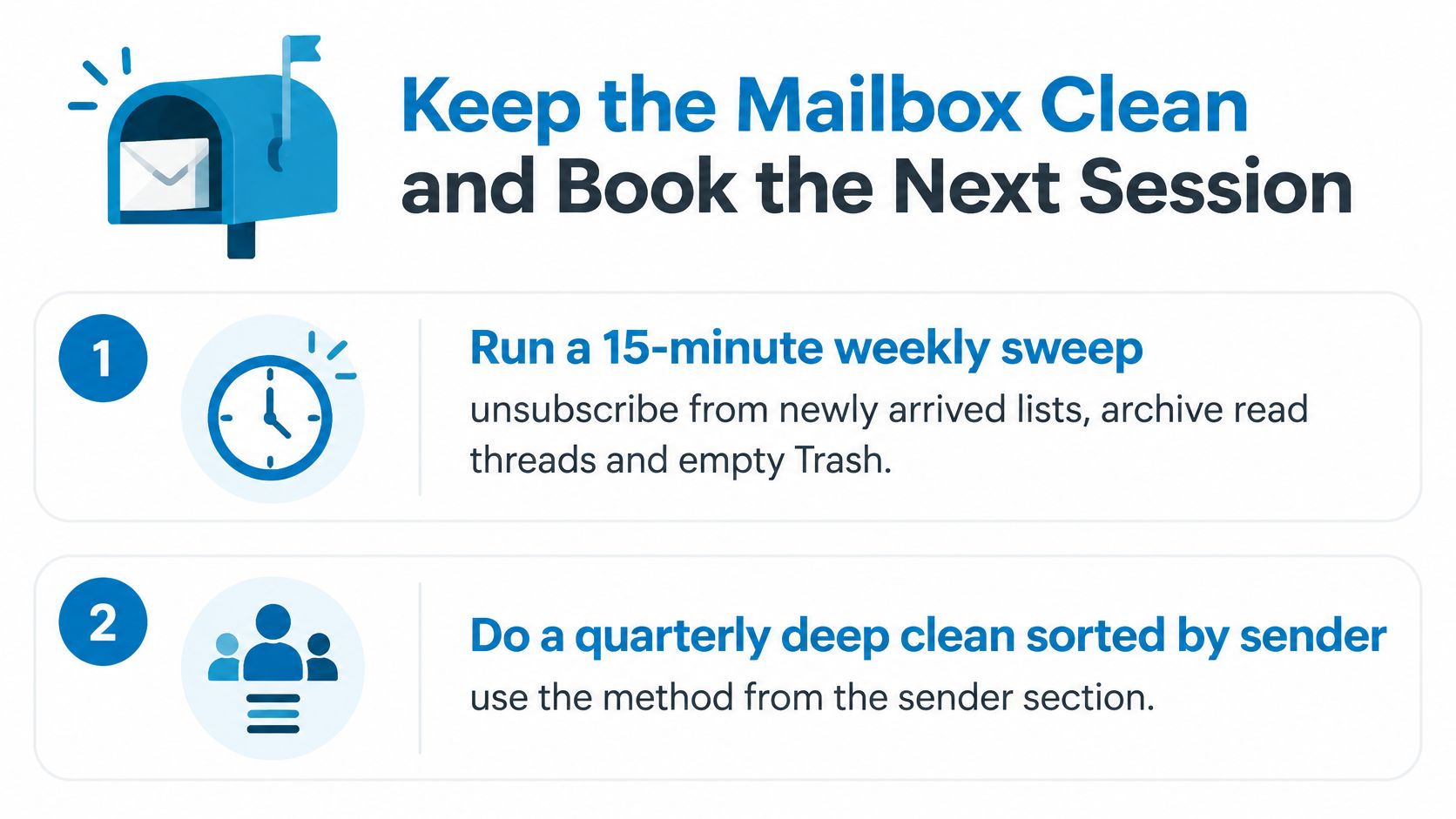
- Fifteen minutes a week. Unsubscribe from lists that arrived since the last sweep, archive threads you've read, empty Trash.
- Quarterly, sort by sender. Run the sender pass again, worst offender first.
- Filter the third time. If a sender has needed deleting three times, it needs a rule, not another delete.
- Turn notifications off at the source. Social networks and app digests belong switched off in their settings, not swept up weekly.
- Keep a one-line log. Sender, date, action. When a receipt goes missing, you'll know where to look.
Then there's the carbon question, which most cleanup advice gets wrong. Deleting 1,000 emails saves only about 5 grams of CO2e, while half an hour on a laptop doing the deleting emits about 28 grams in a high-carbon electricity region such as Alberta and about 5 grams in low-carbon Québec, per this analysis of the real climate footprint of email deletion. Delete for clarity, retrieval speed and storage. Don't delete for the atmosphere, and don't replace hardware to get a "cleaner" inbox, because device manufacturing and daily use dominate the footprint.
The sweep gets easier when the client groups the mess for you. Our Email cleaner, opened with ⌘⇧K, lists mailing lists to unsubscribe from, old unread emails and mail grouped by sender, and an unread filter surfaces anything unread for more than five days so you can clear it in one pass. For a wider look at why the volume keeps climbing, email overload and what it costs to keep up is worth ten minutes.
Shared inboxes need the same discipline at team scale, and shared inbox routing and templates keep the noise from reaccumulating in a group mailbox after everyone has cleaned their own.
If you'd rather watch the process once before starting, this walkthrough covers the same ground end to end.
Book 30 minutes this week and start with the sender holding the most mail, not the oldest message. Sickle puts Gmail, Outlook, iCloud, Fastmail and any IMAP mailbox in one Mac app, and the Email cleaner (⌘⇧K) groups mailing lists, old unread mail and messages by sender so the session starts where the volume is; unsubscribing from a list there also clears that list's older messages, and because Sickle is an MCP server, Claude, Codex or Cursor can search and tidy the same mailboxes. Visit Sickle when you're ready to run the first pass.