Email Overload: How to Cut Volume and Protect Focus
Learn what email overload is, what causes it, and how to cut message volume, set response boundaries and manage several inboxes without losing focus.

You open your laptop at 7:40 in the morning and the badge says 46. One message is from a client who needs an answer before lunch, one is a calendar change, and the rest are status updates, automated alerts, a newsletter you keep meaning to read, and three threads where nobody has asked you for anything.
You answer the client, skim the calendar note, then spend forty minutes clearing the rest because the number bothers you. By the time you start real work, the thing you were hired to do has been pushed to the afternoon. Tomorrow the badge says 44.
That cycle isn't a character flaw, and a tidier inbox doesn't fix it. What people call email overload is really two problems wearing the same coat: too much incoming traffic, and no boundary around when you're expected to process it.
What Email Overload Really Means
Email overload begins at a simple threshold. Mail arrives faster than you can read it, decide on it and close it, so the inbox stops working as a mailbox and starts working as a task list that other people add to all day.
Think about a mail sorter at a busy post office. One sorter opens every envelope the moment it lands, reads a line, sets it down and picks up the next one. Another lets the envelopes collect in a tray and sorts the tray three times a day. Both handle the same volume of mail. Only one of them finishes a shift with a clear head.
That second sorter's bad day looks like this on a laptop.
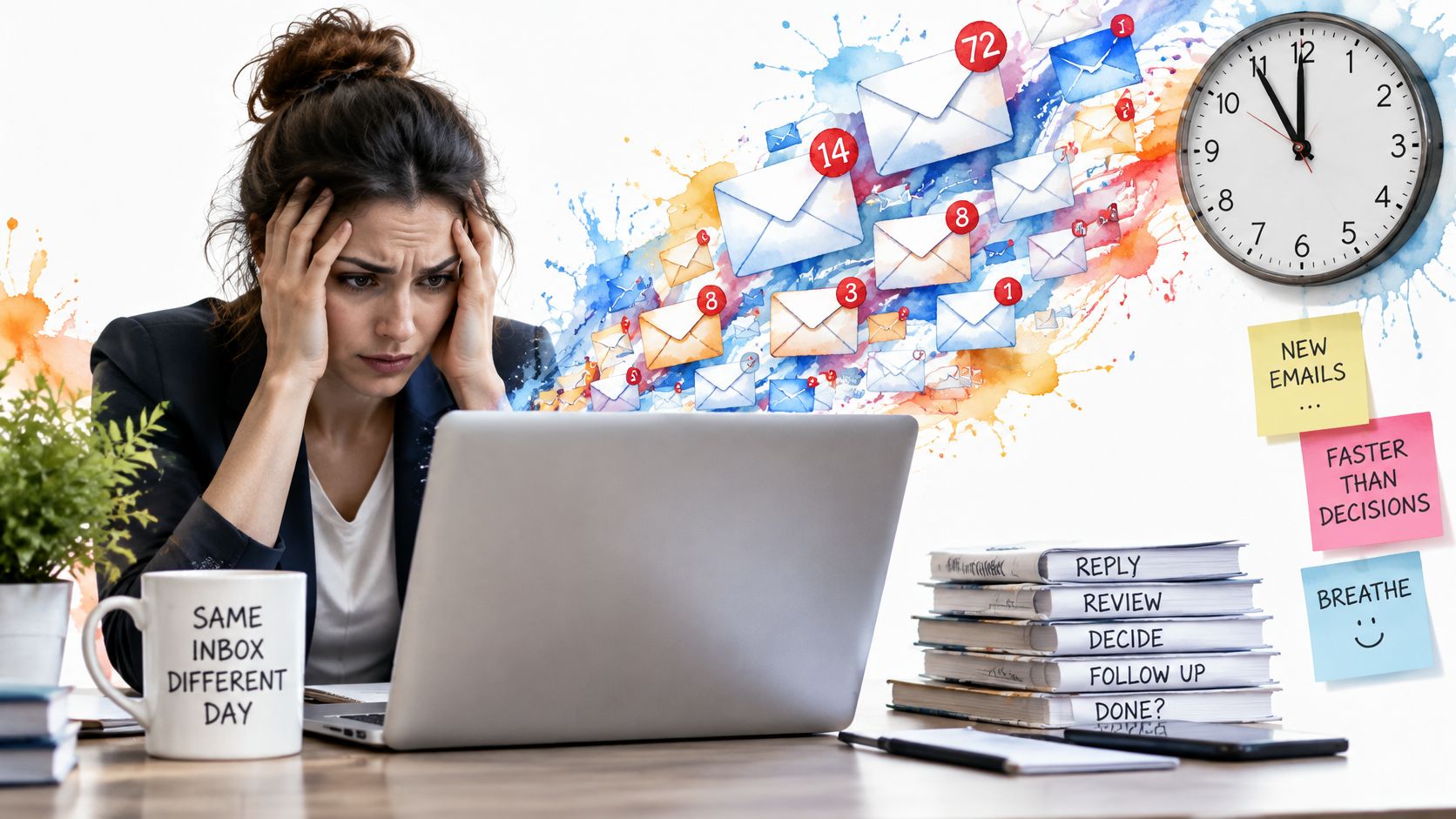
The scale explains why this happens to careful people and not just messy ones. The Radicati Group's email statistics report estimated that business and consumer users sent and received 319.6 billion emails per day worldwide in 2021, with the total projected to reach 376.4 billion per day by 2025. That's a projected increase of 56.8 billion daily messages, or roughly 17.8%, across four years.
Many of those messages are automated, promotional, transactional or irrelevant to anything on your list, and none of them ask you for a decision. They still cost you: they accumulate, they slow your searches, they trigger notifications, and they force you to filter. At that volume, a small rise in messages per account adds up to a large shared burden.
Test it on your own inbox. Overload is present when mail volume or interruptions regularly exceed the time and attention you actually have for triage. By that definition, a quiet week and a chaotic one can be the same number of emails.
How to Tell If Email Is Overloading You
You can't fix a problem you haven't measured, so start with what your own inbox does in a normal week. The most useful published benchmark comes from a Microsoft Research field study of email duration and self-interruption that tracked 40 information workers in their normal workplaces for 12 workdays, using computer logging, biosensors and daily surveys. Participants spent about one and a half hours per day on email and checked their inboxes an average of 77 times daily.
The results went beyond anecdote. Greater daily email duration was associated with lower perceived productivity and higher measured stress, and the link ran through difficulty maintaining focus. Checking style mattered too: workers who mostly responded to notifications reported lower productivity than workers who chose when to interrupt themselves.
| Signal | Reference value | What it suggests |
|---|---|---|
| Time spent on email per day | About one and a half hours, the study average for information workers | Compare with your own two-week log; time alone doesn't prove overload |
| Inbox checks per day | About 77, the same study average | Frequent checking is linked to lower perceived productivity |
| Notification-driven checking | No numeric benchmark, track it as a yes or no | Move to scheduled review windows; the study treats notification checking as different from deliberate review |
| Communication-heavy mail share | No numeric benchmark, estimate a rough ratio | Sort coordination traffic into its own pile so it can be batched |
| Unread messages older than one week | Any number above zero | Decide to act, delegate or unsubscribe for each one |
Reading a pattern rather than a single number
One high figure isn't proof of anything. Someone in a support role may legitimately live in email for three hours a day, and someone else may check eighty times and feel fine. What matters is a pattern across two or three signals at once: long duration plus notification-driven checking plus an aging unread backlog.
Keep a two-week log with three columns: minutes in email each day, number of checks, and unread items older than a week. Count the checks accurately, because the estimate people give from memory is usually far below what the log shows.
Treat the study averages as a baseline for comparison, not a target. The sample covered information workers only, so a nurse, a teacher or a site manager may have a completely different pattern, and your own best week is the more useful benchmark.
Which Messages Create the Most Load
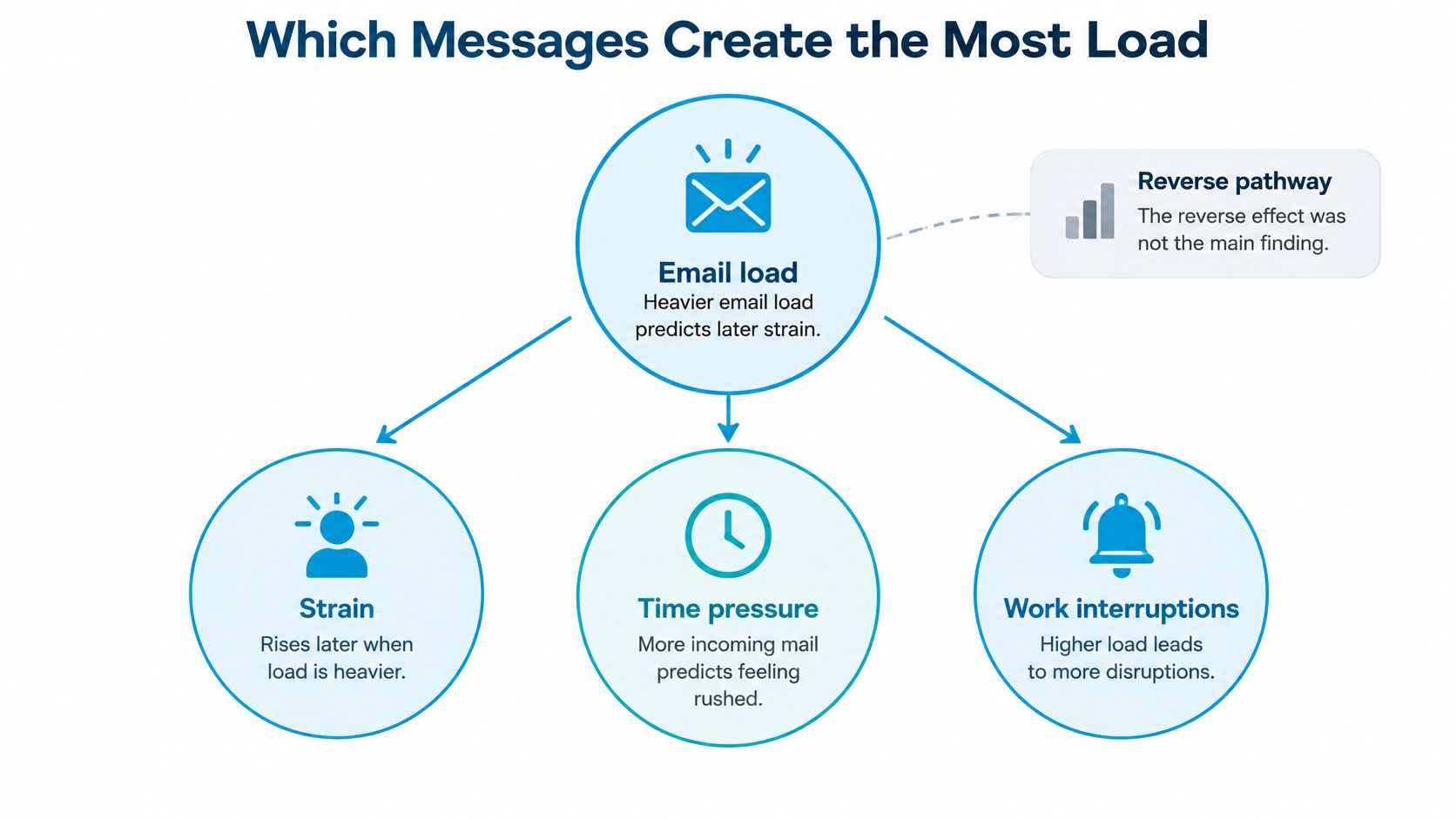
Message count tells you less than you'd expect. A longitudinal study of email load and employee strain found that heavier email load predicted later increases in employee strain, time pressure and work interruptions, while the reverse pathway was not supported. The lagged effects were statistically significant for time pressure (β = 0.11, p = 0.003) and interruptions (β = 0.13, p = 0.003), which supports a cause-and-effect reading rather than a simple correlation.
The category doing the damage is narrower than "all email." The same research found that communication-oriented messages, not task-oriented messages and not the total number processed, were the type most associated with perceived high load.
Picture the two piles on a Tuesday morning. The first holds coordination threads where nobody has decided anything, repeated status requests from people who could check a shared board, broadcasts to the whole team, and automated alerts. The second holds a contract that needs a signature, a client question with a deadline, and a colleague waiting on your approval. Only the second pile needs you.
Sort by what the message asks of you
Each arrival costs more than its reading time, because getting back to the previous task takes effort of its own. That's the difference between a batch you open on purpose and a ping that opens itself. Long reply chains are the clearest example, since a thread that has run eight messages usually stopped being task mail three replies ago, which is why it helps to know how to break an email thread or chain before you answer it.
Tag coordination traffic separately so it can be batched, and keep task-critical mail in front of you. The filter does the sorting once and saves you the decision every hour afterwards.
The clip below walks through the same distinction in more detail if you'd rather listen than read.
The question to ask every message: does it need a decision, a reply, or only awareness? Awareness items can wait for a review window. Decision items belong in your task list, not your inbox.
How to Cut Incoming Volume in One Afternoon
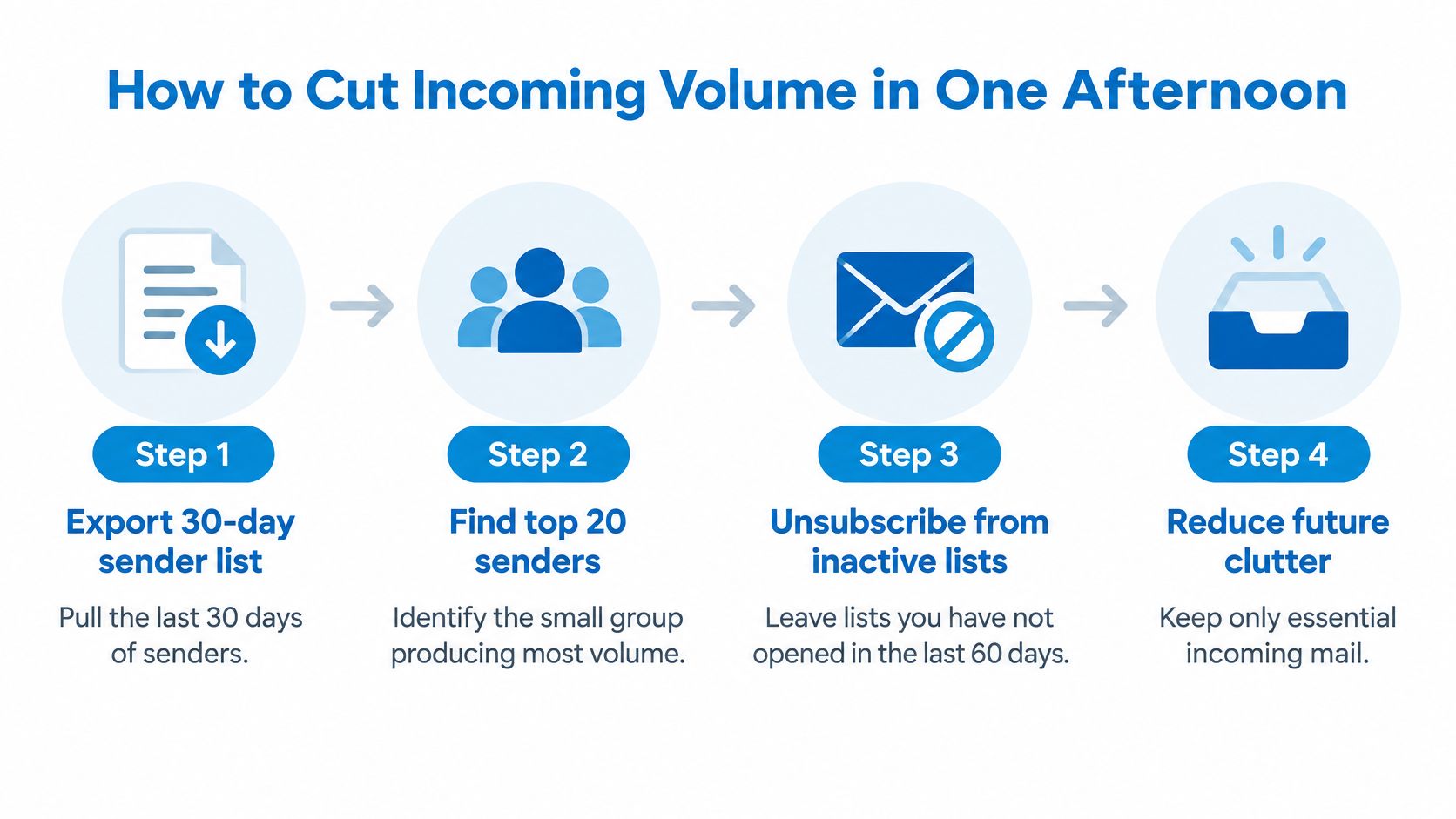
Most inbox advice asks you to process faster. Processing faster doesn't help if the mail keeps arriving at the same rate, so spend one afternoon reducing what shows up in the first place. None of these steps requires a new tool, and the whole sequence usually takes less than two hours.
Seven steps, in order
Export a 30-day sender list. Most mail clients will show you your senders for the past month. The reason sits in the arithmetic: a small group of senders produces most of the volume, and you can't act on a group you haven't counted. The slip is scrolling the list, deciding everything looks important, and closing it.
Find the top 20 senders by message count. Twenty names is small enough to work through in one sitting and large enough to change the shape of your inbox. Write them down somewhere you'll see next week.
Unsubscribe from lists you haven't opened in 60 days, largest first. Two months is long enough that good intentions have already had their chance. The usual slip is unsubscribing blind from a sender that also carries invoices, shipping confirmations or calendar invitations, so search that sender once and check what you'd lose.
Filter status updates, automated alerts and broadcasts into a separate folder on arrival. They arrive in the same stream as client mail but they don't need a decision, so they don't need to interrupt one. The slip here is building a filter that hides mail completely. Point it at a folder you open once a day, not at a black hole.
Turn off banner and sound notifications on every account except the one carrying urgent client or manager messages. One mailbox earns the right to interrupt you; the rest can wait for a review window. People skip this step because it feels like being unreachable rather than being deliberate.
Set two or three fixed review windows, at 9:00, 13:00 and 16:30 for example, and close the mail app in between. Windows give the people who need you a predictable time to hear back. The slip is calling an open browser tab a window.
Write three reply templates for your most repeated questions. Routine answers that took eight minutes take under two. After a week, count your daily checks and minutes, then run step 1 again for the next group of senders.
If you want the deeper argument for treating attention as the scarce resource, reclaiming attention from email overload makes the case for scheduled review over constant readiness. Grouped cleanup views also do the counting for you, and sorting a mailbox by sender and mailing list is where most of the reduction comes from.
Success at the end of that afternoon is unglamorous. Your daily check count drops, and the client with the deadline still hears back the same day.
Protecting Focus Between Review Windows
A focus block works like a meeting with the door closed: each badge that lights up is a knock, and every knock costs the walk back to where you were. Review windows only work if they hold, so the aim between them is fewer interruptions. Typing speed was never the bottleneck.
The research backs protecting the block over trusting willpower. In a separate field study on email handling and interruptions, email batching was associated with higher rated productivity as time spent increased, though the study found no evidence that batching alone reduced stress. Batching protects output. The recovery has to come from the boundary itself.
It also helps to sort what lands mid-block into two kinds. Task mail creates work for later and can wait for the next window. Communication traffic, a client escalation or a manager's question, is the only kind that earns a knock on the door.
Three practices that hold a focus block
Close the app and silence every device for 60 to 90 minutes. Leave one exception: the account carrying urgent client or manager mail, and only if your role needs it.
Write a one-line note when you break off. If something non-urgent arrives mid-task, jot where you stopped and what comes next, then return. The note shortens the restart cost, the same way a bookmark saves rereading the chapter.
Log the breaches. Add a column to the two-week tracker for how many times you opened email during a focus block and why. The reasons cluster, and the cluster tells you which sender or alert to route away.
The commonest slip is muting the phone while the desktop still pings, which turns a focus block into a check-everything session.
For shrinking the pile itself, these tips for taming inbox overload cover summarisation and triage shortcuts that fit between windows. Two weeks of the log gives you the verdict: falling mid-block checks mean the boundary held, and a flat line means something still needs muting or routing.
Setting Response Boundaries to Protect Recovery Time
Cutting volume doesn't finish the job if messages still land at 9pm. The problem with the inbox-zero ambition is that it measures the wrong thing: a clear inbox at 6pm says nothing about whether you'll be answering at 11pm. What protects you is a boundary you can defend, and the evidence for that is stronger than most productivity advice admits.
A 2025 study published in Information & Management, summarised in this study of email overload and wellbeing, found that email overload during work hours was associated with greater job stress and lower job and life satisfaction. When overload extended into leisure time, it was also associated with greater job stress and lower life satisfaction. The second half of that finding is the part worth sitting with: the hours after work are not a separate budget.
A boundary in three parts
A published response window for each message type. Same day for clients, next working day for internal threads, and something explicit for anything that arrives on a Friday afternoon. Publish it once, in your signature or your team wiki, and stop renegotiating it message by message.
An escalation rule for real emergencies. A phone call or a named channel, not a fourth email on the same thread. Without this rule, everything urgent-sounding becomes an emergency, and the boundary collapses the first busy week.
A named owner for triage while you're away. Not "someone will see it." A person, with a date range and the categories they're covering.
The rule worth writing down: a response window you can keep beats a faster window you resent.
Then measure your exposure rather than guessing at it. Count messages arriving outside working hours for two weeks and note which senders cause them. Many discover that a handful of senders generate nearly all of it, and a conversation with three people changes more than any filter.
Distributed teams need a different move: agree windows with colleagues in other regions instead of trying to match their hours. If you also field late messages in chat tools, these notes on handling after-hours Slack messages calmly apply the same logic to a channel that pings even harder than email.
Managing Several Accounts and AI Agents Safely
Multiple mailboxes turn overload into a switching problem. Each identity has its own expectations, its own tone, and its own chance of replying from the wrong address. AI assistants look like the obvious answer, and they can be, right up to the moment a recipient decides your quick reply wasn't written by you.
That trade-off is measurable. The University of Melbourne research on AI writing work emails, covering more than 32,000 workers in 47 countries in 2025, found that 58% deliberately used AI at work. A separate experiment with 1,100 professionals found that only 40% to 52% considered supervisors using high levels of AI assistance sincere, compared with 83% for low levels of assistance. Saving time and earning trust pull in opposite directions.
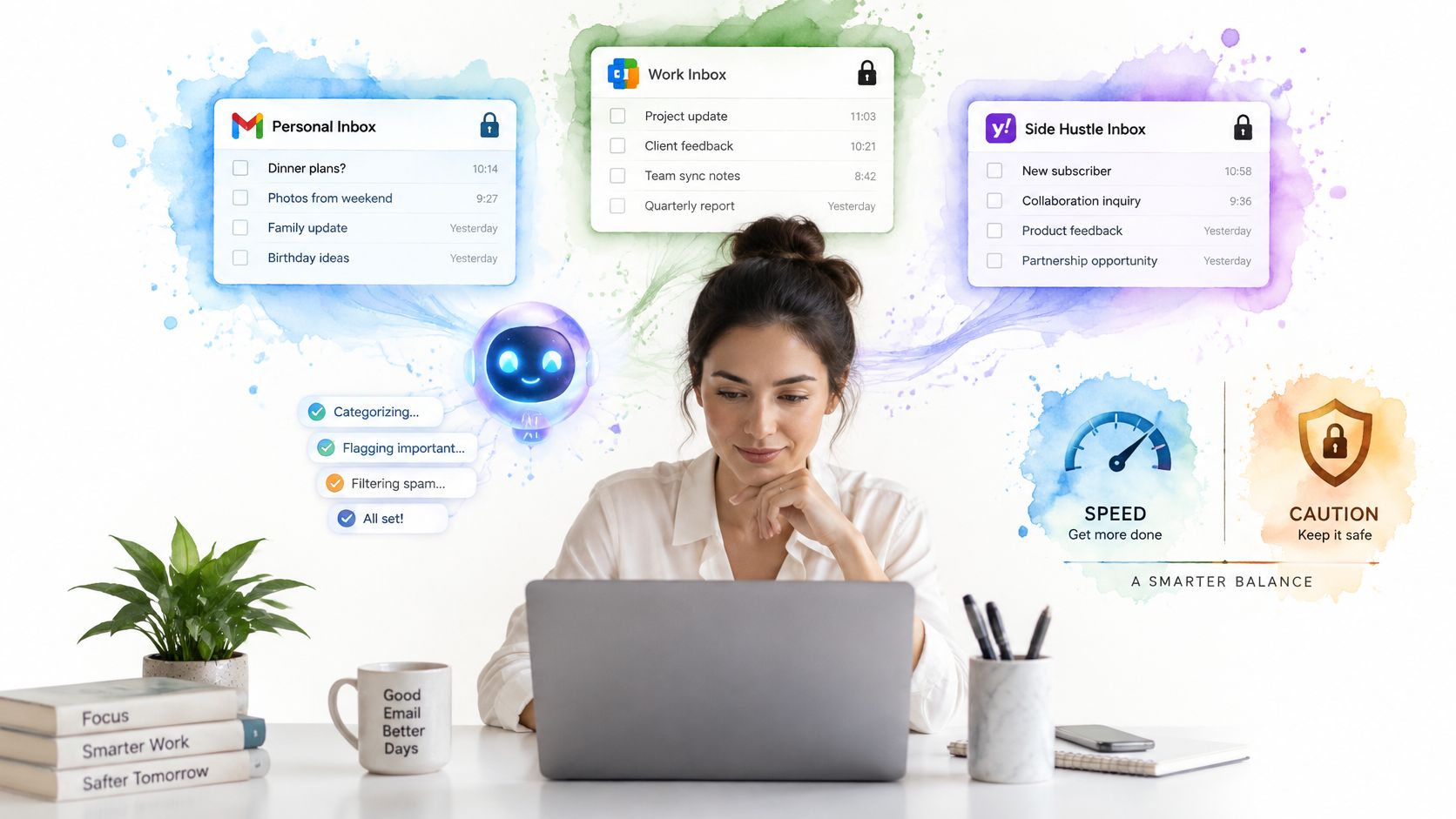
A permission ladder that matches the risk
Step one, read-only search and summarisation across accounts. The agent finds the client thread from March and tells you what was promised. Nothing leaves your mailbox, so nothing can embarrass you.
Step two, organising and drafting in place. Filing, labelling, and writing a draft you will read before it goes anywhere. The risk is confined to what you review.
Step three, sending, only with explicit approval. Approval per message, from a mailbox you have confirmed, with the account visible on screen. If you'd hesitate to sign the same words on paper, don't send them from an agent.
Identity is where multi-account setups fail. Check which address a draft sits in before you press send, because a reply from the wrong one costs trust that a delete can't repair. Distinct colours per account make that check reflexive rather than careful, and it's the reason a single window beats four apps with four identical blue icons.
For a closer look at the read-write split in practice, this guide to what an AI email assistant should and shouldn't do covers the same permission boundaries.
Sickle's Mac app puts Gmail, Outlook, iCloud, Fastmail and any IMAP mailbox in one window with a colour per account, and our connector lets compatible agents such as Claude, Codex or Cursor search, read and organise connected mailboxes. No agent tool in Sickle deletes mail permanently, and when an assistant requests mail through the connector, our servers fetch only what was requested and pass it to the assistant without keeping copies. Review your permission scopes quarterly, revoke anything you no longer use, and tell a client when a reply was AI-assisted if they'd expect to know.
Confirm the First Change and Run the 14-Day Test
Pick one change, not seven. Start with the pair that removes the most interruptions for the least effort: unsubscribing from your top lists and turning off non-urgent notifications. That's under an hour of work, and it attacks both the volume and the pinging at once.
If you run several accounts, bring them into a single view before you start so you're searching once rather than switching apps and losing the thread. In Sickle, the Email cleaner, opened with ⌘⇧K, lists mailing lists to unsubscribe from, old unread emails and mail grouped by sender, and its unread filter shows emails unread for more than five days so you can clear them in one pass.
The 14-day check
Track three numbers only: daily inbox checks, after-hours messages received, and response time on urgent items. Fourteen days is long enough for a new rhythm to settle and short enough that you'll still remember why you started.
Decision rule: if checks fall and urgent replies still arrive on time, keep the change and add one more. If urgent replies slip, widen one review window before adding any new rules.
Sickle is a native Mac email client that puts Gmail, Outlook, iCloud, Fastmail and any IMAP mailbox in one window, with an email cleaner that groups mailing lists, old unread mail and messages by sender so you can cut volume in a few clicks instead of an afternoon of filters. When you're ready to hand the repetitive sorting to an assistant, our connector lets Claude, Codex or Cursor search, read and organise those same mailboxes under scoped permissions you control. Visit Sickle to see how it handles the boundary problem on your own accounts.