Email Thread or Chain: What Changes in Your Inbox
Email thread or chain explained: how Gmail, Outlook and Apple Mail group replies, why chains split, and which view to trust for each situation.

In everyday use, an email thread or chain describes the same grouped set of replies, and the difference lies in the reply headers that link the messages. If your client shows a neat conversation, does that prove every reply belongs together and the newest one settles the matter? Not necessarily. A thread is a grouping your client builds, and you can check that grouping before you rely on it.
What Email Thread and Chain Mean in Practice
An email thread is the grouping a client displays. An email chain is the path of replies from first message to latest that makes that grouping possible. When a colleague asks for either, they almost always mean the same conversation, even if the underlying links don't fully support that grouping.
Email thread and email chain compared
| Term | Common meaning | Where you see it | What links the messages |
|---|---|---|---|
| Email thread | All replies and forwards grouped as one conversation | Gmail conversations, Outlook Conversation view, Apple Mail thread view | Reply headers (In-Reply-To and References) and, in some clients, subject matching |
| Email chain | The same sequence described as a series of replies from first message to latest | Everyday speech, forwarded discussions, sales and legal writing | The same reply headers, read as a parent-to-child path |
| Conversation | The label a client uses for a thread | Gmail and Outlook interfaces | The client's own grouping rules |
Scale explains why this grouping became essential. A Radicati Group executive summary estimated users would send and receive 281.1 billion emails per day in 2018, rising to 333.2 billion per day by 2022. Those totals count messages, not distinct threads. Each reply or forward adds another message while extending one conversation, so grouping by conversation helps you keep a request and its answers together.
How Gmail, Outlook and Apple Mail Group Replies
You can change grouping today without changing a single message. The switch controls display only. It doesn't rewrite headers, merge messages, or delete anything.
Grouping behaviour and switch by email client
| Client | Setting label | Default grouping | Path to switch grouping |
|---|---|---|---|
| Gmail | Conversation view | Grouped by conversation | Settings, See all settings, General, Conversation view |
| Outlook desktop | Conversation view | Grouped by conversation | View tab, Show as Conversations |
| Apple Mail on macOS | Organize by Thread | Threaded | View menu, Organize by Thread |
| Thunderbird | Threaded view | Threaded | View, Sort By, Threaded |
| Standards-only IMAP client | Server threading method | REFERENCES or ORDEREDSUBJECT, depending on server support | Client settings for threading or sorting, where offered |
What each switch actually does
In Gmail, open Settings, choose See all settings, then find Conversation view on the General tab. Turn it off and each reply becomes its own row. Turn it on and replies collapse into one entry you expand to read in order.
Outlook desktop puts the control on the View tab. Clear Show as Conversations and you're looking at individual messages again. Apple Mail uses Organize by Thread from the View menu, and Thunderbird uses View, Sort By, Threaded. A standards-only IMAP client depends more on the server, which may offer header-based or subject-based grouping.
Quick check: Toggling the view is reversible and safe. If a conversation looks wrong, switch views before you assume a message is missing.
That display choice has a practical consequence for tools that read mail for you. A system that treats grouped rows as proof of a reply relationship can act on the wrong messages, which is why inbound email guidance for agent developers stresses checking reply links rather than trusting the visual stack.
Run a one-message test
Pick a reply you know belongs to a project. First find it in single-message view and note its subject, sender, and time. Then switch grouping on and open the conversation you expect it to join.
If it appears there, your client's grouping matches your expectation for that case. If it doesn't, don't force it by renaming the subject. The headers are likely missing or altered, and the next check is the message source, not the subject line.
Why Replies Split Into Separate Chains
The diagram below shows the three headers that decide grouping.
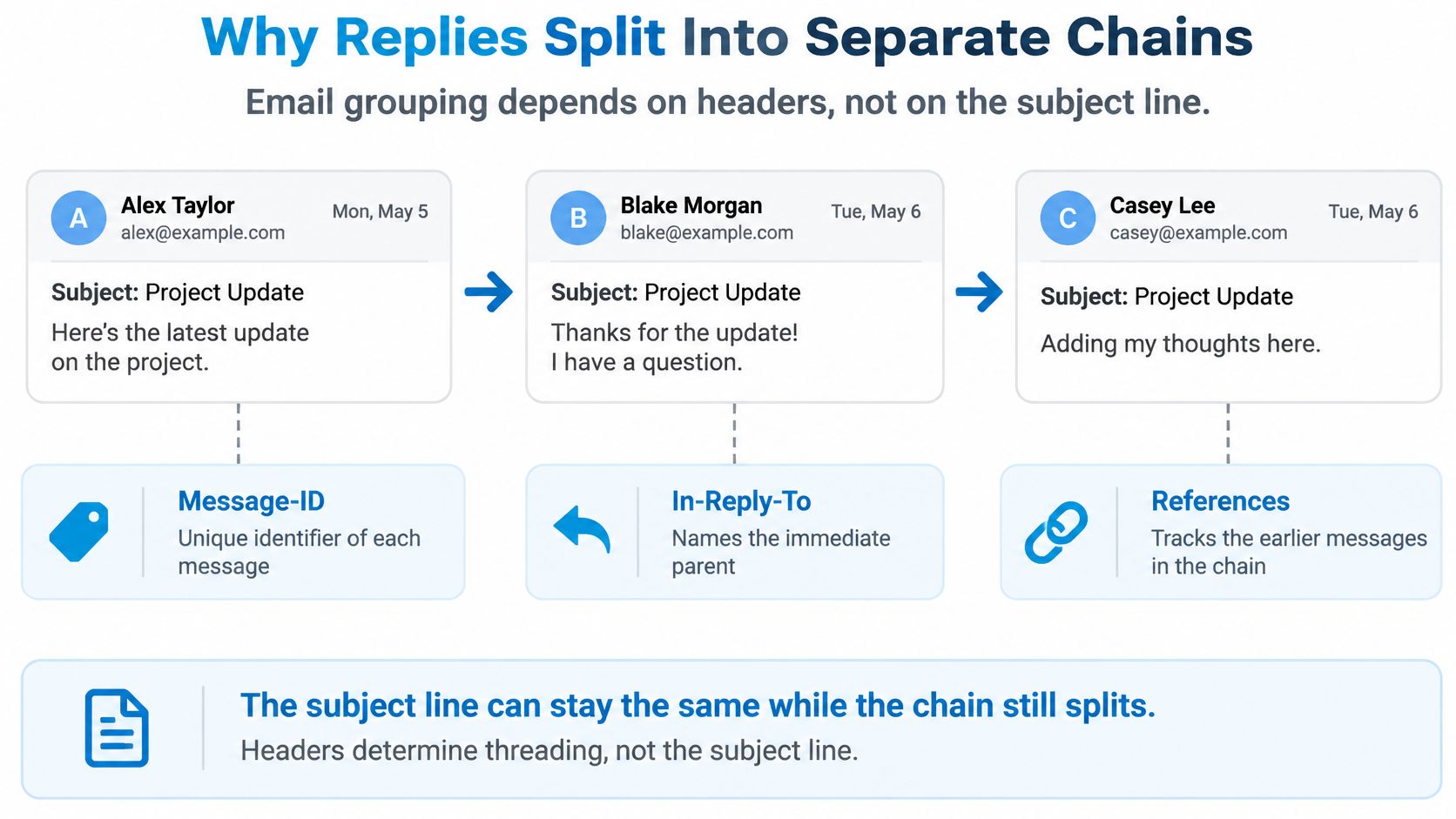
Grouping is header-driven, not subject-driven. Under RFC 5322, Message-ID is the message's unique identifier, In-Reply-To is the identifier of the immediate parent message, and References is the sequence of ancestor identifiers used to represent the broader conversation chain. Preserving those fields when you reply is the most reliable way to keep a response attached across Gmail, Outlook, IMAP servers, and other standards-compliant clients.
How a chain forms step by step
- Original message: It's sent with its own Message-ID.
- First reply: Its In-Reply-To points to that identifier, and its References starts the ancestry list.
- Later replies: Each one carries forward the References chain and adds its parent.
- Client grouping: Your client matches identifiers and displays the related messages together.
- Break point: The link fails when a header is stripped, a message is forwarded as a new copy, or a tool rewrites the message instead of replying to it.
Branching works the same way. Two people can reply to the same parent, so both messages reference one Message-ID without needing identical subjects. That's a legitimate fork, not an error, but it means a thread isn't always a single straight line.
The video below walks through reading a threaded conversation in order, which helps when branches make the order less obvious.
When matching subjects mislead you
Say a billing system sends a new email titled Invoice every month. The subjects match perfectly, yet each message starts fresh with no reply headers linking it to last month's invoice. Treat those as separate chains. A client that groups them by subject is guessing.
To check a real case, open the message source or original headers in your client and look for In-Reply-To and References. If both are absent, you don't have header evidence that the message replies to anything, whatever the subject says. If References lists identifiers you don't have in your mailbox, part of the chain may live in another account or folder.
Identical subjects are a clue to investigate. They aren't proof of a shared conversation.
Choosing Thread or Single-Message View by Situation
Neither view is always safer. Match the view to the job, then verify at message level when the outcome matters.
Which email view fits each situation
| Situation | Better view | Reason |
|---|---|---|
| Following a project with several replies | Thread view | Keeps the sequence of decisions and replies together |
| Checking one request among many | Single message | Avoids mixing in unrelated replies with the same subject |
| Recurring reports or support tickets with the same subject | Single message or header check | Subject matching groups unrelated messages |
| Approvals and decisions | Thread view, then verify the latest message and recipients | Order is visible, but the latest reply may not be authoritative |
| Legal or audit records | Keep every message with headers | Views hide quoted, forwarded and branched copies |
IMAP formalizes that reliability gap. RFC 5256 registers REFERENCES, which uses message relationship headers, and ORDEREDSUBJECT, which sorts by normalized base subject and sent date and is characterized as "poor man's threading." Use REFERENCES as the primary signal because it preserves reply ancestry. Keep subject grouping as a fallback for legacy or system-generated mail that lacks usable headers.
For a live project, thread view saves you from hunting through your inbox for the message that started an exchange. For recurring reports, it does the opposite. Twelve monthly reports with one title can collapse into a stack where you open the wrong month and act on stale figures.
Approvals sit in between. Read the thread for order, then open the specific approval as a single message and check its sender, recipients, and attachments before you proceed. The same caution applies before you file a conversation away, and guidance on archiving an email helps you distinguish filing one message from filing a whole grouped conversation.
Working rule: Trust thread view for flow. Trust headers and single messages for evidence.
Reconstructing What Was Actually Decided
A thread shows order, not authority. Email has no native fields for decision owner, final status, rationale, deadline, or superseded alternatives. The newest message can be a question, a partial forward, or a reply that dropped the person who owns the call.
Five steps to reconstruct a decision
- Find the latest explicit commitment: Quote its exact wording, such as "Approved at the revised price," rather than paraphrasing from memory.
- Compare recipients with ownership: Check whether the decision owner sent that message or was even copied on it.
- Check Reply against Reply All: A narrow reply may have dropped finance, legal, or the client, so the agreement never reached everyone who must act on it.
- Flag open branches: List unanswered questions and conflicting instructions in side replies instead of assuming the main line resolved them.
- Separate information from approval: "Thanks, noted" acknowledges receipt. It doesn't approve a price, date, or scope change. Save each source message with its headers.
A worked example with a vendor price
Say a supplier offers a renewal price in the original message. Your manager replies to everyone accepting a revised price, and the supplier confirms it. A week later, a colleague forwards the original offer to finance, quoting the old price from partial history.
If finance reads the forward as the latest word, they'll pay or budget the wrong amount. The reconstruction is straightforward. The manager's acceptance is the explicit commitment, the supplier's confirmation closes it, and the forward is older material in a new message. Its send date is newer, but its content is superseded.
Write a short decision note outside the thread. Name the owner, date, final status, and the exact message the decision came from. That note becomes the record people search later, while the preserved messages remain your evidence if anyone disputes it.
Don't ask which message is newest. Ask who committed to what, in which message, and who received it.
Readers who publish client updates or project recaps face the same record-keeping problem in a different form, turning scattered correspondence into a stable page, and email tools for growing your blog covers tools for that publishing side. Whatever tool you use, don't let it replace the source messages for approvals, hiring, or procurement.
Confirm Your Threading Setup Before You Rely on It
This week, pick one long thread that matters and run three checks on it. You'll learn more from one real conversation than from changing settings across your whole inbox.
- Confirm the grouping setting: Open your client's conversation or thread switch and note whether grouping is on, then view the same conversation both ways.
- Inspect one reply's headers: Open the message source and confirm In-Reply-To and References are present and point to messages you can find.
- Record the decision separately: Write the owner, date, status, and source message in a note, and keep the original messages with headers.
If you manage several accounts, account confusion adds another failure mode. You can reply on the right thread from the wrong address. Sickle is a native Mac mail client that brings Gmail, Outlook, iCloud, Fastmail and any IMAP mailbox into one app, with a colour per account. Each mailbox gets its own colour, a newly added mailbox is given a colour no other mailbox is using, and the colour can be changed from the account's menu.
That colour helps you choose the sending account before you reply. It doesn't change how replies are threaded, repair missing headers, or make the latest message authoritative. Keep those jobs separate, and let the checklist do the verification work.
If you juggle work and personal mail across Gmail, Outlook, iCloud, Fastmail, or an IMAP server, Sickle brings those accounts into one native Mac window with a distinct colour for each mailbox, so you can see which address you're replying from before you send. Use it alongside the header and decision checks above, then visit Sickle to set up your accounts and test the view on a thread that matters.