Unified Inbox Explained: One View for Every Mailbox
A unified inbox combines work, personal and client email accounts in one view. Learn how it connects mailboxes, syncs actions and keeps accounts apart.

You sit down at your desk with three browser tabs and two desktop apps already open. Your company Gmail sits in one window, your personal iCloud mail lives in another, and a client's Microsoft 365 account runs inside a separate browser profile. By 10 a.m., you've answered a client question from your personal address and missed a delivery alert buried under two days of newsletters.
Putting all of those accounts into one window sounds like a simple fix, and it does cut down on tab switching. Convenience also changes how shared data behaves behind the scenes. Every archive click updates the underlying mail server, mixed accounts blur your sending identity, and any connected assistant can suddenly read every mailbox in the list. How you configure account colours, archive habits, and assistant permissions matters just as much as the single view itself.
What a Unified Inbox Is and Why It Matters
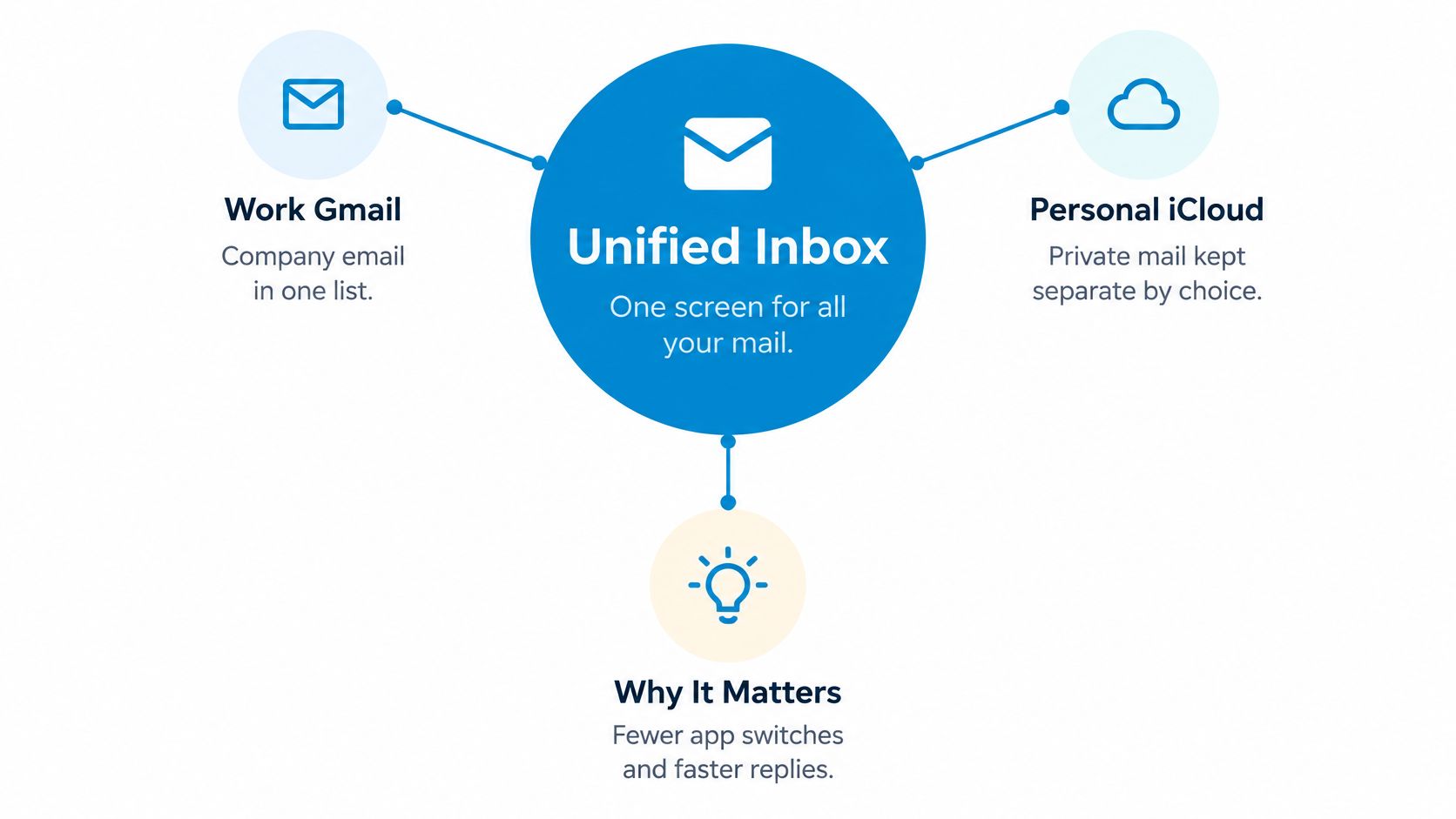
A unified inbox is a single screen that displays messages from several separate email accounts in one sortable, searchable list. You might pull in a work Gmail account, a personal iCloud address, and a client's company IMAP server, then read, filter, and reply from the same window without logging in and out.
A reception desk in a busy office building works the same way. One desk receives packages for every tenant and sorts them by floor, rather than forcing every tenant to walk downstairs to a different locked mailbox in the basement. The desk is the only shared part. Each package still belongs to one tenant, and the same holds for email: each account still lives on its own mail provider, keeps its own login credentials, and stores its own archive. That distinction matters later, because actions taken in the shared view write back to each provider individually.
Why Multiple Accounts Create Daily Friction
Email was never designed as a single-account tool for modern work, and the sheer volume makes app-switching expensive. According to the Radicati Group 2024–2028 Email Statistics Report, global daily email traffic reached 361.6 billion messages in 2024 and is projected to climb to 408.2 billion messages per day by 2027. That same report notes that many consumers maintain multiple email addresses for distinct roles, such as online shopping and personal correspondence.
Workplace volume adds pressure on top of personal accounts. In 2025, the average employee received 117 emails per day, according to an inbox overload statistics roundup. When a consultant or contractor spreads those messages across an employer inbox, a personal address, and two client portals, checking mail turns into a fragmented loop. Teams managing customer channels run into the exact same pattern across platforms, which is why marketers often pair email consolidation with a social inbox for multiple networks to keep replies from slipping through the cracks.
Quick self-test: If you open more than one email app before noon, or sign in and out of browser profiles just to check for replies, you're already paying the switching tax a unified view removes.
The switching tax has a quieter cousin: identity confusion. When three accounts share one reply box, sending from the wrong address becomes easy, and the convenience you gained creates a new kind of mistake. This is why setup choices matter as much as the single view itself. Colour-coding each account, deciding how archiving behaves, and choosing what any connected assistant may read are configuration decisions, not afterthoughts.
Once every mailbox appears in one interface, you can pair the combined feed with smart mailboxes that filter by sender, status, or project to slice messages without moving them between providers. The combined view is the starting point; how you shape it determines whether it saves time or hides problems.
How a Unified Inbox Connects Different Mailboxes
Behind the single list, every connected mailbox relies on one of two handshake methods. Major providers like Google and Microsoft use OAuth, a secure sign-in screen where you grant access without handing your raw password to the mail client. Other providers and private work servers use IMAP to fetch and organize mail alongside SMTP to send replies.
| Mailbox type | Connection method | What you provide |
|---|---|---|
| Gmail | Sign in with Google (OAuth) | Google account sign-in |
| Outlook, Hotmail or Microsoft 365 | Microsoft sign-in (OAuth); IMAP for reading, SMTP for sending | Microsoft account sign-in |
| iCloud, Yahoo or Mail.ru | Sign in from one shared sheet | Full email address and account password or app password |
| Company or self-hosted IMAP server | IMAP and SMTP with host and port | Full email address, server host, port and password |
| Other IMAP provider such as Fastmail | IMAP with host and port | Full email address, server host, port and password |
Modern clients let you sign in to Gmail, Outlook, iCloud, Yahoo, and Mail.ru from a single connection sheet, while any custom IMAP server joins with a host address, a port (typically port 993 over SSL/TLS), and a password. If you're new to server-based setups, learning how an IMAP email client keeps folders aligned with the server explains why custom addresses behave so smoothly alongside consumer accounts.
Preparing Your Account Details
Gathering your credentials before you open the setup sheet prevents half-finished connections. Most failed logins happen because one field doesn't match what the mail server expects.
- Use the full email address as your username: Short handles rarely work across mixed clients, because many mail apps only accept the complete address (such as
alex@company.com) during sign-in. - Generate app passwords where required: Accounts protected by two-step verification on iCloud, Yahoo, or Fastmail usually reject your regular login password over IMAP, requiring a dedicated app-specific password from the provider's security panel.
- Confirm server settings and IT rules: Corporate mail servers need exact IMAP and SMTP hostnames and ports. Because a unified service that also supports remote tools stores the mailbox address, server settings, and sign-in credential on its servers so both the app and connector can authenticate, check with your IT department first if your company enforces strict third-party access rules. Organizations running complex Exchange or Microsoft 365 policies sometimes lean on F1Group Outlook support services to verify OAuth permissions and mail-flow policies safely.
Verifying and Troubleshooting Connections
Adding an account isn't finished the moment the dialog closes. Run a three-part verification check on every newly connected mailbox: confirm that recent messages arrive in the combined list, verify that your existing folders load with the right names, and send a short test reply to an alternate address so you can inspect the sender header.
If an account stalls or refuses to sync, check three things in order. First, log into the provider's web settings and confirm that IMAP access is switched on, since some providers disable it by default. Second, re-enter the full email address, host name, and port number without trailing spaces. Third, replace your main login password with a freshly generated app password if two-factor authentication is active on that account.
What Happens to Mail When You Act in One View
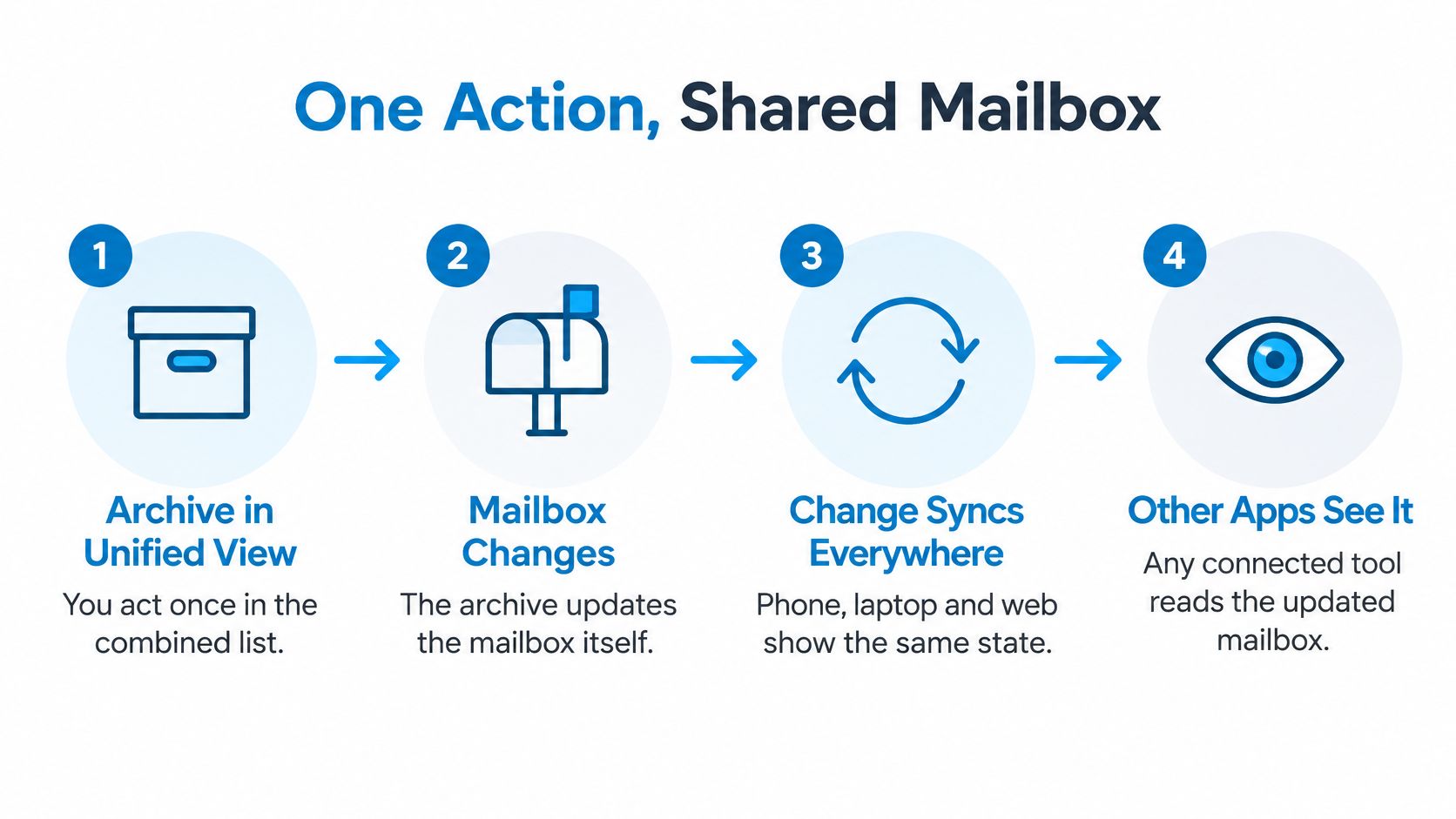
Archiving an invoice from a unified list can feel like clearing a note from a desk. The message leaves your screen, yet the desk is shared. The action changes the authoritative mailbox at the provider, so any phone app, web tab, or connected assistant using that same mailbox sees the new state.
That matters because convenience changes shared data. A single view gathers accounts, but setup choices about account colour, assistant permissions, and archive behaviour decide what people understand before they click. Sickle is a native Mac mail client that brings Gmail, Outlook, iCloud, Fastmail and any IMAP mailbox into one app, with a colour per account. Each colour helps you see which identity a message belongs to before you act on it.
A common surprise appears when automation and desktop mail work together. Sickle signs an agent in with the same account, so the agent sees every mailbox added on the web or in the app. If an assistant archives a message, that mail is gone from the app too, because all connected accounts share one mailbox. The same applies when mail is archived from a phone or provider website.
How One Click Travels to Your Provider
The archive button is familiar, but the server command behind it depends on the mail system. Different systems handle organization, threading, and search under distinct rules. Archiving in Gmail removes the Inbox label while leaving the thread in All Mail, whereas archiving on a standard IMAP server moves the message from the Inbox into a dedicated Archive folder. The visible result in the unified list can look similar, while the provider stores the message differently.
A dependable client translates each click into a capability-aware sequence:
- Record the intent against the source account: The client identifies which provider owns the message, then maps the button click to that server's native command.
- Send the mutation to the authoritative server: The client transmits the label removal, folder move, or read-status flag to the remote mailbox.
- Confirm completion: The app waits for the server to acknowledge the change, tracking operation status so a dropped Wi-Fi signal cannot lose the update without the app knowing.
- Refresh the local cache: Once confirmed, the unified list updates its view and pushes state changes so other devices stay aligned.
Keeping that view fresh does not require downloading years of mail every minute. Incremental synchronization fetches only what changed since the previous check. The Gmail API synchronization guide explains how apps track a stored startHistoryId cursor, listen for change notifications through Cloud Pub/Sub, and call history.list to pull only affected records. RFC 8621 JMAP specification defines the JMAP mail protocol, which belongs at the protocol level rather than as an explanation of Gmail labels or IMAP folders.
A freelancer archives an invoice on a phone while commuting, then returns to a laptop and sees nothing in the unified list. The email is not lost or deleted. The phone updated the remote mailbox, and incremental sync cleared it from the laptop screen seconds later. Check Archive or All Mail before assuming a missing thread was erased.
Permissions add one more practical layer. Read permission lets an assistant list, search and read mail. Change permission lets it mark mail as read, move it, move it to Trash, save drafts and attach files to them. Treat change permission like handing out a key, because it lets the assistant alter the same shared mailbox you see.
Before running bulk cleanups across dozens of threads, verify whether the action moves messages to a reversible folder like Archive or Trash, or removes them permanently.
Where a Unified Inbox Saves Time and Where It Adds Noise
Five accounts in one window remove the.stop-start cost of opening different apps. The view works like a single reception desk for several offices. Mail arrives in one chronological line, with each account shown in its own colour. That colour matters because convenience changes shared data. A reply sent from the wrong address reaches the wrong sender's mailbox, and an agent archive action changes the same mailbox the app shows.
| Problem | What the unified view changes | What still needs a habit |
|---|---|---|
| Switching between provider apps all day | One list for all connected accounts | Choose one default account for new replies |
| Replying from the wrong address | Each account keeps a visible identity and colour from its account menu | Check the From line before sending |
| Newsletters hiding client mail | The Email cleaner groups mailing lists and mail by sender, opened with ⌘⇧K | Unsubscribe from lists you never read |
| Unread mail spread across accounts | One unread view across accounts, with a filter for mail unread for more than five days | Set a fixed daily triage time |
| Urgent deadlines buried in volume | One sorted list for every mailbox | Flag client deadlines manually |
Consolidation solves visibility, not prioritization. Observational data analyzing about 2 million emails and calendar events in the Actor November 2025 email insights report found that 60.1% of email volume consisted of non-actionable promotions or notifications, while a 2025 global survey cited in the same analysis showed professionals spent roughly 10.8 hours per week on non-critical email work. Broader workplace polling, reported by Thrive Global, confirms the drain: in 2025, 35% of employees surveyed said they spent up to five hours per day managing their inboxes.
Put plainly, the bottleneck usually involves too many trivial decisions colliding with high-stakes correspondence. That is the core problem behind email overload, even inside a clean single window. A unified view gives you one place to decide, but each decision still has an owner, a mailbox and a consequence. In Sickle, unsubscribing from a mailing list in the Email cleaner also clears that list's old emails, so a small cleanup action can remove a large backlog at once.
The same caution applies to assistants. Read permission lets an assistant list, search and read mail. Change permission lets it mark mail as read, move it, move it to Trash, save drafts and attach files to drafts. Those tools can save time during triage, yet they act on the connected mailboxes rather than a decorative copy of them. Set permissions by job, then let the assistant do only the work you want it to touch.
Measuring Whether Your Triage Works
Do not rely on a vague sense that your inbox feels tidy. Evaluate your unified workflow with three concrete numbers over a normal workweek:
- First-screen urgent recall: Count how many time-sensitive client or manager requests appeared on your first screen without you having to search for them. If critical threads keep slipping below the fold, promotional senders are still too loud.
- False-archive rate: Track how often you have to dig a message back out of Archive or Trash because you cleared it too aggressively. A high false-archive risk means your filters or bulk sweeps are catching real conversations alongside automated alerts.
- Weekly manual overrides: Notice how many times per week you manually move, unflag, or recategorize a thread your rules sorted incorrectly. Frequent overrides signal that a filter needs tightening or a newsletter deserves an unsubscribe click.
Pair those checks with one behavioural rule: schedule fixed triage blocks, such as 20 minutes in the morning and 20 minutes after lunch, instead of reacting to every notification. Short blocks work best when the active list contains mail that still needs a decision. Keep low-value mail out of those blocks by unsubscribing from unused lists, using the unread filter for messages older than five days, and clearing old mail by sender when a thread has stopped mattering. That way, the unified list reduces context switching without turning every quiet moment into another round of inbox decisions.
Keeping Work and Personal Mail Separate in One View
A consultant glances at a single merged inbox, sees a message from a familiar first name, and hits reply. The answer goes out from the wrong address. The client specs she forwarded came from her employer's account, and the family note she dashed off carried a corporate signature. Convenience created the mistake, not carelessness: when every mailbox shares one view, each action you take operates on shared data, so the setup choices you make about colour, permissions, and archive behaviour decide whether that view protects you or exposes you.
Two separate risks surface when boundaries blur. First, scanning a blended list makes it dangerously easy to fire off a personal comment from a corporate address, or send confidential client material from a personal Gmail account. Second, when an agent connector signs in with the same account, the assistant sees every mailbox added on the web or in the app. Before attaching any automation, the first decision is which mailboxes belong in that connection at all.
Caution here is mainstream, not paranoid. In the 2025 Stack Overflow AI developer survey, 81% of developers expressed concerns about AI-tool security and privacy, and 87% reported concerns about output accuracy. Independent testing of AI agents has repeatedly found that their safety performance falls well short of perfect.
Understanding permission tiers lets you keep centralized visibility while deliberately fragmenting what automated tools can touch. Permissions work like keys to a shared building. A read key opens the lobby so a visitor can look around, while a change key opens every office and lets that visitor rearrange the furniture. Handing out the change key when the visitor only needs directions is how accidents happen.
| Permission level | What the assistant can do | Risk to separated mail |
|---|---|---|
| Read only | Search and read messages | Exposes the content of every mailbox it can see |
| Modify | Archive, label, move or mark as read | Changes the original mailbox, so check reversibility first |
| Send | Send or reply as you | Sends mail under your identity, so require confirmation before sending |
In practice, read permission lets an assistant list, search, and read messages, while change permission lets it mark mail as read, move threads between folders, send items to Trash, save drafts, and attach files. Giving a summarization tool change or send rights widens the blast radius for no practical gain. Remember one more subtlety: in a client where connected accounts share one mailbox, mail that an agent archives is gone from the app entirely, so a move or archive action is never cosmetic.
Five Controls for Mixed Mailboxes
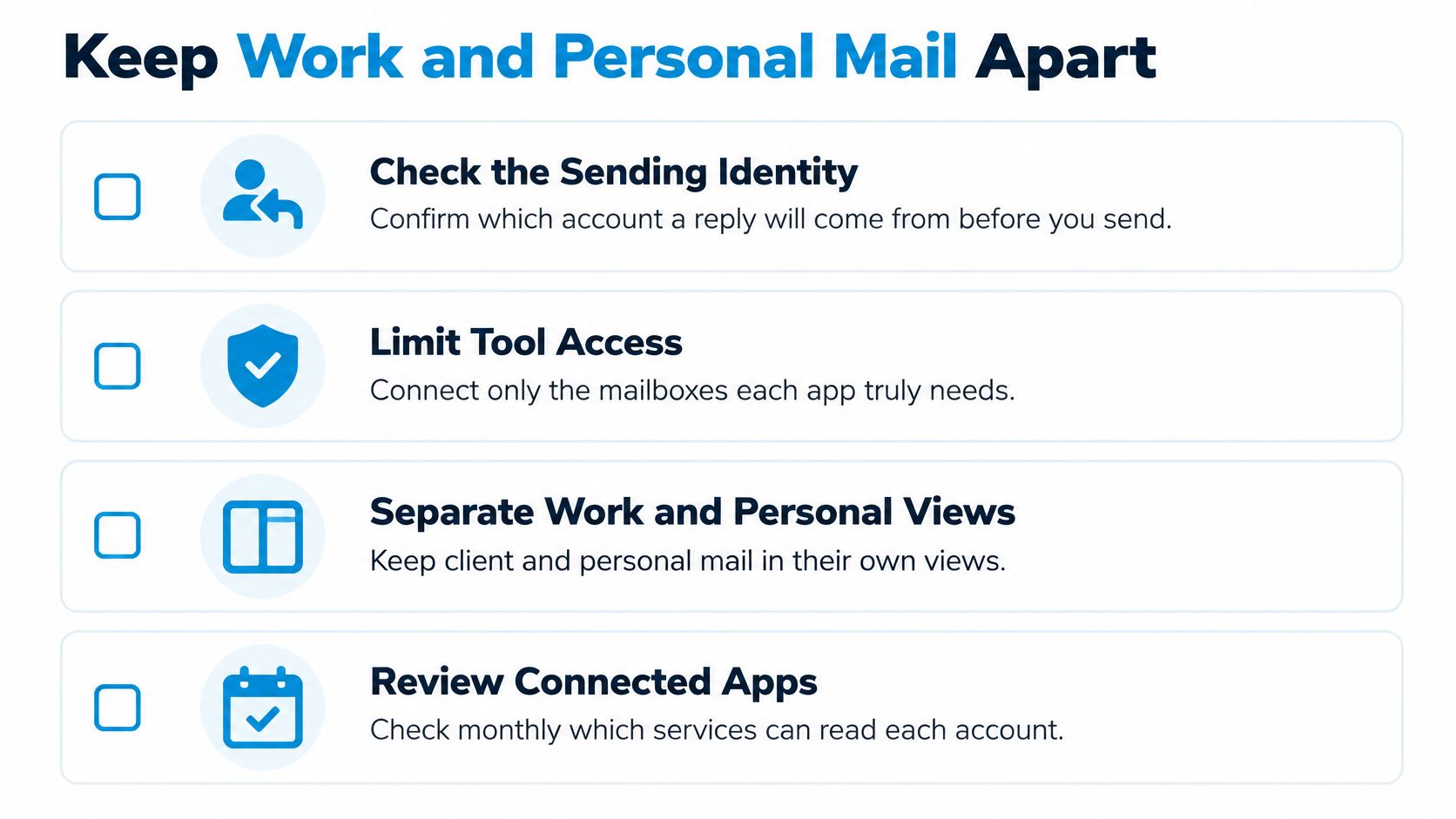
- Assign a distinct colour to every account. Visual coding gives you an immediate peripheral cue, so you spot the difference between a blue work inbox and a green personal account before your fingers hit the keyboard. A well-built client assigns a fresh colour to each newly added mailbox automatically and lets you change it from the account's menu.
- Exclude sensitive accounts from assistant access by default. If a client contract forbids third-party AI processing, keep that mailbox disconnected from your agent account altogether rather than relying on polite prompt instructions.
- Restrict search tools to read-only keys. An assistant that only finds unanswered threads or summarizes project updates doesn't need authority to move, trash, or alter mail on your server.
- Require human confirmation before sending. Let assistants save drafts you can review, inspect the recipient list and From address yourself, and click send manually. The From line is where mixed identities do their damage, and thirty seconds of review costs less than one misdirected reply.
- Audit and prune connections monthly. Remove mailboxes from old contracts and revoke AI assistants you no longer use directly from your account settings, keeping your active surface area small.
Boundary check: Before trusting any unified setup with work mail, confirm three things: can you revoke access per client or mailbox, are every assistant's archive actions reversible, and which sensitive accounts stay completely out of broad searches?
Set Up Your Unified Inbox in Six Steps
Building a calm multi-account workflow takes about half an hour when you configure boundaries before importing years of backlog. Follow these six steps in order so visual cues, cleanup filters, and triage habits lock into place from day one.
- Inventory and classify every email address. Write down each account you check and tag it as work, personal, or client. That simple list tells you which addresses belong in your daily combined view and which regulated client accounts should stay excluded from AI assistant access.
- Connect each mailbox with its native method. Sign in through OAuth for Gmail and Microsoft 365, and enter your full email address, server host, port, and app password for iCloud, Fastmail, or private IMAP servers. Send one quick test reply per account to confirm outgoing SMTP delivery.
- Clear the backlog before you start triaging. Run an unread filter targeting messages that have sat untouched for more than five days so you can mark stale noise as read in one sweep. Starting with a clean slate ensures your first screen reflects current obligations instead of last month's promotions.
- Lock in account colours and scoped permissions. Give every connected mailbox a distinct colour so your active sending identity stands out immediately, then assign least-privilege read or draft permissions to any connected assistant.
- Pin the folders you check every day. Place your primary project folders, VIP views, or waiting-for-reply labels at the top of your sidebar so jumping between priorities takes a single keystroke rather than nested menu clicks.
- Protect a fixed daily triage window. Block two short slots on your calendar to process incoming messages, unsubscribe from dead mailing lists, and flag client deadlines. Teams handling high-volume customer threads can borrow structured queuing habits from the CS Outsource inbox management guide to keep routine inquiries from derailing urgent work.
A Practical Option for Mac Users
If you work on macOS and want those guardrails built into one interface, Sickle is a native Mac mail client designed specifically for mixed-provider setups. It pulls Gmail, Outlook, iCloud, Fastmail, and any IMAP server into a single window, automatically assigns each newly added mailbox a unique colour that no other account is using (adjustable anytime from the account menu), and includes an Email cleaner with an unread filter for messages untouched for more than five days alongside mailing-list cleanup. For users working with AI tools, its built-in MCP connector lets Claude, Codex, or Cursor search, read, and organize those same mailboxes using scoped permissions.
Give your new setup one full workweek to settle. By Friday, a healthy unified inbox feels quiet and predictable: every active account shows up in one place, glancing at the colour-coded From line becomes second nature before every reply, and your scheduled triage blocks hold steady without leaking into focused client work.
Sickle brings your Gmail, Outlook, iCloud, Fastmail, and custom IMAP accounts into one native Mac window with distinct account colours, built-in newsletter and backlog cleaning, and scoped AI agent permissions you control. If you're ready to replace scattered tabs with a clean, boundary-safe workflow, visit Sickle to set up your unified inbox.