IMAP Email Client Guide: Setup, Features and Fixes
Learn how an IMAP email client syncs folders, which settings each provider needs, and how to fix common IMAP login and sync errors.

You typed the password that works in the browser, and the mail app still refused the account. The host name looks familiar. Port 993 is filled in. Nothing in the dialog explains why a correct password failed.
That failure is the normal starting point for an IMAP email client. The program doesn't download the mailbox and walk away. It keeps a live view of mail that stays on the server, and the provider decides which kind of login that view is allowed to use. Gmail, Outlook, iCloud, Yahoo, Fastmail, and a company server can share the same port and still reject a normal password.
What follows is the order that gets a mailbox working. Host and login method come first, because those two choices decide whether the password even matters. After that, the client's effect on the server, the features worth comparing, the connection steps, the errors that look alike, and the extra checks when an assistant reads the same mail.
Server Settings and Login Methods by Provider
The host name is the easy part. Every provider in this table accepts IMAP over SSL/TLS on port 993, and the hosts follow a predictable pattern. What decides whether your password works is the column on the right: the login method each provider will accept from a third-party app.
| Provider | IMAP host | Port and security | Login method |
|---|---|---|---|
| Gmail | imap.gmail.com | 993, SSL/TLS | OAuth or app password |
| Outlook, Hotmail, Microsoft 365 | outlook.office365.com | 993, SSL/TLS | OAuth |
| iCloud | imap.mail.me.com | 993, SSL/TLS | App-specific password |
| Yahoo | imap.mail.yahoo.com | 993, SSL/TLS | App password |
| Fastmail | imap.fastmail.com | 993, SSL/TLS | App password |
| Company or self-hosted server | Provided by your administrator | 993 is typical, SSL/TLS | Password or issued credentials |
Three ways a provider lets you sign in
A regular password is the same one you type into webmail. Many large providers now block it for IMAP while the website still accepts it, which produces the confusing result of a correct password that fails. The client reports bad credentials. The credentials are fine; the door they knocked on is closed.
An app-specific password is a separate credential you generate in the account's security settings, usually only after two-step verification is turned on. You paste that long string into the client in place of your real password, and you can revoke it later without touching the browser login. iCloud, Yahoo, and Fastmail commonly take this path, and Gmail still offers it for apps that cannot use OAuth.
OAuth sends you to the provider's own page to consent. The provider then hands the client a scoped token, which the client stores in place of a password. Outlook, Hotmail, and Microsoft 365 expect this on outlook.office365.com, and Gmail uses it whenever the connecting app is registered for it.
Consent and scope are easy to conflate. Consent is your yes. Scope is the limit on what that yes allows, such as reading mail without permission to send it. A read-only token still fails the moment a client tries to move a message.
Two smaller details trip people up here. The username is normally the full email address, and some clients, including Sickle, only ever accept the full address, so a short form like jsmith fails even on a server that recognises it. And on a company or self-hosted server, the administrator supplies the host and any non-standard port; use the credentials they issued, not a guess borrowed from another provider.
Practical rule: If webmail accepts the password and the client does not, change the login method before you change the host.
Provider behaviour is fragmented. Only a minority of mail providers advertise OAuth mechanisms for IMAP, and advertising OAuth does not guarantee that third-party applications can use it, as the provider dataset published by MCP Emails shows. Some still want an app password. Others want a provider-registered OAuth client. Microsoft's move away from Exchange Web Services is also pushing more integrations toward Microsoft Graph and OAuth, while IMAP stays the cross-provider fallback.
Before you save, open the provider's current IMAP help page and match three things: host, security type, and login method. Turn on certificate validation, and don't click through a name mismatch just to finish setup.
What an IMAP Client Does With Your Mail
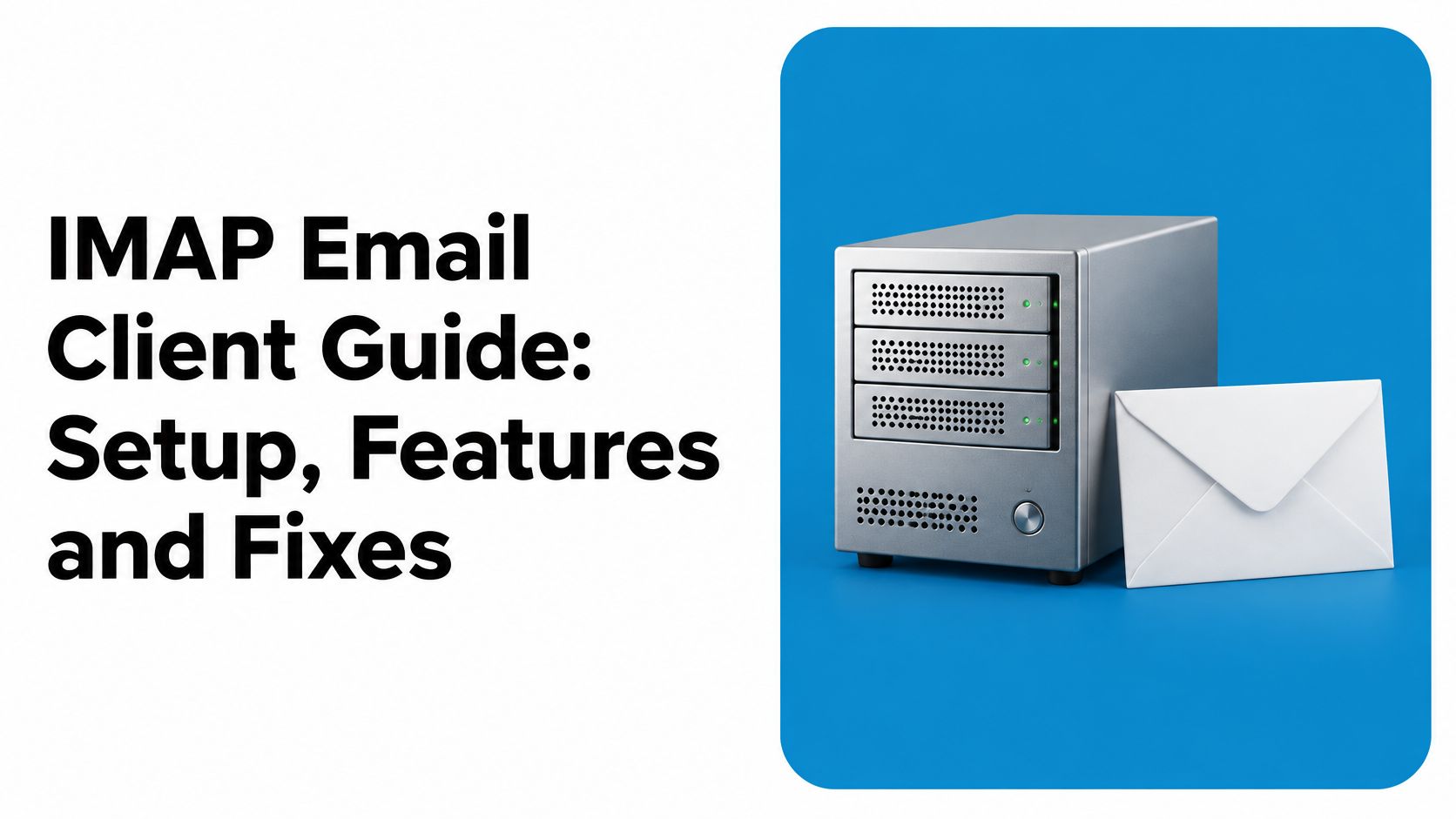
Think of the office filing cabinet. One cabinet holds the folders. Each desk gets a window onto that cabinet, not its own stack of photocopies. An IMAP email client is that window. A download tool, by contrast, hands each desk a private copy and then the copies drift apart.
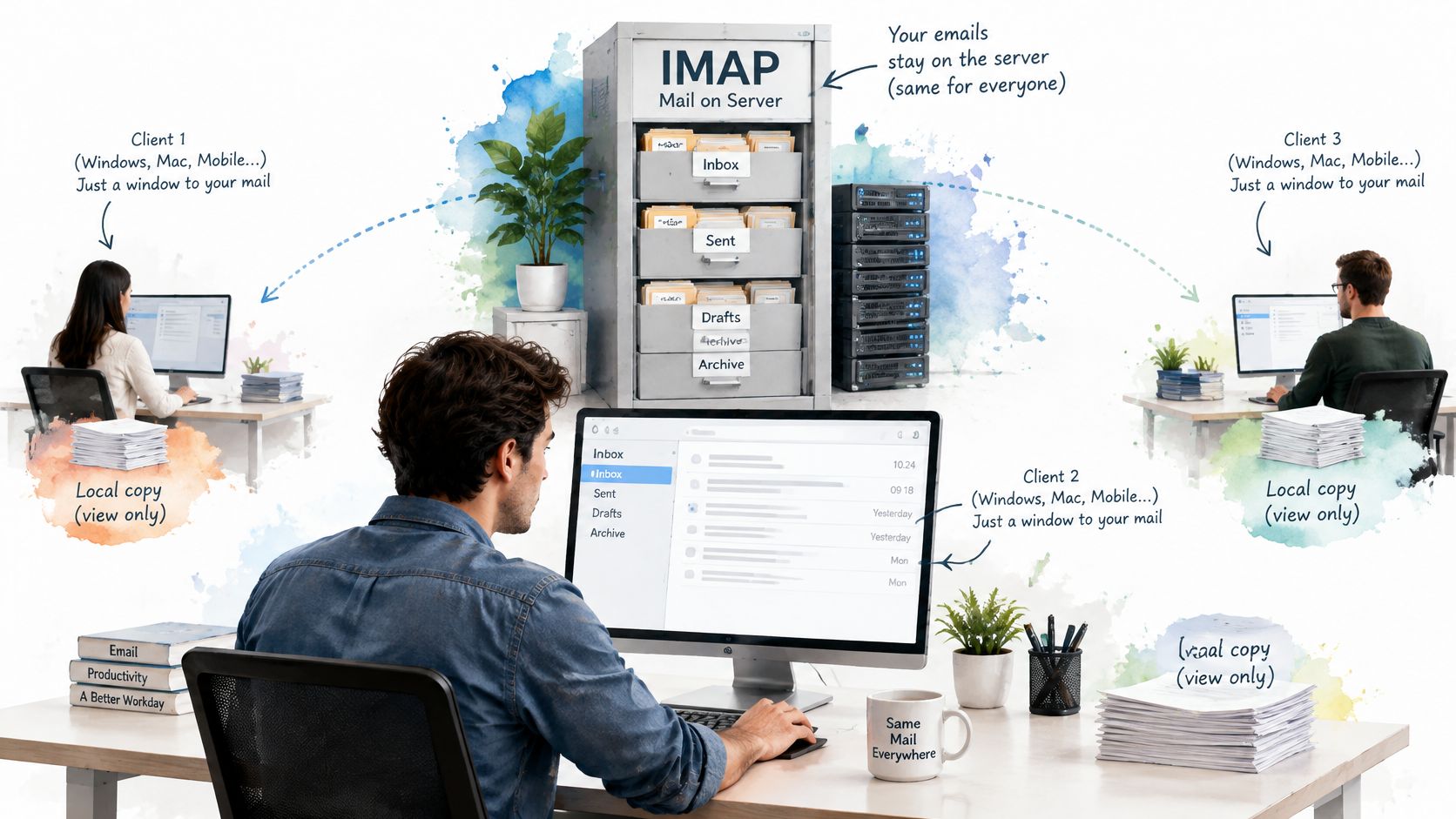
Read, unread, flagged, and moved are stored with the message on the server. Mark a message read on your phone, and the desktop shows it read on the next sync. Move it into “Clients,” and the other devices follow. That server-held state is the original design. Mark Crispin at Stanford created the remote-mailbox model in 1986, and the IETF standardised it from IMAP2 in RFC 1064 in 1988, through IMAP4rev1 in RFC 2060 in December 1996, to IMAP4rev2 in RFC 9051 in August 2021, as the IMAP specification history records.
POP-style retrieval is the photocopy. The client fetches messages and, in the usual setup, removes them from the server. The phone can then hold mail the laptop never sees. IMAP was built for mailbox access, not for that one-way download.
Reading is not the same job as sending
IMAP reads and organises mail. It does not post a new message. Sending uses a separate transfer protocol, and a plain account of how SMTP handles outgoing email makes the split obvious. A client that can only “see” the inbox still needs outgoing settings before Reply does anything.
Offline work fits the same model. The client caches messages so you can read on a train, then resynchronises when the network returns. The cache is a convenience. The server remains the shared copy.
Each account keeps its own connection. A multi-account client merges those connections into one window. It does not merge the mailboxes. Delete a folder on the laptop and it disappears from the phone too, because both were looking at one cabinet. That is also why the server copy is the one to back up, and why it helps to know whether deleting an email removes it for every device, not just the screen in front of you.
The server copy is the mailbox. A laptop backup of the app's cache is not a second original.
Features Worth Comparing Before You Choose
Eight checks cover most of the difference between clients. Choose based on how you work, not on a feature grid that lists every protocol verb.
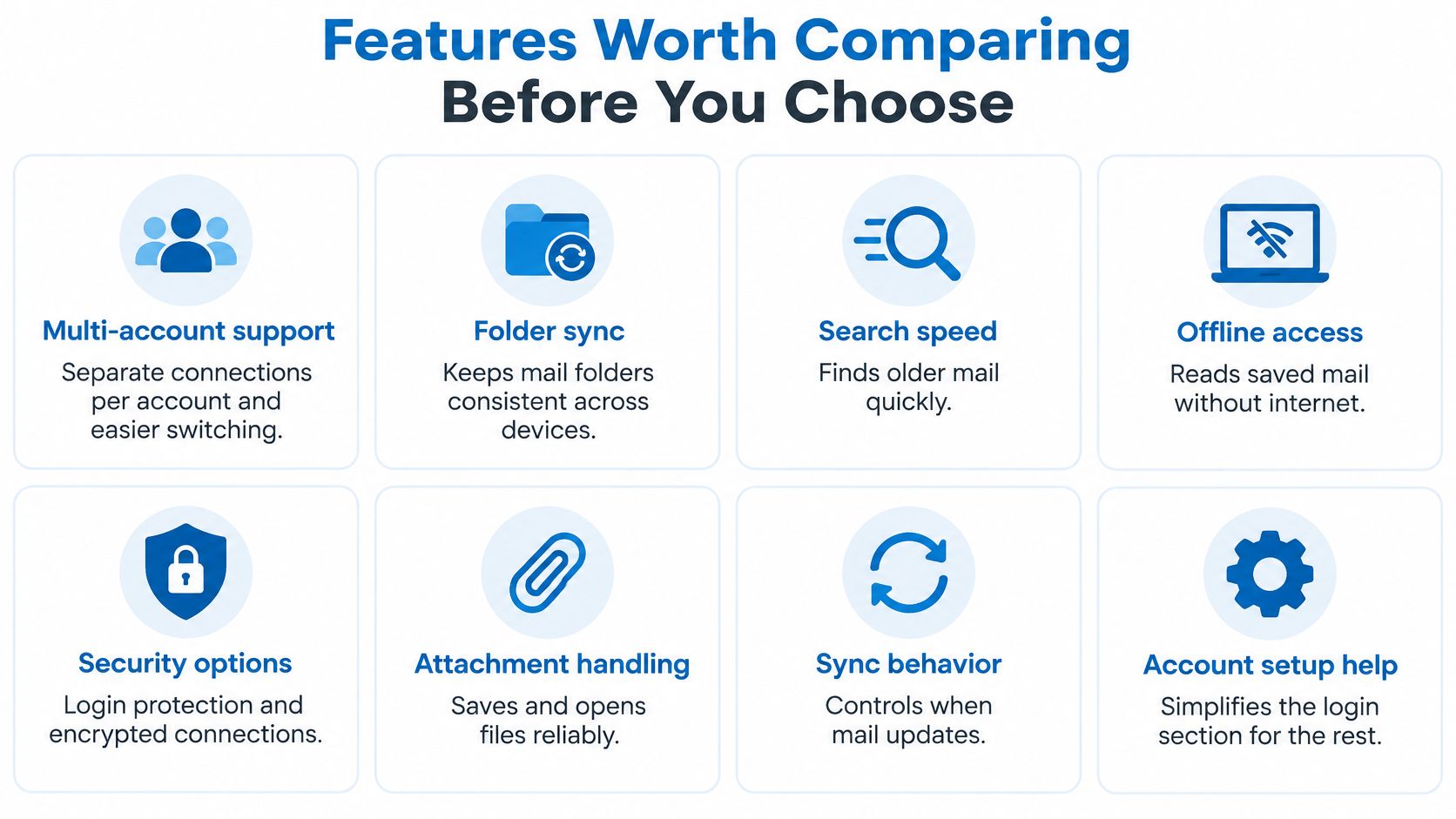
- Multi-account support: Look for a separate connection per account and a view that can show them together or apart, so a work reply doesn't leave from the personal address.
- Offline cache: Check whether mail is stored locally, how it resyncs after a dropped network, and whether that cache is removed when you sign out of a shared Mac.
- Folder and flag sync: Read status, moves, and Trash should match webmail. If the phone says read and the website says unread, the client is keeping a private flag.
- Search: Server-side search asks the mailbox. A local index searches what has already been cached. On a large archive, the second is usually faster and the first is more complete.
- Threading and attachments: Messages arrive as raw MIME parts. The client has to decode multipart bodies, odd encodings, and provider quirks before a thread or a PDF looks normal.
- Transport and login: RFC 8314 recommends TLS version 1.2 or newer, discourages cleartext, and prefers implicit TLS over a connection that starts in the clear and upgrades with STARTTLS. Require certificate validation, refuse a silent fallback to plaintext, and confirm the client offers OAuth or an app password rather than only a reusable mailbox password. Tokens and message bodies still need that encrypted channel. The email protection tips from Nutmeg Technologies are a useful companion when you're hardening the rest of the account, not only the port.
- Cleanup: Newsletter volume needs grouping, unsubscribe, and a way to clear old mail without hunting message by message. A dedicated email management service is worth reading if the inbox is mostly lists.
- Sending: The outgoing SMTP account is a second setup. Confirm sent mail is filed to Sent, because the incoming protocol will not do that for you.
A short walk-through of what those choices look like in a working client helps when the checklist still feels abstract.
Choose three must-haves before you install anything. Someone with two accounts cares about colours and a unified inbox. Someone with a decade of mail cares about search and cache size. Someone drowning in lists cares about cleanup. The other five can wait.
How to Connect an IMAP Account Step by Step
Work in this order. Each step names the slip that makes the next one look broken.
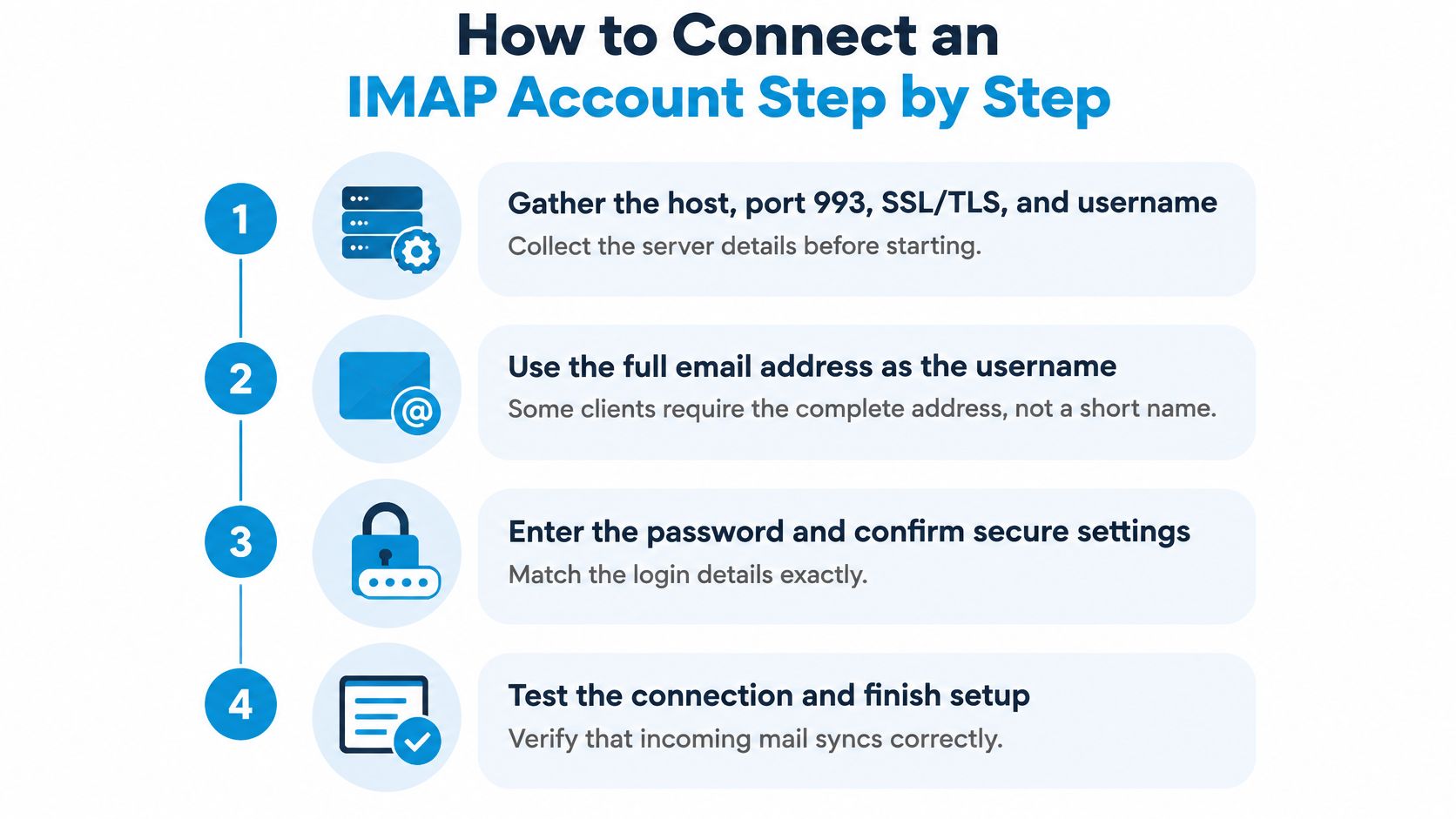
- Gather the host, port 993, SSL/TLS, and the username. Write them down from the provider's help page, not from memory. The common slip is a host from a different product, such as a POP name or an old Exchange name, which then times out.
- Use the full email address as the username. Some clients, including Sickle, only ever send the full address. A short name like
alexis rejected even when the password is right, and the error looks like a bad login. - Create the app-specific password, or confirm OAuth is offered, before you open the client. This is the step that decides everything after it. If you skip it, step 5 fails with “authentication failed” and you'll start editing the host for no reason.
- Choose manual IMAP when the provider isn't in the client's list. Automatic setup sometimes picks POP or an outdated host. If the wizard never asks for a host, you're not in manual mode.
- Enter the host and port, and select SSL/TLS. Don't pick STARTTLS unless that provider's help page requires it, and don't leave security on “none.” A plaintext choice can look like a timeout or a certificate error rather than a settings mistake.
- Enter the username and the app password, or finish OAuth on the provider's page. Complete the browser consent. Closing that window halfway stores nothing useful. A company mailbox that still uses a password belongs here only when the administrator said so. If you're connecting Outlook or Microsoft 365 and the wizard fights you, the Microsoft 365 email help from Networking2000 walks through that client's screens without replacing the provider's own host names.
- Add the outgoing SMTP server as its own entry. Take the host and port from the same help page. Submission is commonly 465 or 587 with TLS. Leaving SMTP blank gives you a client that receives and cannot reply. A wrong SMTP password often shows up only when you press Send.
- Test against webmail. The folder list should match. Send a message to yourself and confirm it lands in Sent, not only in the inbox. Then compare inbox counts. A big gap means the first sync is still running, or a folder was left unsubscribed.
After the account is saved
Don't add the second and third accounts until the first one passes that count check. A half-synced mailbox plus a second bad login is much harder to untangle than one account tested on its own.
Common Problems and How to Fix Them
The failure readers hit most is a correct password rejected by the server. That almost always means the provider wants an app-specific password or OAuth, not another attempt with the same browser password. Fix that before you touch folders, caches, or “repair account.”
| Symptom | Likely cause | Fix |
|---|---|---|
| Correct password rejected | Provider requires app password or OAuth | Create an app-specific password or switch to OAuth |
| Connection times out | Wrong host or port, or firewall or VPN blocking port 993 | Check host, use port 993 with SSL/TLS, try another network |
| Certificate warning on self-hosted server | Certificate name does not match host, or chain incomplete | Ask the administrator to fix the certificate; do not accept it blindly |
| Sent mail missing from Sent folder | SMTP sends the message without filing a copy | Enable the Sent copy option or check folder mapping |
| Folders or read status differ from webmail | Stale local cache | Resync the account or rebuild the local cache |
| Duplicate messages after reconnecting | Folder mapped twice or cache out of date | Remove the duplicate folder mapping and rebuild the cache |
Read the error before you rebuild anything
Timeouts are not login failures. A wrong host, a wrong port, or a VPN blocking 993 never gets as far as checking the password. Try another network. If it connects there, the settings were fine and the path was not. This takes minutes.
Certificate warnings on a self-hosted server are a name mismatch or an incomplete chain. Accepting the warning trains you to trust an impostor later. The administrator has to fix the certificate. That is their job, not a checkbox you should override.
Missing Sent mail is an outgoing-mail problem. SMTP delivered the message and nobody asked the incoming mailbox to keep a copy. Turn on the client's “save a copy in Sent” option, or point that option at the correct Sent folder if the names don't match. Minutes, unless the provider uses an unusual folder name.
Flags that disagree with webmail come from a stale cache. Resync, or rebuild the local cache if a resync doesn't move. Give it a few minutes on a large mailbox. Don't delete mail on the server to “make the lists match.”
Duplicates after a reconnect usually mean the same folder is mapped twice, or the cache replayed a download. Remove the extra mapping, then rebuild the cache. If you rebuild first, you keep two copies of the mapping and the duplicates return.
Fix the login method first, then the host and port, and only then the cache. A cache rebuild cannot repair a rejected login.
Authentication errors and connection errors should stay in separate piles. One says the server heard you and said no. The other says the server never answered.
Using an AI Assistant With Your Mailbox
An assistant that can open the mailbox can also see raw MIME, attachments, encodings, and whatever odd structure that provider used. Ordinary connection guides stop at “it logged in.” They skip what the assistant might do next.
The risks are specific. A message can hide prompt injection, instructions aimed at the assistant rather than at you. Attachments can be malicious. Tokens can be stolen. A send can leave without a record. An archive or a move changes the live mailbox, not a private AI copy, so every other device sees it too.
Read-only is not a full safety model. An agent that can search several accounts can still collect sensitive mail and reveal it in the wrong chat, even when it cannot delete anything. Cross-mailbox search is useful and also the easiest way to mix a client's contract with a personal thread.
Three checks before the assistant touches mail
Scope each account on its own. Grant reading, changing, or sending separately, and only the level that task needs. Reading lets it list, search, and open mail. Changing lets it mark, move, and draft. Sending is a third grant, not a side effect of reading.
Require confirmation before a send or a move. A draft sitting in the client is reversible in a way a sent message is not. The same pause should apply to archive and Trash, because those actions hit the shared server copy.
Keep a log you can review, and make sure you can revoke access at the provider. If you cannot see what ran, you cannot tell a bad search from a bad send. Revocation has to work even when the desktop app is closed. The guide to an AI email assistant is the place to match those permission levels to the client you pick.
One protocol limit matters for triage. IDLE generally watches one folder at a time, so “tell me about new mail in every inbox” needs more than a single watch. Test that behaviour on one quiet folder before you trust it across work and personal accounts. The Nylas guidance on authenticating an AI agent for email is aimed at builders, and the same failure modes apply when you're only turning a connector on.
Choose a Client and Confirm Your Setup
Match the client to the mailbox load, then prove one account before you add the rest.
One Gmail account. Almost any client that supports OAuth will do. Confirm it does not fall back to a basic password when the token step fails. If the dialog asks for the Gmail password inside the app, you're on the wrong login path.
Several accounts on a Mac. Look for a unified inbox, a colour per account, and a cache that is cleared on sign-out. Colour is what stops a reply leaving from the wrong identity when two inboxes look alike. Sickle is one option built for that case. It is a native Mac mail client that brings Gmail, Outlook, iCloud, Fastmail, and any IMAP mailbox into one app, with a colour per account. The Mac app is optional. The agent connector can be used without it by signing in at sickle.app and adding mailboxes there. Check its login and permission options against the provider table before you connect anything.
Heavy newsletter volume. Prioritise grouped cleanup and unsubscribe over extra sidebar widgets. Search still matters, but the daily pain is bulk, not a missing flag.
An assistant on the mailbox. Apply the three checks from the previous section, and confirm you can revoke that access at the provider. A client that only offers an all-or-nothing password is a poor fit for that job.
Three steps, then stop
- Pick three criteria from the feature checklist, based on how many accounts you run and how much mail arrives.
- Copy the host, port, security, and login method from the provider table, then confirm them on the provider's own help page.
- Connect one account, match the folder list and inbox count to webmail, send yourself a test message, and only then add the next account.
A second account added on top of a failed first login just gives you two mysteries.
Sickle brings the IMAP accounts in this guide into one Mac app, with a colour for each mailbox, and the same accounts can be opened by an assistant through scoped read, change, and send access. Mail stays with your provider. The app is a window onto it, which is the model you've just set up. When you're ready to put more than one inbox in that window, visit Sickle.