Can You Delete an Email? What Actually Gets Removed
Can you delete an email? Yes, but it depends on where the copy lives. See how deletion works in Gmail, Outlook and Apple Mail.

Yes, you can delete the copy of an email in your own mailbox, but you usually can't delete the copy a recipient already received. Once delivery's happened, removing your version doesn't touch theirs.
So why does a message you deleted still turn up in a reply, on your phone, or in a colleague's quote? Because one email isn't one file. It's several copies, held in different places, under different people's control. The useful question isn't which button to press. It's where the copy you care about lives right now.
What Deleting an Email Actually Removes
Deleting is a control problem, not a button problem. You control your account. You don't control the recipient's account, their downloads, or your employer's retention system.
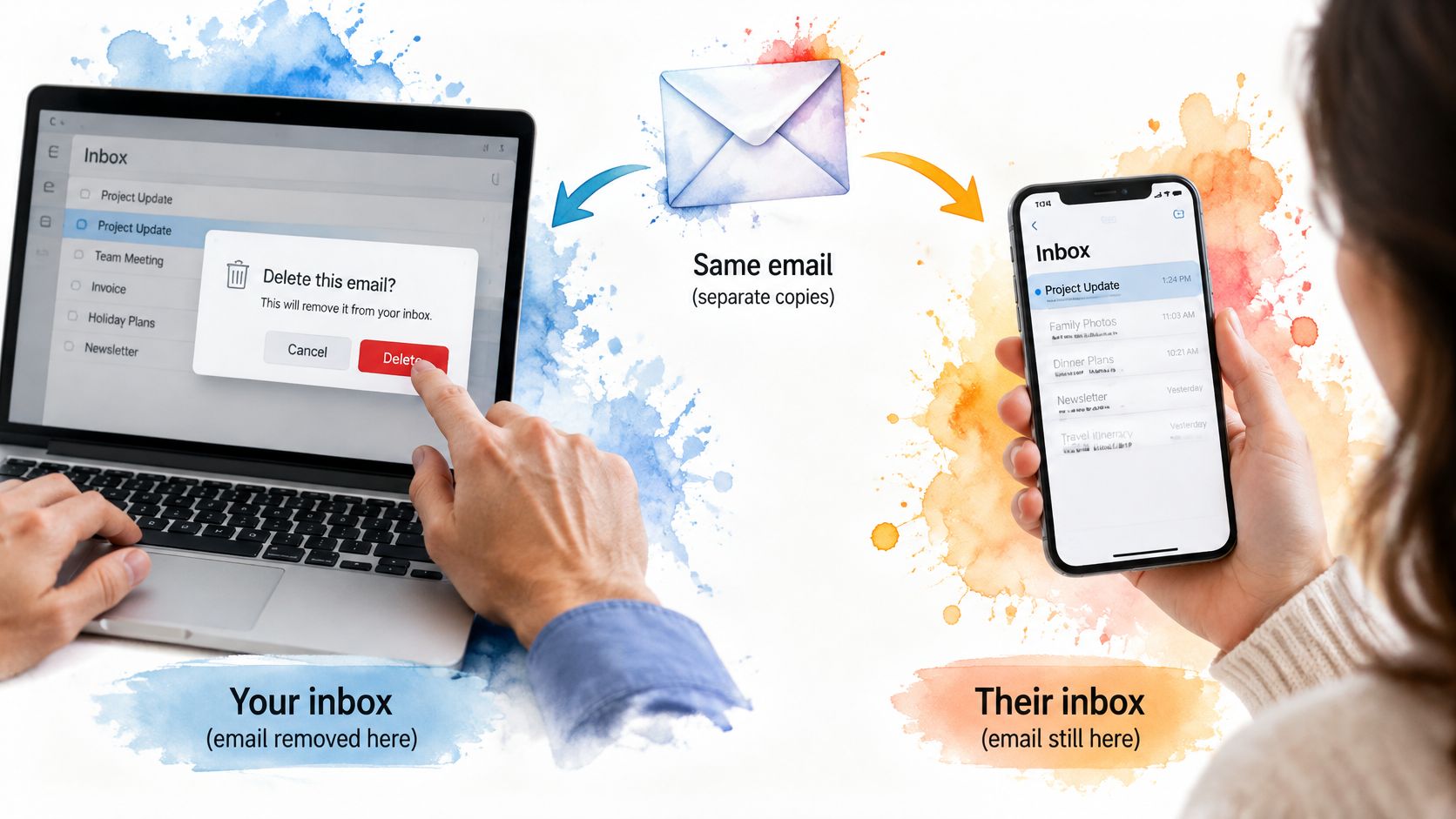
Take each copy in turn. A message in your inbox moves to Trash when you delete it, and that step's reversible. Emptying Trash, or waiting for the recovery window to close, removes it from your account. Your Sent copy is also yours, so deleting it only changes what you see.
The recipient's inbox is different. Say you send a quote from your Gmail account to a client's Gmail address, spot a wrong price, and delete it from Sent. Your screen's clean. Their inbox still holds the original, and so does any forward, download, quoted reply, or screenshot they made.
Where Each Copy Lives
| Copy | Delete from your account? | Notes |
|---|---|---|
| Message in your inbox | Yes, moves to Trash | Recoverable until Trash is emptied or the window expires |
| Message in Trash or Deleted Items | Yes, permanently | Gmail removes it after 30 days, other providers set their own period |
| Copy in your Sent folder | Yes | Changes only your account |
| Recipient's inbox | No | Stays on their device or server |
| Forwarded, downloaded or quoted copies | No | Outside your control |
| Organization server copy | Usually no | Retention policies may keep it |
Decide which copy you care about before you act. If it's yours, delete works. If it's theirs, you need a different remedy altogether.
Where Delete Sends Your Email in Each App
Delete is usually a move first and an erase later. The message leaves the inbox view, sits in a trash-style folder, then becomes unrecoverable when you empty that folder or the provider's retention clock runs out. In the table, the last column is the practical limit: how long a wrong delete can still be pulled back.
| App | Delete action | Deleted mail goes to | Recovery window |
|---|---|---|---|
| Gmail on the web or app | Select message and choose Delete | Trash | 30 days |
| Outlook.com or Outlook on the web | Select message and press Delete | Deleted Items | Kept until Deleted Items is emptied or the provider's retention period ends |
| Apple Mail on Mac | Select message and press Delete | Trash of that account | Follows that mailbox's Trash rule: recoverable until Trash is emptied or its retention period ends |
| iPhone Mail | Swipe left and tap the trash icon | Trash of that account | Same mailbox clock as the account: until Trash is emptied or its retention period ends |
| Yahoo Mail | Select message and choose Delete | Trash | Kept until Trash is emptied or the provider's retention period ends |
For the provider-set rows, the app does not invent a second timer. It uses the mailbox behind it, so a work account, an iCloud mailbox and a Yahoo mailbox can age out on different schedules even inside the same Apple Mail window.
The Archive Trap
Gmail's Archive is still the action that gets mistaken for Delete. Archive clears the Inbox and leaves the message in All Mail, searchable, with no deletion clock started. If the goal is tidy rather than gone, our guide to archiving an email shows when hiding mail beats removing it.
The mistake runs in both directions. A message archived in a hurry can surface months later in search; a receipt deleted as clutter can disappear for good once the window closes.
Mobile follows the account, not the device. In the Gmail app on Android or iPhone, tapping the trash icon sends the message to the same Trash and starts the same clock as a delete on a laptop. For a quick look at the standard client's features before you switch, see Gmail on Awesome Tools.
After deleting, open the trash folder and confirm the right message landed there. Five seconds now is cheaper than a restore scramble later.
That check catches the wrong account, the wrong thread and an archive made by muscle memory, while recovery is still easy.
How to Delete One Email Without Losing Others
Deleting a single message safely is mostly about slowing down before the click, not after it. Start with this three step view of the process.
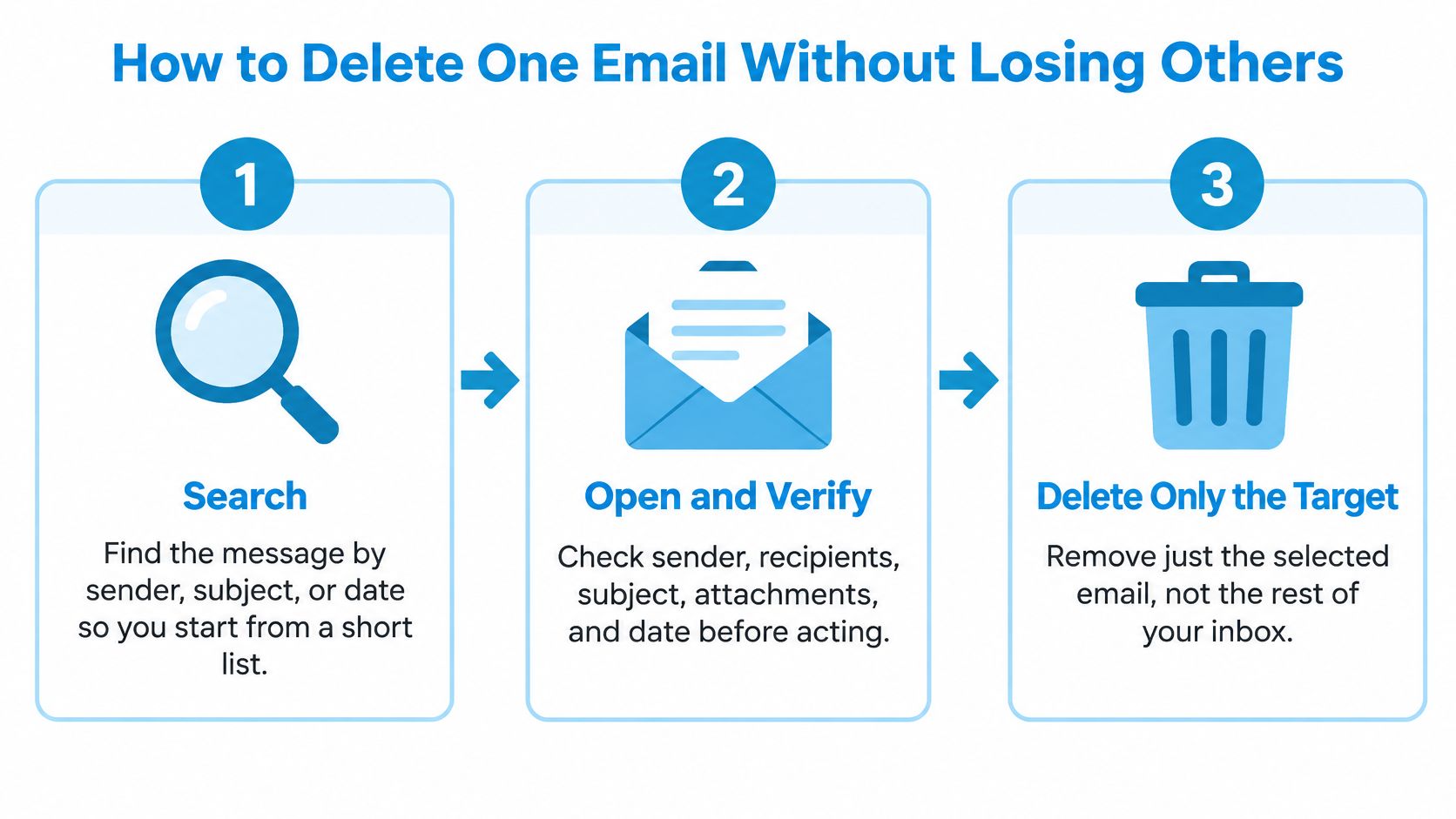
- Search first: Find the message by sender, subject, or date. Working from a short list beats scrolling a crowded inbox, where the wrong row is one slip away.
- Open and verify: Check the sender, recipients, subject, attachments, and date inside the opened message. Picking the wrong lookalike email is the most common failure here.
- Delete only that message: In a thread, delete from the opened message rather than the conversation row. A receipt buried in a long client thread can take the whole conversation with it if you delete at thread level. If you're unsure how your client groups messages, our explainer on email threads and chains covers the difference.
- Inspect Trash: Confirm one message arrived there, not a dozen. This is your last cheap chance to catch an overreach.
- Recover if needed: Open Trash, select the message, and move it back to the Inbox.
Google's Gmail delete and recover guidance sets the stakes clearly. A deleted Gmail message stays recoverable in Trash for 30 days, and after that window it's permanently deleted and can't be recovered through the normal interface.
This short walkthrough shows the delete and recovery moves in practice.
One caution before you empty anything. That recovery window covers your visible mailbox only. It doesn't promise that backups, exports, administrator retained copies, or recipient copies disappear on the same schedule.
Practical rule: Archive keeps mail and stays reversible forever. Delete starts a countdown. Choose based on whether you might ever need that message again.
If the message might be a record someone else relies on, don't rush to permanent deletion. That check deserves its own pass, covered at the end.
Why a Deleted Email Comes Back
You delete a message on your laptop. An hour later it's sitting on your phone, looking untouched. Nothing's haunted. Your delete didn't reach the copy that device is showing.
The Flag That Is Not Yet a Delete
Many mail clients talk to the server over IMAP, and deletion there works in two steps. The client first marks a message with a deleted flag. The server only removes flagged messages when the mailbox gets an expunge command. Between those steps, a message can look gone in one app while it still exists on the server and reappears in another.
Expunging carries its own risk. It can clear several previously flagged messages at once, not just the one you selected a moment ago. An offline phone can also delay a change, then sync it later, which makes timing look random when it isn't.
Local caches add one more wrinkle. Our Mac app, for instance, keeps a cache of your mail on the Mac in its own sandboxed container and erases it when you sign out. Sign back in and the app rebuilds from the server, so anything you removed only locally comes straight back.
| Symptom | Likely cause | Fix |
|---|---|---|
| Deleted email reappears on another device | Delete applied in one app only, phone not yet synced | Delete it in webmail, then sync the other device |
| Email still visible after emptying Trash | Copy kept in All Mail or Archive | Find it in All Mail or Archive and delete it there |
| Message gone from the app but still on the server | Local removal only, server copy not expunged | Check the account's Trash in webmail and remove it there |
| Deleted mail returns after signing back in | Mac cache cleared and mail re-downloaded from the server | Remove the message on the server, not only on the Mac |
The rule underneath every row is the same. A local delete isn't a server delete. Fix the problem on the account that holds the surviving copy, which usually means webmail, then let your other devices sync to match.
Taking Back an Email After You Send It
Deleting a message from Sent feels like taking it back. It isn't. You're tidying your own folder while the delivered copy sits exactly where it landed. Can you delete an email from someone else's inbox after sending it? Almost never, and the exceptions are narrow.
The Two Real Exceptions
Undo Send works because the message hasn't left yet. Gmail holds it briefly before final delivery, and you can cancel during a configurable window of 5, 10, 20, or 30 seconds. Miss that interval and the option's gone, because delivery across independent mail systems completes fast.
Outlook recall is the other exception, and it's tightly fenced. Both sender and recipient generally need Microsoft 365 or Exchange accounts in the same organization, the recipient must not have opened the message, and other mailbox conditions can still sink the attempt. Canary Mail's guide to deleting a sent email draws the same line, noting that Gmail and Outlook.com generally offer only a short cancellation window of up to about 30 seconds before delivery.
| Situation | What can work | What does not work |
|---|---|---|
| Gmail, within the Undo Send window | Undo Send | Deleting from Sent after the window closes |
| Recipient on the same Microsoft 365 or Exchange organization who has not opened it | Outlook recall | Recall after the message has been read |
| Recipient on Gmail, Outlook.com or another external service | Ask them to delete it and send a correction | Outlook recall or deleting from your Sent folder |
| Internal message that must be removed for compliance | Contact your administrator | Forwarding it to someone new |
Asking a recipient to delete a message is a request, not a deletion. They may agree, ignore you, or have already forwarded it. A short correction email is often worth more, since it gives everyone the right version in writing.
Prevention beats every remedy in that table. I would set the longest send delay your app allows and treat those seconds as a final proofread of recipients, attachments, and tone. It's the only control that works before other people hold copies.
Check the Copy and the Account Before You Delete
The delete key is the easy part. The mistakes happen just before it, when the wrong copy, the wrong account, or a preserved record gets treated like routine clutter. Three checks, run in order, catch nearly all of them, and they take under a minute even when you are in a hurry.
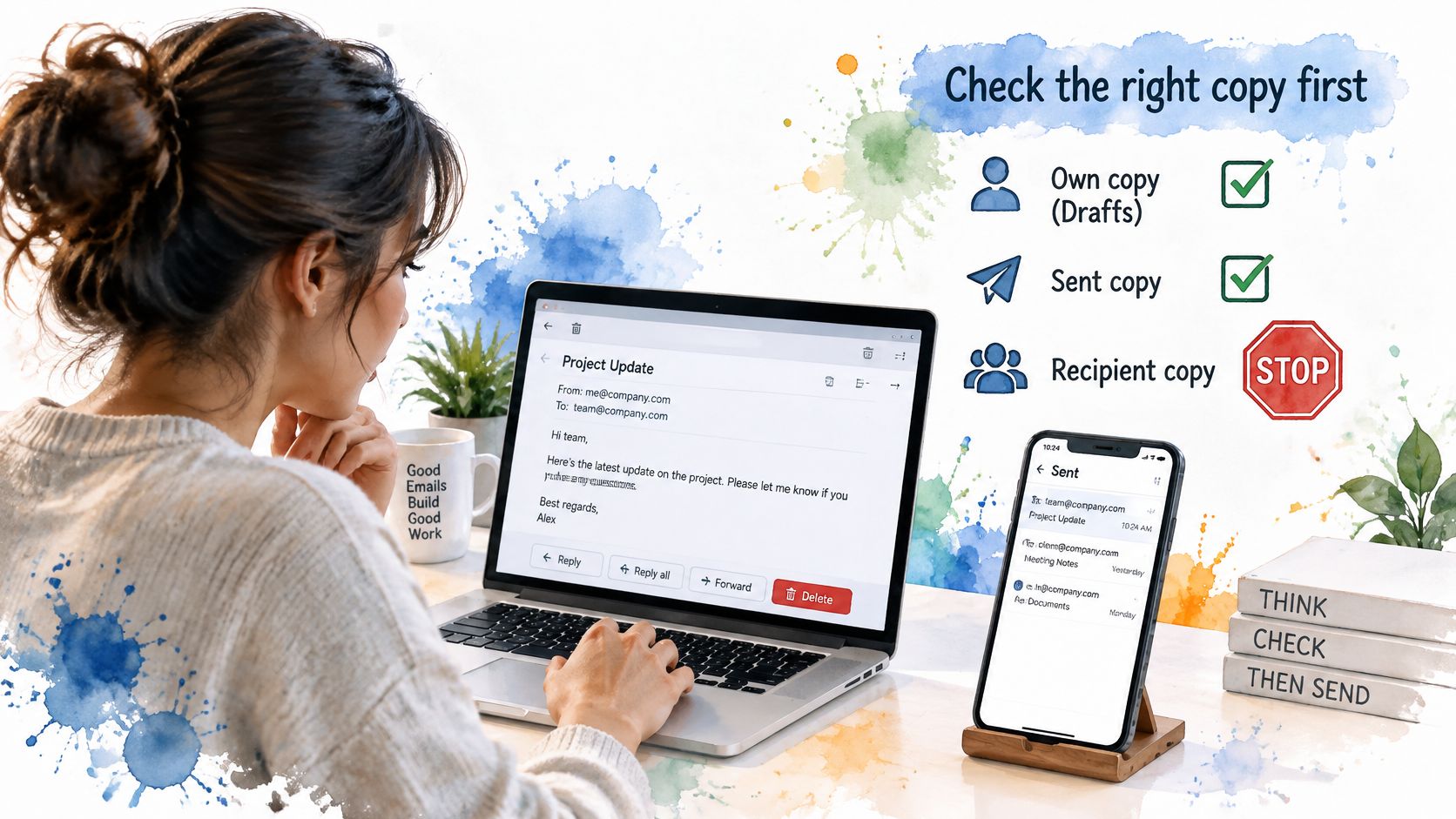
Check One Which Copy Do You Want Gone
Name the copy precisely: your inbox copy, your Sent copy, or the recipient's copy. The first two are deletion jobs you control. The third sits in a mailbox you cannot reach, and treating it as a deletion burns the short window in which a recall, a cancellation, or a quick correction could still help.
If the recipient's copy is the main problem, your tools are a plain request to them, a correction that clearly replaces the original, or a recall where the account allows one. For sensitive content, ask for written confirmation that the message was deleted without being forwarded, since you cannot inspect their mailbox yourself.
Check Two Whose Account Is It
A personal account is yours to clean top to bottom. A work or client account belongs partly to the organization, even when you are the one logged in. Colleagues and auditors may rely on that mailbox as the record of decisions, approvals, and commitments, and deleting from it rewrites their records too.
On a managed account, use the approved request process rather than deleting on your own initiative. Tell the administrator which message, why it needs to go, and who received it. The route takes longer, and it is also the version that protects you if the deletion is questioned later.
This gets easier to get wrong as mail spreads across accounts and automated tools. In Sickle, for example, no agent tool deletes mail permanently. An assistant can move a message to Trash, where it stays recoverable, and the irreversible step stays with you. The limit is deliberate, because an automated mistake at scale is far harder to unwind than a single wrong click.
Check Three Is It a Preserved Record
Emptying Trash is sometimes the end of a message and sometimes only the end of your view of it. Administrators can keep copies through automatic retention, backups, audit systems, or litigation holds. A message that vanished from your folders can still sit in company records, fully retrievable by the people who manage them.
Cloudficient's guide to email retention laws describes the tension between data minimization and mandatory preservation for litigation, investigations, and regulated records, and it cites a six-year retention requirement for certain HIPAA related records. Against that kind of period, a tidy up on a regulated account is a decision for the organization, made through its own process.
Deleting a preserved message can create a bigger problem than the message itself. When in doubt, ask first and delete second.
For sensitive, misdirected, or regulated mail, run this sequence before touching anything:
- Do not forward it: every forward creates another copy outside anyone's control.
- Notify the right person: contact your administrator or privacy contact promptly.
- Preserve the evidence: keep the message intact if a dispute or investigation may follow.
- Request deletion properly: use the organization's approved channel so the decision is documented.
Routine cleanup of your own mail deserves the same discipline at lower stakes. Grouped views show the scope before you act. Our Email cleaner, opened with ⌘⇧K, lists mailing lists to unsubscribe from, old unread emails, and mail grouped by sender, and its unread filter surfaces emails unread for more than five days so they can all be read at once. Reviewing a grouped list first is what stops a needed invoice going out with the newsletters.
So, can you delete an email? Your own, yes, quickly and reversibly at first. Someone else's, only in narrow circumstances and usually through someone with the authority to do it. Copy first, account second, preservation third: that order is what keeps a tidy up from becoming a lost record or a compliance headache.
If you manage personal and work mail across Gmail, Outlook, and other accounts, Sickle brings them into one Mac app, and its grouped cleaner lets you review newsletters, old mail, and messages by sender before you remove anything. Visit Sickle to see how it handles your inboxes.