What Are Smart Mailboxes? a Plain-English Guide
What are smart mailboxes? Learn how rule-based views collect mail across folders and accounts, and how they differ from regular folders.

You've got mail in three places: a work address on Outlook, a personal Gmail, and an iCloud account you keep for receipts. Somewhere in those inboxes sits a client message from last Tuesday that you never answered, and finding it means running the same search three times and hoping you remembered the right words.
The usual advice is to file everything into folders. That works right up until the week you're too busy to file anything, which is exactly the week you need the filing most. There's a quieter option that many mail apps already have and many users never turn on.
What a Smart Mailbox Is in Plain Terms
A smart mailbox is a saved rule that gathers every message matching a question into one view. The messages themselves stay exactly where they are, in their original accounts and folders.
Say you're staring at several thousand messages spread across three accounts and you need one thing: which ones need a reply today. You don't want to move anything. You want the mail app to answer that question and keep answering it every morning.
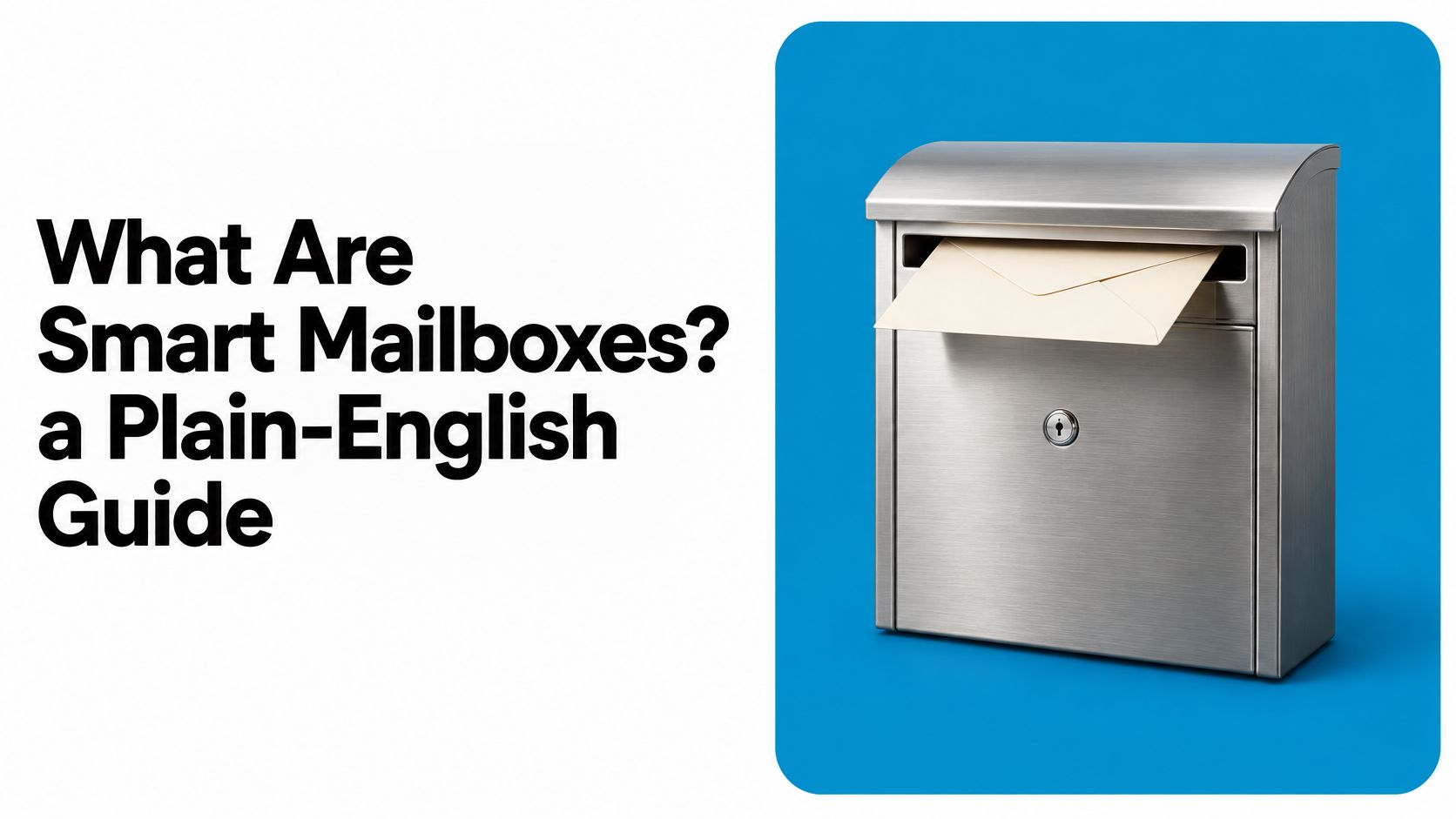
Think of a library catalogue. The books stay on their shelves in the science section, the history section, the basement archive. The catalogue card lists every book about bridges, wherever it happens to sit. Pull the card and you haven't moved a single book. A smart mailbox is that card, and your folders are the shelves.
The three parts of the definition
- Rules: conditions based on sender, subject, date, read status or words in the message.
- A live view: the list updates itself as new mail arrives and as messages change state.
- No copying: nothing is duplicated, moved or refiled to make the list appear.
The volume behind this is not small. The Radicati Group's email statistics report projects worldwide business and consumer email traffic reaching 376.4 billion messages per day by 2025, which averages out to roughly 4.36 million messages per second across a full day. Nobody sorts that by hand, and nobody sorts their own slice of it by hand either once the accounts multiply.
So the practical test is simple. If you can say the question you want answered about your mail out loud, in one sentence, you can build a smart mailbox to answer it.
How Rules Gather Messages Into a View
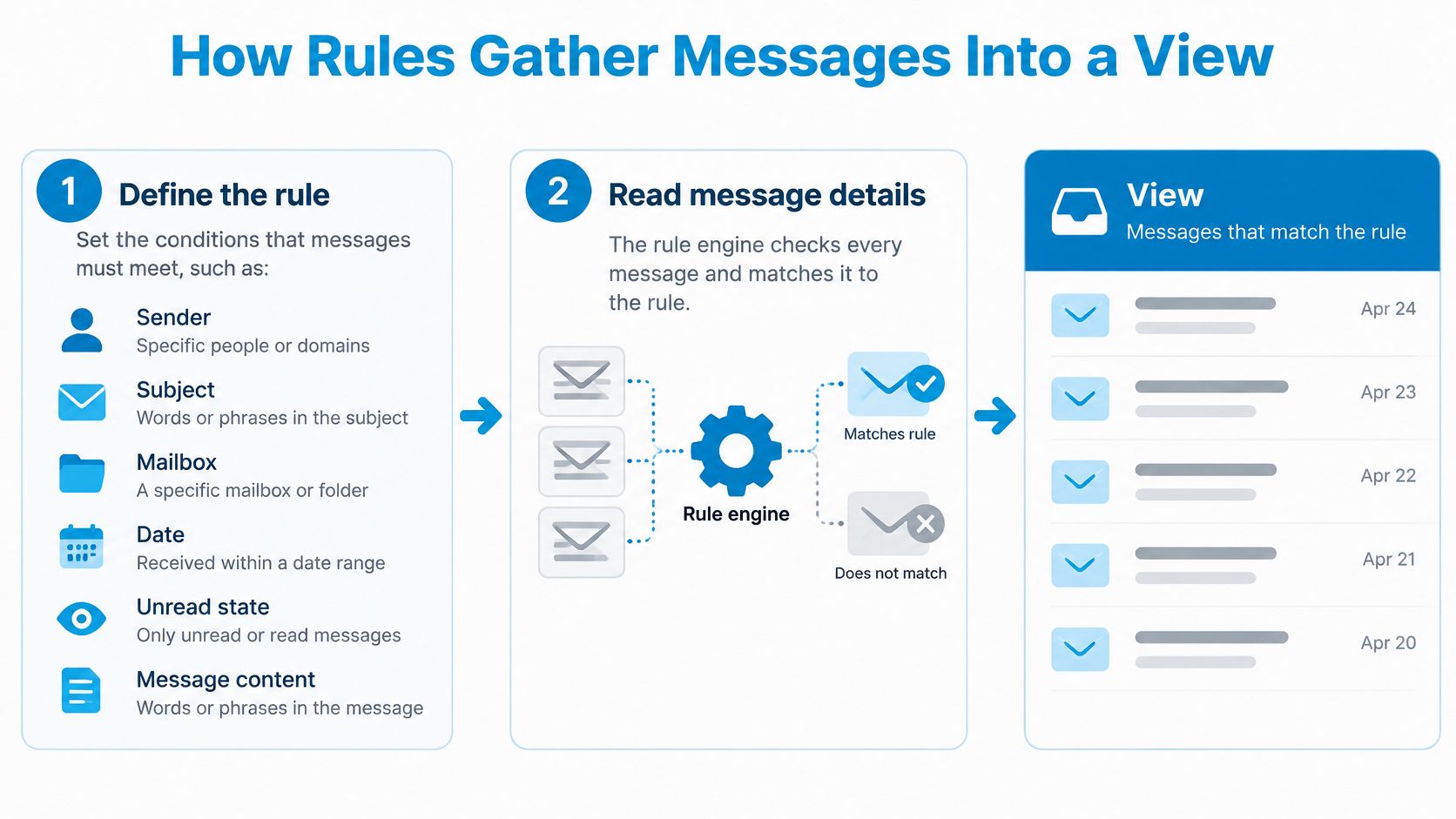
The mechanism is less mysterious than the name suggests. Four things happen, in order.
- You define the rule. You pick conditions such as sender, subject, mailbox, date, unread state or message content, and you decide whether a message must match all of them or just one. This is the question, written in a form the app can check.
- The engine reads message details. For every connected account, it looks at the information attached to each message: who sent it, when it landed, which folder holds it, whether you've opened it.
- Matching messages appear in the view. Anything satisfying the conditions shows up in the list, pulled from wherever it lives. The Apple Mail user guide describes this as a virtual, query-defined view rather than a second physical storage location, so changing the view doesn't move or duplicate the underlying messages.
- Only affected messages get rechecked. When new mail arrives or you mark something read, the engine re-evaluates those messages rather than rescanning every mailbox, an incremental approach described in email search research published by the ACM.
Here's the flow in picture form, from defining a rule to reading message details to the resulting view.
A rule you can picture
Set a rule for unread mail from client addresses. A message from one of those addresses lands in your work inbox and appears in the view. You open it, reply, mark it read. It drops out of the view immediately, and it's still sitting in your work inbox, untouched. Nothing was filed. The message stopped matching the question.
That's the part people find counterintuitive. Membership follows the message, not the view. Archive a message and it may leave the view because your rule only looked at the inbox. Delete it and it's gone from everywhere. Relabel it and a rule that depended on the old label stops catching it.
Two kinds of action, and only one of them changes your mail
Some actions change what you see: opening the smart mailbox, sorting it, collapsing threads, hiding a conversation for the moment. Others change the source mailbox: archiving, deleting, marking read, moving to a folder, applying a label. The second kind can rewrite which messages your rule catches next time.
Before you trust a view, ask one question: if I archive this message, does my smart mailbox still show it?
If you can't answer that, you don't yet know whether you're looking at a window or a bucket. A well-built client keeps message identity, provider IDs and thread relationships intact underneath, and tells you plainly which kind of action you just took.
Smart Mailboxes Versus Regular Folders
A folder holds messages. A smart mailbox asks questions about them.
| Aspect | Regular folder | Smart mailbox |
|---|---|---|
| Where messages live | In one folder, moved by hand | Stay where they are; the view shows matches |
| What decides membership | You drag or file each message | Rules check sender, subject, date, flags or content |
| What removes a message | Moving it elsewhere | Changing the message, such as archiving it or marking it read |
| Spans multiple accounts | Usually one account | Can combine matches across connected accounts |
| Duplicates messages | No, a message sits in one folder | No, matches are shown without copying |
| Best for | Long-term filing and records | Recurring questions and triage |
Read the middle rows aloud and the difference becomes obvious. A folder empties when you take something out. A smart mailbox empties when a message stops fitting the description, which can happen because of something you did in a completely different part of the app.
When a folder is still the better choice
Keep using folders for anything that has to sit in one predictable place: signed contracts, client files you may need to produce later, tax records, the archive you'll browse in three years. A folder's contents only change when you change them, and that predictability is the whole point of a record. If you're rebuilding your filing structure from scratch, the guidance on how to organize email folders is a sensible place to start, because smart views work best on top of a structure that already makes sense.
When the saved question wins
Smart mailboxes earn their keep when you ask the same thing repeatedly, especially across several accounts, and when the answer changes week to week. A folder named Clients holds only what someone dragged into it, which means it's accurate as of the last time you had a free afternoon. A smart mailbox showing unread mail from your client addresses picks up this morning's arrivals without you lifting a finger.
The trade-off is accuracy. A smart mailbox is only as good as its rule, and a rule that names five client addresses will ignore the sixth. Folders are dumb and reliable; views are clever and conditional. If you're combining accounts, it also helps to understand how message routing and tagging works from Sift AI, since labels and folders behave differently between providers.
Use folders for storage and smart mailboxes for retrieval.
Rule Types and What They Catch
| Rule | Matches | Typical use |
|---|---|---|
| Sender is a named client | Messages from that address in every connected account | Client follow-up |
| Unread for more than five days | Unread mail that has waited several days | Catching forgotten messages |
| Subject contains invoice | Billing threads, plus some marketing mail | Finance review, narrowed by sender |
| Sender is a mailing list | Newsletter and list traffic | Batch reading or cleanup |
| Flagged and not yet replied | Messages marked for action | Daily task list |
| Received before a set date | Older mail across accounts | Archive review |
Those six rules fall into three families, and knowing which family you're in tells you how much to trust the result.
Header rules (sender, recipient, subject, date) are fast and predictable, because the information sits in a fixed field. State rules (unread, flagged, replied) shift as you work, so the same rule shows different mail tomorrow. Content rules (words in the body or an attachment) need a search index and are the least exact of the three.
The classification idea underneath all of this isn't new. As recounted in Communications of the ACM's history of spam filtering, Microsoft Research began developing machine-learning spam filters around 1997, and by 2007 Hotmail's feedback system asked more than 100,000 volunteers per day to label messages as "spam" or "good."
A subject rule for invoice catches billing threads and also every marketing email that uses the word. Add the sender, such as your accountant's address, and the noise disappears.
Practical rule: start with one condition, live with its results for a week, then add conditions one at a time and test each against mail you already know the answer for.
Where Smart Mailboxes Can Reach Your Data
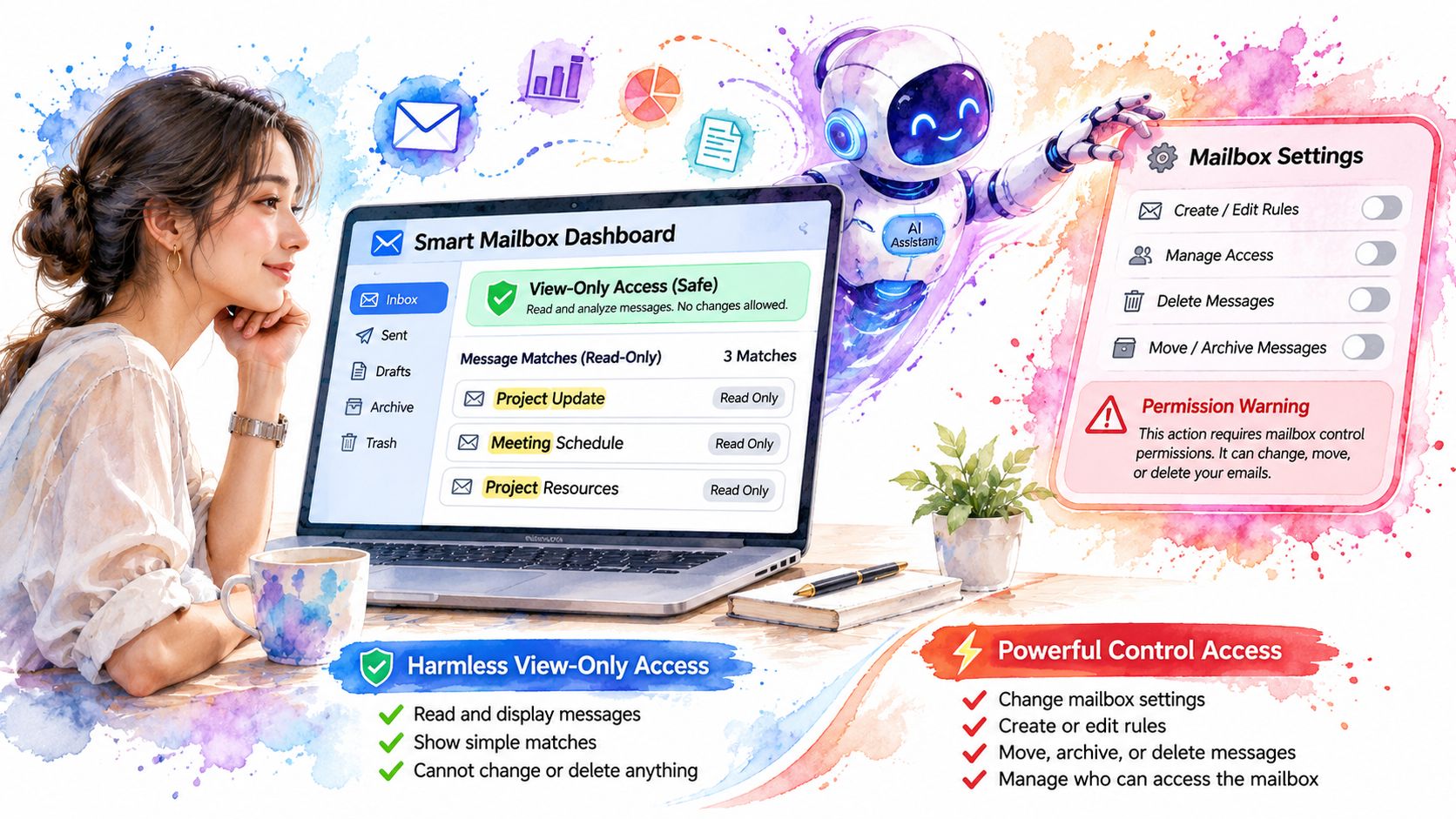
A view that only displays matches is harmless. An assistant that can search, read and change your mail is a different animal, and the two get described with the same friendly language.
Read-only is not the same as read-and-change
Sort every capability into one of two buckets before you connect anything:
- Read-only: listing folders, searching, reading message bodies. Nothing in your mailbox changes.
- State-changing: marking mail read, moving it, archiving, labelling, saving drafts, sending. These alter the mailbox you use.
In our own connector these are separate permissions, so an assistant can be allowed to list, search and read without being able to mark, move or draft anything. That separation matters more than any interface detail, because a support assistant asked to tidy an inbox has no business sending mail on your behalf.
Three questions deserve answers before you grant access: what can the assistant do, where is my data processed, and how is access revoked? Bitdefender's guidance on AI email assistants points out that message content may be sent to cloud systems for analysis, and that prompt-injection attacks can hide instructions inside ordinary emails to push an assistant into unsafe actions such as suppressing warnings. An email that tells your assistant to ignore its own safety rules is not a message. It's an attempt.
What to verify before you connect
When an assistant requests mail through our connector, our servers fetch only what was requested and pass it to the assistant, and we don't keep copies. We receive no email content from the Mac app, and mailbox content isn't written to our server logs. You can remove mailboxes and revoke AI assistants yourself at sickle.app, without asking anyone. The broader question of email permissions is worth settling before your first connection, not after.
This short walkthrough shows what granting and reviewing that access looks like in practice.
- Start with read-only access and leave it there until you've watched what the assistant does.
- Connect one account at a time, ideally not your most sensitive one first.
- Find the revocation control now, while you're calm, so you know where it lives.
Why Smart Mailboxes Do Not Fix Inbox Overload
The hopeful version goes like this: turn on smart views, and the inbox problem is solved. It isn't, because the views change what you see and not what arrives.
Microsoft telemetry cited in a roundup of email overload statistics found an average worker receives 117 emails per day and is interrupted by a message, meeting or notification roughly every two minutes during core hours. No rule you write reduces either number.
Four jobs, and only three of them are automatable
Classification puts mail into groups. Prioritisation decides what looks important. Retrieval finds it again later. Smart mailboxes do all three well. Action, meaning the reply, the decision, the awkward conversation about who owns this, stays with you. A tidy view of unanswered mail is still unanswered mail.
Three beliefs worth dropping:
- Smart mailboxes replace filing. They don't reduce incoming volume by a single message, and they don't decide who should answer a shared enquiry.
- They always surface urgent mail. A high-volume sender can bury one important message, and a rule naming the wrong address will miss it entirely.
- They're safe to set and forget. Rules drift. A client changes their sending address, a supplier changes their subject line format, and your view stops catching what it used to catch.
If newsletters are the bulk of your problem, the practical work is unsubscribing and batching rather than filtering, and the advice on running several newsletters at once from HeyNews is useful for deciding which subscriptions earn their place. Our own email cleaner groups mailing lists, old unread messages and mail by sender for exactly this kind of pruning, which is a subtraction job rather than a sorting job. More approaches to email overload are worth reading with a sceptical eye.
Measure this: fewer unanswered messages, faster replies to priority mail, lower newsletter volume, fewer replies sent from the wrong address.
Those four outcomes tell you whether the setup works. A cleaner-looking inbox tells you nothing at all.
Build Your First Smart Mailbox
- Write the question in one sentence. For example: "Which unread messages came from my clients this week?" If you can't say it in a sentence, it's two rules pretending to be one, and you should split it.
- Build one rule that matches it, then watch it for a week. Name the client addresses, set the unread condition, set the date window. Each day, note anything that should appear and doesn't, and anything that appears and shouldn't. Those two lists are your rule's error report, and they're more useful than any amount of upfront tweaking.
- Set access permissions before any assistant touches the mailbox. Read-only first, one account at a time, and confirm where revocation lives in your account settings while nothing is going wrong.
A worked example. You start with "Which messages from my three biggest clients are still waiting on me?" and build it as flagged mail from those three addresses with no reply from you. On day two you notice a client who writes from a second address is missing. The fix isn't a cleverer rule. It's a better question: "Which messages from anyone at these three companies are waiting on me?" Reword first, then add conditions.
Follow-up habits vary enormously between people and industries, and how email habits shape follow-ups from VoxNote is a useful read before you decide what "waiting on me" should mean for your own work. Define that phrase before you encode it, or the rule will faithfully answer a question you didn't mean to ask.
Decide Whether a Smart Mailbox Fits Your Inbox
Use a smart mailbox when you ask the same questions of your mail again and again, especially across several accounts. Skip it when you need a fixed archive or when your mail volume is low enough that scrolling answers everything. A view is only as accurate as its rule, so a folder remains the more predictable home for records that must stay in one place.
For Mac users juggling several providers, Sickle is a native Mac mail client that brings Gmail, Outlook, iCloud, Fastmail and any IMAP mailbox into one app, with a colour per account so you can see which identity you're replying from. It's also an MCP server, so adding it to Claude, Codex or Cursor lets an agent search, read and tidy those same mailboxes. One subscription covers the app, every feature, every mailbox and the agent connector, with a seven-day free trial before automatic billing at $8.99 monthly or $30 annually.
None of this is compulsory. A smart mailbox is optional, and it works best when the question behind it is clear enough to say out loud.
Write down the one question you ask your inbox every morning, then build a single rule that answers it. If you're on a Mac and your mail lives across Gmail, Outlook, iCloud and a work IMAP server, Sickle puts those accounts in one window with a colour per account and lets you scope an assistant to read-only access before it changes anything. Start the seven-day trial, connect one account, and see whether the view answers your question before you add a second rule.