Multiple Email Accounts in One Place: A Practical Guide
Manage multiple email accounts in one app: connect each provider, avoid replying from the wrong address, batch your triage and lock down agent access.

You've checked your work inbox, but the client's reply is sitting in another account. Your personal email is full of receipts, a newsletter notification keeps interrupting you, and you can't remember which address you used to send yesterday's proposal. Bringing everything into one window sounds sensible, until you accidentally reply from the wrong identity.
Managing multiple email accounts well isn't just about seeing more messages at once. It's about keeping ownership, sending identities and permissions separate while giving yourself a reliable way to process the work.
Map Your Accounts Before You Connect Them
Say you're a freelancer with personal Gmail, a Microsoft 365 work address, a client address on a company IMAP server and a shopping account full of newsletters. They all contain email, but they don't belong to the same person or carry the same consequences when something goes wrong.
Start with an inventory, not the Add Account button. Record each mailbox's owner, purpose, provider and sign-in method, then write down how you'd recover access if you were locked out. Keep passwords and recovery codes in a password manager, not in the inventory document.
Separate ownership from daily use
An address you use every day may still belong to a client. That distinction determines whether you can connect it to another application, grant an assistant access or retain messages after the engagement ends.
Use this table as a starting point, then replace the typical providers with your actual accounts.
Account roles, providers and connection methods
| Account role | Typical provider | Connection method | Protection priority |
|---|---|---|---|
| Personal | Gmail or iCloud | OAuth for Gmail, IMAP for iCloud | Standard |
| Work | Outlook or Microsoft 365 | OAuth sign-in, read over IMAP, send over SMTP | High |
| Client or role address | Company IMAP server | IMAP host, port and password | High |
| Shopping and newsletters | Yahoo or Fastmail | IMAP | Low |
| Secondary or throwaway | Mail.ru or other IMAP server | IMAP | Low |
These are triage priorities, not permission to neglect security. A shopping address becomes high priority if it receives password resets for important services. A personal mailbox deserves stronger protection if it's the recovery address for your work account.
Email account counts exceed user counts because people maintain separate identities: a 2022 estimate put the average at 1.86 accounts per user, according to EmailTooltester's email usage statistics. The useful question isn't whether having several accounts is unusual, but whether each account still has a clear job.
Give each mailbox a job
Write a short purpose statement, such as client approvals, household correspondence or shopping receipts. If you can't explain why an account exists, decide whether it should remain active before adding it to your daily workspace.
Keep the folder structure equally deliberate. A practical approach to organizing email folders helps distinguish messages awaiting action from material you're keeping for reference.
Mark work, client, finance and recovery mailboxes for protection first. Those are the identities where an access mistake can affect someone else's information, money or ability to keep working.
Connect Every Account to One Window
A unified window should consolidate your view, not replace your providers or blur the boundaries between accounts. On your Mac, connect mailboxes individually and verify each connection before moving on. Adding everything at once makes a failed login or missing folder harder to isolate.
The provider sign-in sequence should look familiar, rather than asking you to hand a third-party application your Google or Microsoft password.
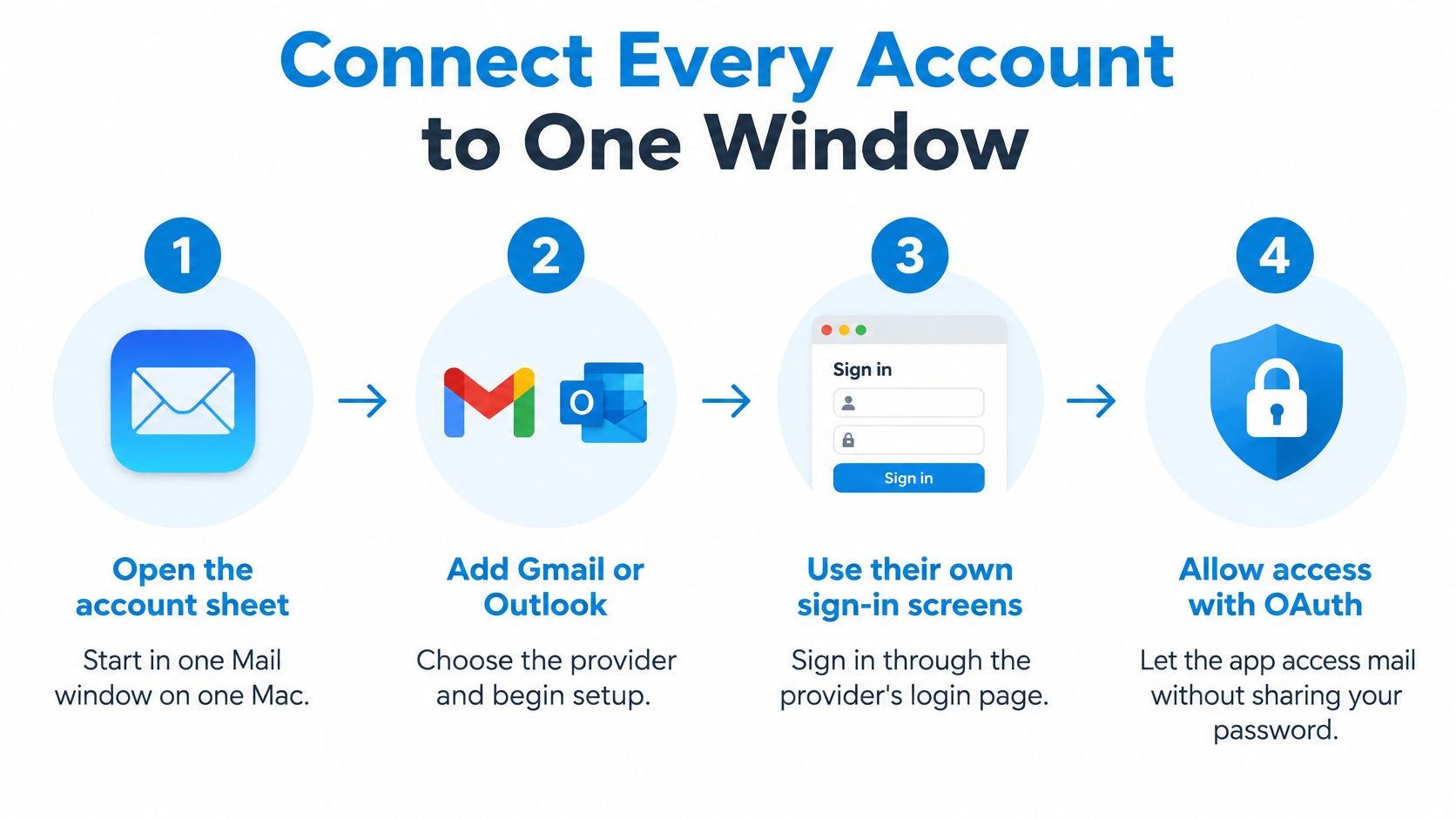
Add accounts deliberately
Start with Gmail or Outlook. Open the account sheet, choose the provider and use its own sign-in screen. OAuth authorizes access without giving the mail application your provider password, so read the requested permissions before accepting.
Add your other hosted mailboxes. Our account sheet accepts Gmail, Outlook, iCloud, Yahoo and Mail.ru, while Fastmail and other mailboxes connect through IMAP. For providers that require an app-specific password, use that credential rather than repeatedly trying your normal account password.
Enter company-server details exactly. Use the full email address as the username, then enter the IMAP host, port and password supplied for that mailbox. Don't guess the host from the company's website address, and confirm outgoing SMTP settings separately because successful reading doesn't prove sending works.
Assign an unmistakable account colour. Each newly added mailbox receives a colour that another mailbox isn't using, and you can change it from the account menu. Choose colours you can distinguish easily, then pair them with explicit labels such as Personal or Client approvals.
Inspect the content before declaring success. Open folders, expand a thread and download an attachment from each account. Check Sent as well: an empty Sent view can reflect unfinished synchronization or incorrect folder mapping, so don't assume messages have disappeared.
Record what could interrupt access. Note whether an account uses OAuth, an app-specific password or another credential. After a password change or administrative access review, that record helps you identify which connection may need fresh authorization.
Before adding another address, establish whether it's a separate mailbox or merely another address delivering into an existing inbox. Listava's email alias guide is useful for understanding that distinction. An alias doesn't automatically provide independent sign-in, storage or sending permission.
Diagnose connection failures before changing settings
If an IMAP account won't load, recheck the username, host, port, encryption setting and password against the server's configuration. Change one setting at a time so you can tell what fixed the problem. A server that expects a short username won't work with a client that requires the full address unless the server accepts that form.
For Gmail or Outlook, a revoked OAuth grant can appear as stalled synchronization. Reauthorize through the provider's screen rather than trying to replace the connection with a password-based setup.
Finish by checking that every mailbox shows its own inbox count and that its colour matches your inventory label. Also confirm that a quiet mailbox is quiet, not just disconnected.
Confirm the Sending Address Before You Reply
Say a client asks for a quick confirmation. You answer immediately, then notice that the message went from your personal address because the accounts looked similar in the compose window. The reply may be harmless, but you've exposed an address you meant to keep private and made future correspondence less predictable.
Colour alone isn't enough. Similar display names, shared-looking shades and fast keyboard shortcuts can all distract you from the actual sender address. Treat colour as a prompt to check, not proof that you've selected the right identity.
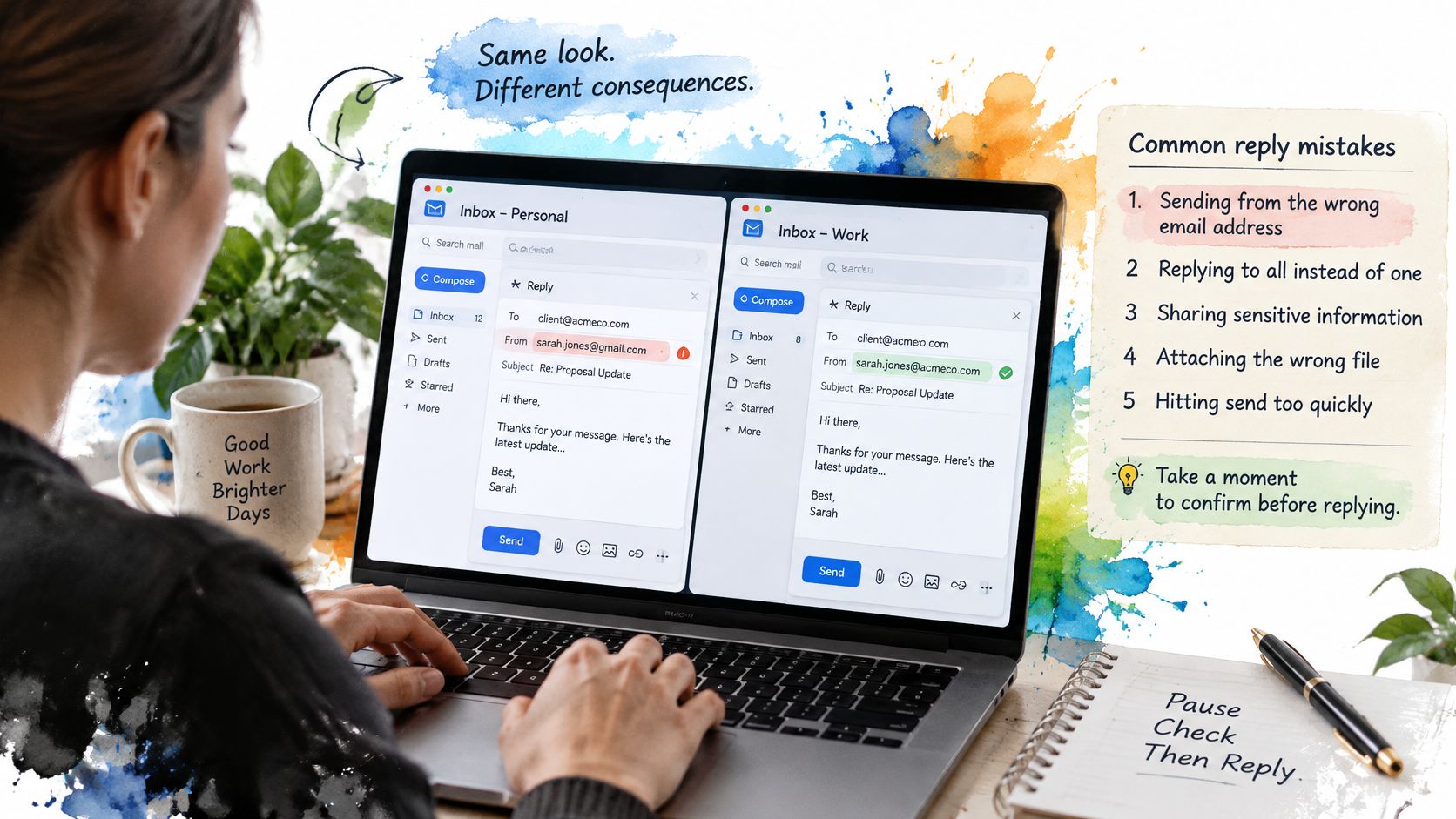
Reply mistakes, causes and checks
| Mistake | Usual cause | Check before sending |
|---|---|---|
| Reply goes from a work address to a personal contact | Similar names in one window | Read the From line before sending |
| Client receives the wrong signature | One shared signature for all accounts | Set a signature for each account |
| Sent mail missing from one account | Sent folder has not synced | Send a test to yourself and find it in Sent |
| Reply reaches an unexpected address | Reply-to or alias set on one account | Send a test reply and check the address shown |
Make the identity visible in the message
Build these habits into composition rather than relying on memory:
- Read the From line. Expand the sender control if the application displays only a friendly name. Check the complete address, including the domain, before every work or client reply.
- Use account-specific signatures. Put the relevant business name, role and contact details in each account's signature. The wrong signature then becomes an obvious warning, although a correct signature still doesn't prove the sender is correct.
- Test the whole exchange. Send a message from each account to an address you control, inspect the displayed sender, then reply. Confirm both the outbound identity and where the response arrives.
Mail sent from our Mac app goes straight from your Mac to your mail provider. A test send therefore exercises the actual sending path, rather than merely showing that a compose window opens successfully.
Distinguish mistakes from impersonation
An unexpected sender isn't always an innocent mix-up. The UK government's Cyber Security Breaches Survey 2025 found that 43% of businesses identified a cyberattack or breach in the previous year, with phishing affecting 85% of businesses that identified attacks or breaches.
Those findings don't measure wrong-account replies. They do explain why you shouldn't dismiss unusual identity details when a message asks for payment, credentials or a change of bank information. Verify sensitive requests through a separate, established contact method.
Before sending: Confirm the From address, signature and Reply-To setting on every client reply, even when the entire message is a short acknowledgment.
Batch Triage Across Accounts Without Missing Replies
Constantly watching several inboxes doesn't guarantee that you'll answer the important messages. It can leave you repeatedly reading notifications while postponing correspondence that requires thought.
Microsoft's analysis of the infinite workday reports that the average employee receives 117 emails daily, while employees are interrupted approximately every two minutes by meetings, email or notifications. You don't need to match that workload to benefit from a quieter processing routine.
Use a repeatable processing order
Synchronize before you sort. Check connection status across all accounts so you're working from current messages. Otherwise, an apparently finished inbox can refill with older correspondence after you've moved on.
Classify by account, urgency and action. Distinguish reply needed from reference material and waiting on someone else. A message can be important without requiring an immediate answer.
Process newsletters separately. Batch subscriptions and routine notifications away from client correspondence. Don't let a newsletter cleanup session become an excuse to avoid the difficult reply.
Protect scheduled reply windows. For example, reserve a morning and afternoon session for unanswered correspondence, with a separate route for urgent work. Make the schedule compatible with any response commitments you've made.
Confirm ownership before archiving or delegating. Check the originating mailbox and assign an explicit next action. Moving a message out of view isn't the same as completing the work.
For teams, email triage also needs a destination beyond the inbox. Attorney Assistant's case management workflow for law firms is relevant when correspondence must become assigned work rather than remain an informal reminder in someone's mailbox.
Measure omissions rather than inbox neatness
Keep a small notes file with median time to first response, messages still unanswered beyond your agreed response window, and wrong-account reply incidents. These measures tell you more than the unread count. Exclude messages that don't require a response, or you'll spend time investigating newsletters as if they were neglected clients.
Watch for duplicated notifications, different archive states between clients and missing sent-message synchronization. If the same message keeps returning, inspect folder mapping and synchronization before creating more rules.
Review Sent folders regularly to catch identity mistakes that your inbox view won't reveal. If you delegate replies, record who owns the answer so the original sender doesn't receive competing responses.
Batch the noise, protect the reply windows, and never archive a message before you know which account it belongs to.
Limit What Agents and Shared Mailboxes Can Touch
Say you connect an assistant to find unanswered messages across personal and work accounts. It correctly identifies a client thread, then archives it because it interprets an acknowledgment as completion. You haven't lost the message, but you've lost the visible reminder you were relying on.
The preventive rule is separate permission to inspect from permission to act. Start with read-only access, then grant broader authority only for a defined task whose results you can verify.
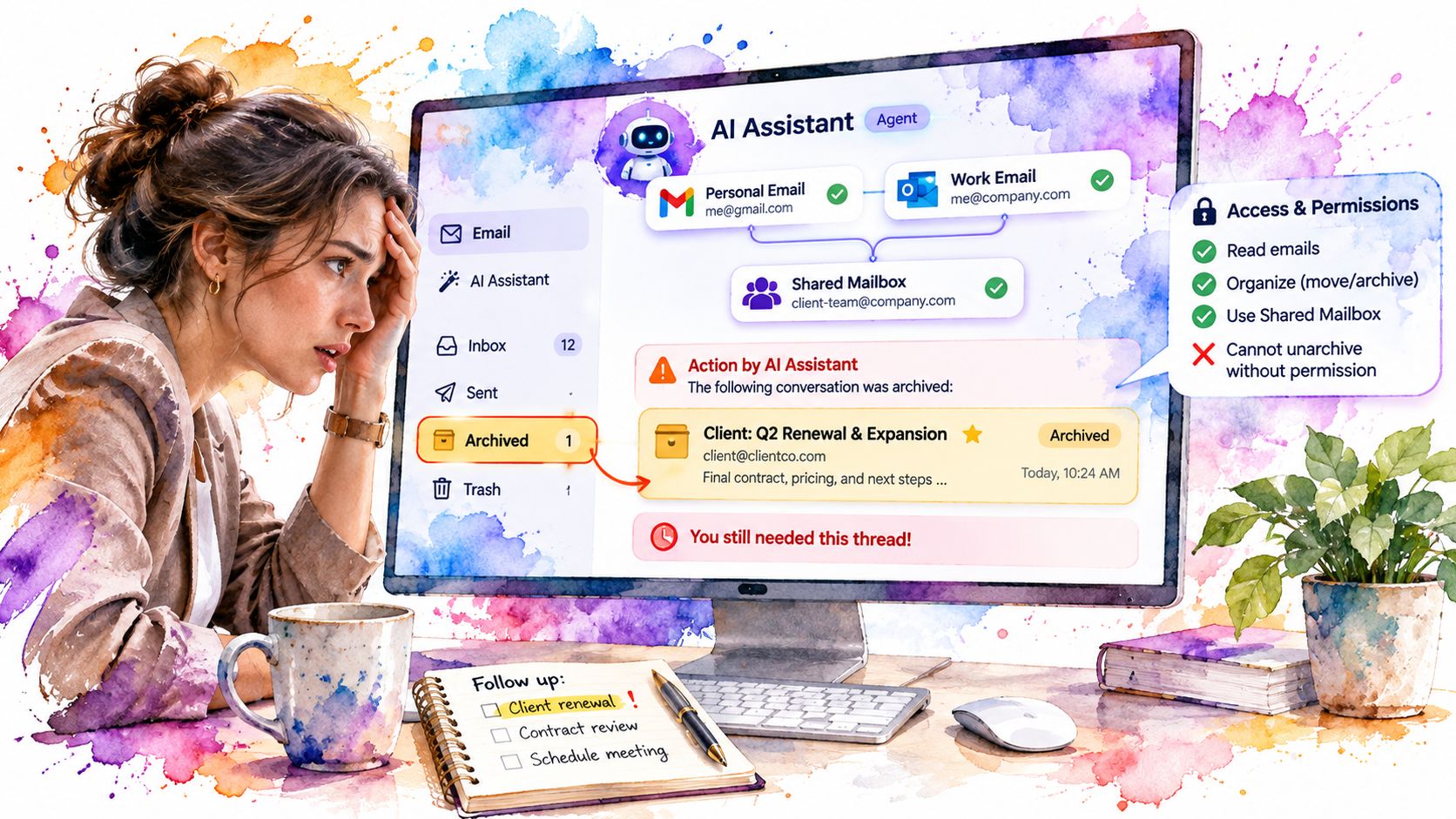
Separate reading, changing and sending
Our connector uses separate read, change and send permissions for each client. Reading lets an assistant search and summarize; change permission allows organizational actions; sending deserves its own decision rather than being bundled into a cleanup task. The email permissions guide explains how to approach those boundaries.
The connector signs in with the same account, so an assistant sees every mailbox added through the web or app. That makes cross-account searches useful, but it also means a read-only grant can cover sensitive material across several identities. Don't confuse restricted actions with restricted mailbox coverage.
The app and connector operate on the same underlying mailboxes. When an agent archives mail, it disappears from the app's inbox view too; there isn't a separate assistant copy to reconcile. The connector's tools don't permanently delete messages, but organizational changes can still disrupt your workflow.
TitanHQ's State of Email Security in 2025 identified phishing as the threat security professionals most expected to worsen over the following year. Compromised Google Workspace and Microsoft 365 accounts were also identified as an increasing concern, which supports treating assistant authorization as a security decision, not merely a convenience setting.
Account for the awkward cases
- Shared mailboxes: Establish who can authorize access and who owns follow-up. An agent's action must not remove another colleague's task without notice.
- Self-hosted IMAP: Verify folder mapping and server reachability before allowing changes. Don't treat an unavailable server as an empty inbox.
- Attachments: Decide whether the assistant needs their contents. A useful summary doesn't always require exposing a confidential contract.
- Delegated access: Preserve the organization's access model rather than sharing someone else's password to bypass it.
- Provider outages: Require incomplete results to be labeled clearly. Missing access must not become a confident claim that nothing needs attention.
Client separation also extends beyond mailbox organization. SendX's discussion of keeping one client's reputation separate offers a related perspective, but separate branding isn't a substitute for access controls.
You can remove mailboxes and revoke assistants yourself through our web account settings. Before enabling access, also establish where the assistant stores outputs, what activity you can review and how long it retains content.
Run a read-only trial over a normal working week, compare its findings with your own review, then decide whether change permissions are worth granting. Useful agent access is granular, visible and revocable.
Test Each Account Before You Trust the Setup
A successful sign-in proves that authentication worked at that moment. It doesn't prove that replies use the right identity, attachments download correctly or recovery will work when your phone is unavailable.
Keep an acceptance checklist alongside the account inventory. Record pass or fail for each mailbox, and leave failed accounts out of automated workflows until you've corrected them.
Run an end-to-end acceptance test
Exchange a controlled message. Send mail to each account from another address, reply from the connected application and confirm delivery at both ends. Find the incoming message and sent reply in their expected folders.
Open an attachment. Download a harmless document from each mailbox and open it. A visible filename isn't proof that the application can retrieve the file.
Verify composition defaults. During your initial working period, check the full sender address on every reply and note any unexpected selection. Correct the account or alias configuration rather than compensating indefinitely with manual workarounds.
Prove revocation works. Remove an assistant's access in account settings, then request a fresh mailbox operation from that assistant. Confirm it fails, while remembering that revocation cannot erase information already included in previous outputs.
Check recovery independently. Verify multifactor authentication, recovery email and recovery phone details for every account. Write down the recovery procedure and store backup codes securely, somewhere you can reach without opening the locked mailbox.
Schedule an access review. Remove unused connections, departed collaborators and assistants you no longer need. Repeat the review after a client engagement ends or an account owner changes, rather than waiting for a calendar reminder.
Google Workspace administrators can use the security dashboard to support reviews of security conditions and application access. Keep your own register of authorizations too, especially when your mailboxes span different providers.
Check domain authentication and remote access
For company-operated domains, validate SPF, DKIM and DMARC alignment before consolidating operational mail. A misconfigured sending domain can make legitimate correspondence look suspicious; moving it into a different window won't fix that. Have the domain administrator verify authentication without making unrelated mail-routing changes during the same test.
For server-connected accounts, use the IMAP email client guide to distinguish mailbox-access problems from sending problems. Record the failure clearly enough that someone else can reproduce it.
If you want an agent to reach your mail without your Mac running, sign in through our web account and add the mailboxes there. The Mac app is optional for connector access, but the same acceptance checks still apply.
A multi-account setup is only safe when every identity is tested, recoverable and revocable.
Sickle brings multiple email accounts into a native Mac application and makes connected mailboxes available through a hosted agent connector. Visit Sickle to connect your accounts, verify each sending identity and start any assistant access with read-only permissions.