AI Email Assistant: What It Does and Safe Permissions
Learn what an AI email assistant does, how it reaches your mailbox, and which permissions and privacy checks matter before you connect one.

You open your inbox to find a long client thread, a handful of newsletters, and messages spread across work and personal accounts. An AI email assistant can help sort that out, but the important question isn't only what it can do. It's what you've allowed it to do with your mail.
What an AI Email Assistant Does and Why It Matters
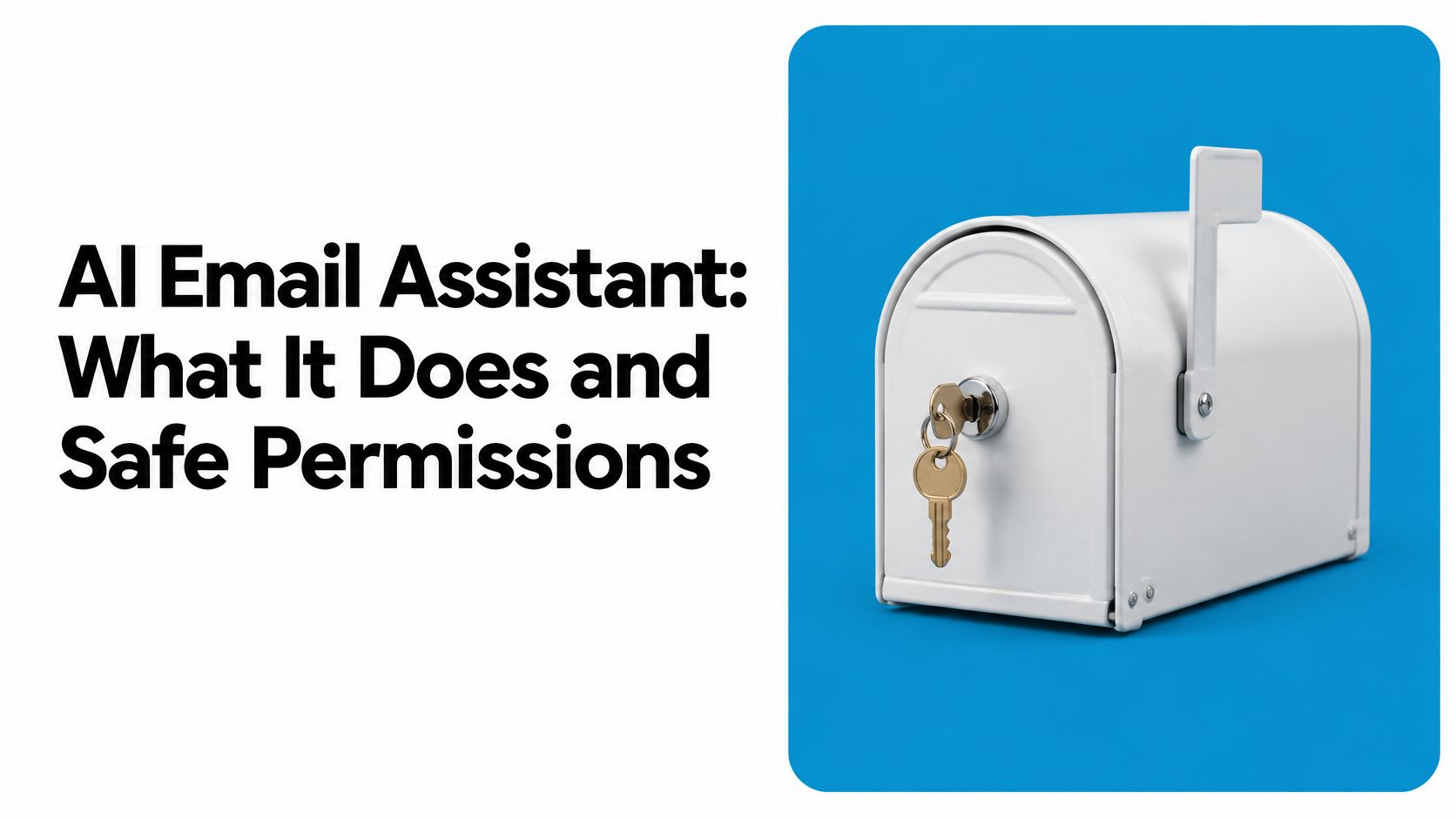
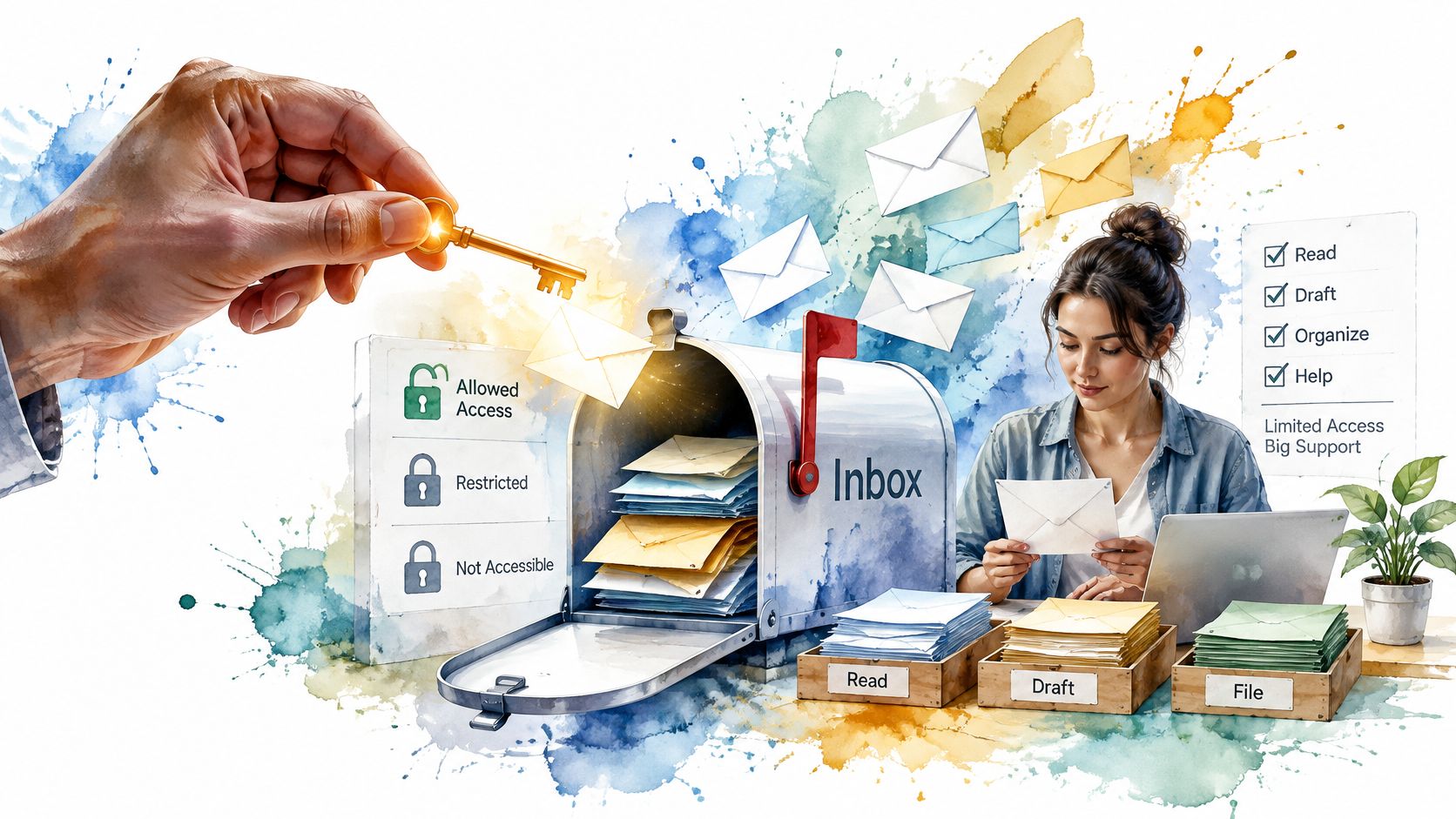
Think of an AI email assistant as a capable helper with a key to your mailbox. It can read, sort, draft and file messages, but only as far as the key allows. Some assistants offer inline suggestions in the compose window; others can search across several accounts and take actions in your inbox.
Most tools handle three kinds of work: composition, such as drafting or polishing a reply; triage and search, such as summarizing a conversation or finding a message; and actions, such as archiving, moving or sending mail. The distinction matters. An assistant that summarizes a long thread before a client call is helping you understand it. One that sends a reply is acting on your behalf.
Google's Gmail Smart Compose helped establish the idea of AI working inside the inbox rather than replacing it. Announced on May 8, 2018, it suggested complete sentences as people typed, including greetings, sign-offs and personalized details. By October of that year, Google said it was processing hundreds of millions of messages a day and generating more than 10% of email replies in the environments where it was deployed, as described in Google's announcement of Smart Compose.
Today, the practical value often comes from reducing repetitive sorting, especially when you handle separate work, personal or client accounts. If you're weighing different approaches, this comparison of AI email assistants can help you understand the range, from drafting helpers to tools that act on messages.
The deciding factor shouldn't be the length of a feature list. It should be which permissions the assistant needs for the job. A tool that can read mail but not send it has a different risk profile from one that can change folders or contact people.
Time Savings Researchers Have Measured
Reported results range from less time reading email to fewer messages opened. They're useful benchmarks, not promises of what any one person or tool will achieve.
| Study | Who was measured | Reported result |
|---|---|---|
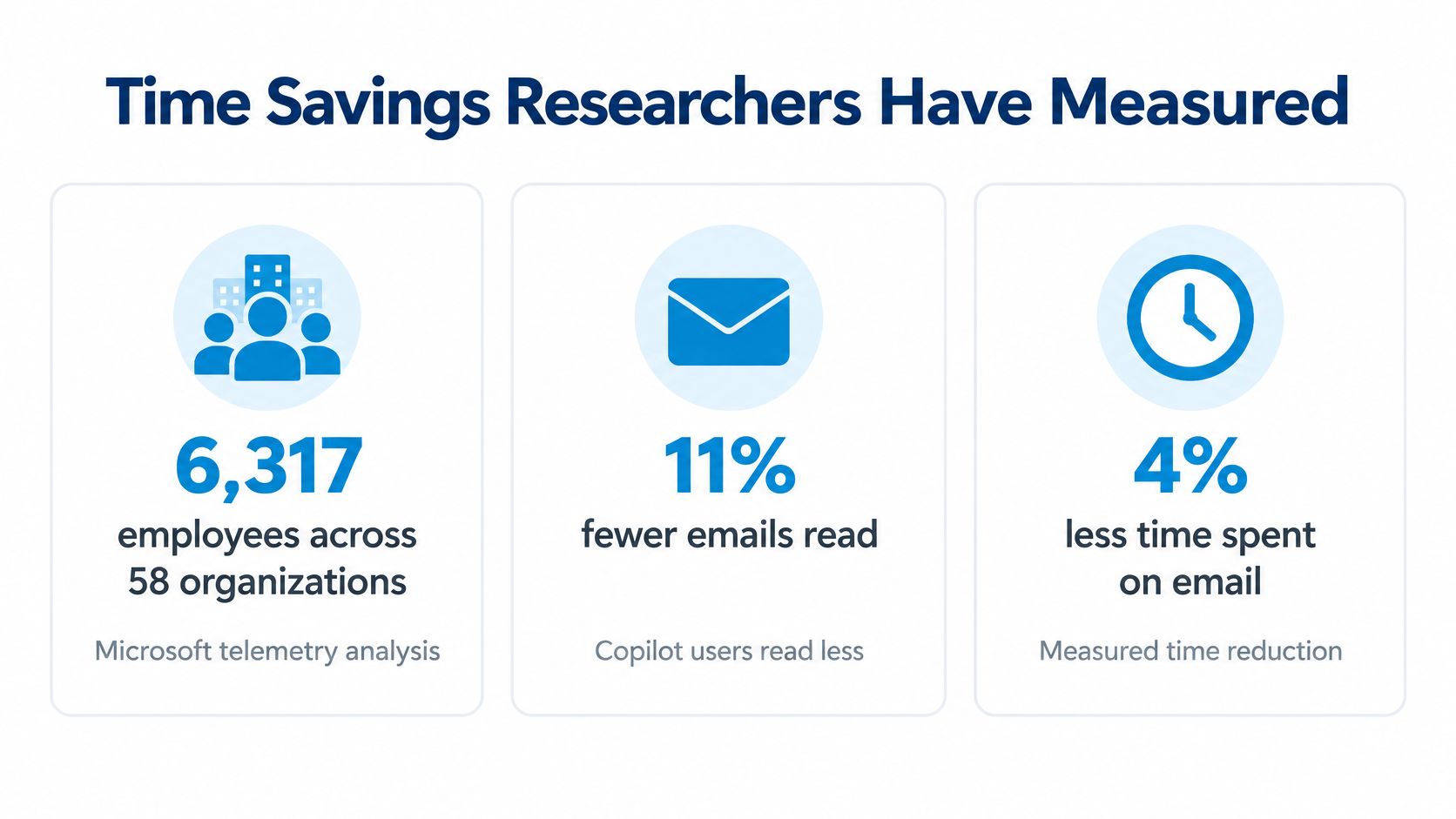
| Microsoft telemetry analysis | 6,317 employees across 58 organizations | Copilot users read 11% fewer emails and spent 4% less time on email; some organizations recorded reductions of 20–25% in both measures |
| Consumer-goods company analysis | One company with Copilot | 31% less email-reading time, about 50 minutes per user weekly |
| Telecommunications company analysis, reported in the Microsoft telemetry study | One company with Copilot | 23% less email-reading time, or 40 minutes weekly |
| NBER field experiment | 7,137 knowledge workers across 66 firms | Frequent users of an AI tool integrated with email spent two fewer hours on email each week |
| Microsoft Research randomized experiment | More than 6,000 workers at 56 firms | Workers using Microsoft 365 Copilot spent 30 fewer minutes reading email per week |
| Independent research paper | 7,137 workers | Regular Copilot users spent 3.6 fewer hours on email per week, a 31% reduction from their pre-experiment average |
Why summaries and prioritization matter
The mechanism is task compression. A useful summary can save you from opening and rereading a long thread to recover a decision or next step. Prioritization can help you spend less attention on messages that don't need a response.
That's why a reply generator alone may not make a noticeable difference to your day. If the main burden is deciding what matters, drafting a polished answer doesn't remove the sorting work. Cross-account search and a shared view can also reduce repeated triage when you're switching between providers.
The reported results don't guarantee that your inbox will improve by the same amount. Some findings are workplace telemetry, and results can differ with message volume, account type and how people use the tool. The best test is a short trial against your own baseline.
Measure the workflow, not just the writing. Track time to triage, messages opened per resolved task, and the share of threads that still need human review.
How an Assistant Reaches Your Mailbox
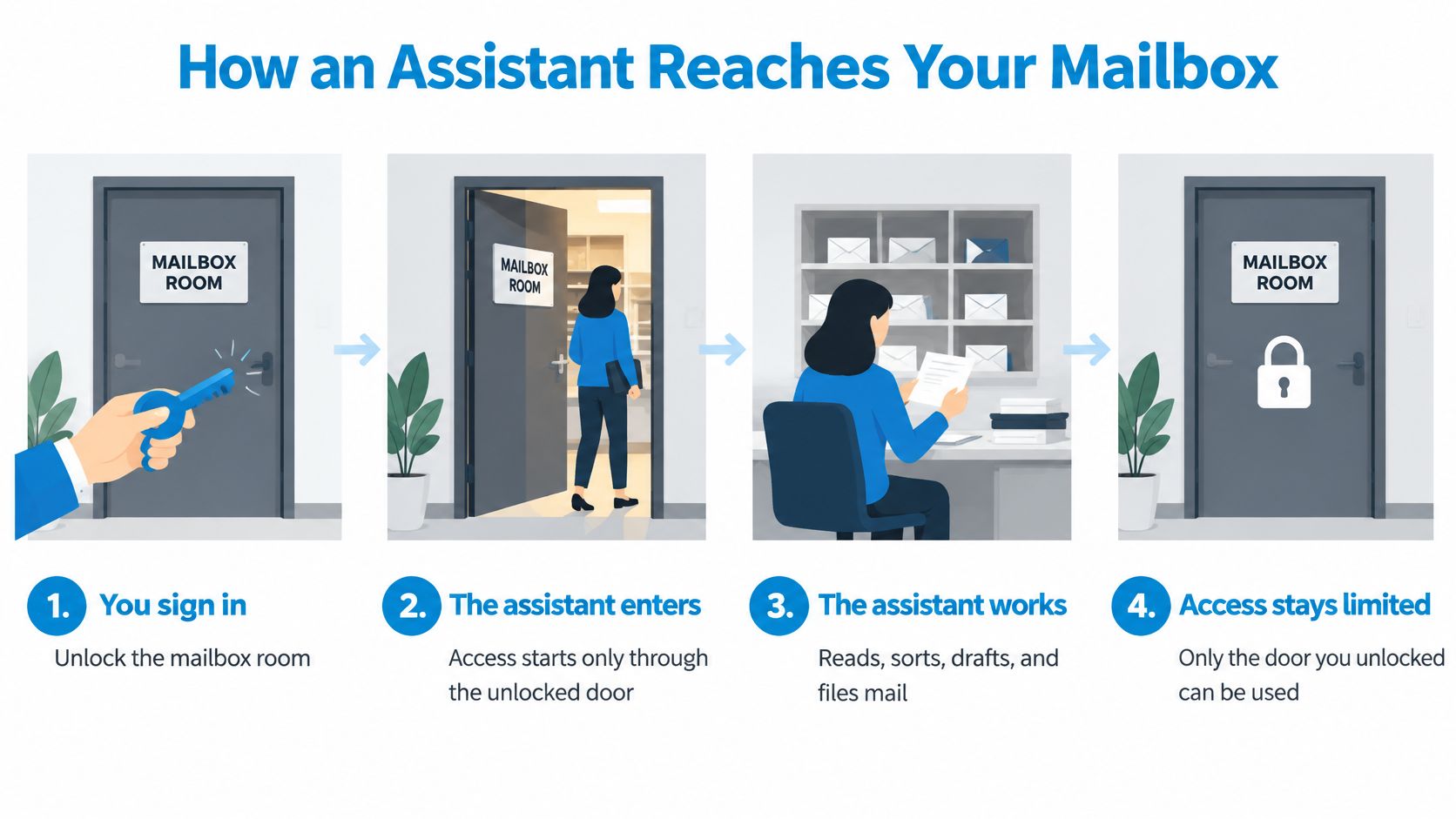
Treat the mailbox as a room, the sign-in as a key and the assistant as a visitor. The assistant can only enter through a door you've opened, but you still need to know who holds the key and whether the door stays open after you leave your computer.
A typical connection works like this:
- You sign in to each account. This may use the provider's sign-in flow or, for an IMAP account, connection details such as the host, port and password. The sign-in determines which mailbox is available.
- The provider grants access. Check that the access is limited to the mail tasks you intend to use, rather than assuming that connecting an account automatically means read-only access.
- The service keeps the connection available. With a hosted connector, mailbox sign-ins can remain linked to your account, so an assistant can reach mail even when your computer is off.
- The agent connector uses the same account. In Sickle, the connector signs in with the same account, so an agent can see each mailbox added on the web or in the app.
- The connector fetches requested mail. When the assistant asks for messages, the service fetches what was requested and passes it on. Sickle passes user data to the mail providers and AI assistants the user connects to support those connections.
- You can remove access. You can remove a mailbox or revoke an assistant when you no longer want it connected.
A desktop app and a hosted connector can provide access to the same mailboxes, but the hosted route can keep working while your laptop is closed. The important practical point is that the mail still flows through the provider and the assistant you chose. Before connecting an account, understand what the service receives and what each permission allows.
Permissions, Blast Radius and Safe Defaults
Start with a task-by-task permission model. Read access should cover search and summaries. Changes to messages need tighter controls, and sending should remain a separate permission.
| Task | Permission needed | Suggested default |
|---|---|---|
| Search and summarize threads across accounts | Read | Runs without prompts |
| List and read messages | Read | Runs without prompts |
| Mark as read, move or archive | Change | Confirm bulk actions |
| Move a message to Trash | Change | Confirm; recoverable from Trash |
| Save drafts and attach files | Change | Review before any send |
| Unsubscribe from a mailing list | Change | Confirm, since it contacts the sender |
| Send an email | Send | Approve every message |
| Permanently delete messages | Not a standard permission | Do not grant |
An assistant that can search, organize or send email is a privileged software agent, not just a chat box. NIST guidance recommends distinct agent identities, minimum permissions, time-bounded access and the ability to revoke access when circumstances change. Applied to email, that means separating read, change and send permissions, and keeping an activity record of what the agent did, as outlined in NIST's guidance on agent identity management.
Limit the blast radius
Use scopes that match the job. An assistant might search across personal and work accounts but have no authority to send. It might archive messages without permission to delete them. A key created for a client account should not also reach your personal inbox.
Incoming mail is untrusted content. A crafted message could try to persuade an assistant to forward information or take another action. A human approval gate on sending can stop that instruction from becoming an outgoing email, even if the assistant misreads the message.
The risk isn't theoretical. A global survey of more than 32,000 workers across 47 countries found that 58% intentionally used AI at work, 66% had relied on AI output without evaluating it, and 56% said AI had caused work mistakes. The Conversation also reported a 2025 Microsoft 365 Copilot vulnerability involving a crafted email that could extract data from an AI system's context without the recipient clicking anything, as described in its coverage of workplace AI use and risk.
Make recovery part of the setup
Require confirmation before an external send, set limits for each provider and mailbox, keep a record of each tool call, and use rate limits to restrict a burst of unexpected activity. Check that the activity record identifies the action and account, and that Trash or an undo option can recover a mistake.
Sickle users can remove mailboxes and revoke AI assistants themselves at sickle.app, and no Sickle agent tool permanently deletes mail. If you need to understand the difference between moving a message to Trash and deleting it permanently, this guide to whether you can delete an email explains the distinction.
Practical rule: If a tool can't show what it will do before doing it, its permissions are too wide.
Privacy Checks Before You Connect a Mailbox
Before you connect an account, get clear answers to these questions:
- What does the service receive? Does it fetch only the messages the assistant requests?
- Does it keep message copies? Find out what happens after a request is complete.
- Is mail cached on your device? If so, does the cache disappear when you sign out?
- Does email content appear in server logs? Ask whether logs contain message bodies or other mailbox content.
- Can you see and revoke connected assistants yourself? You should be able to identify active access without contacting support.
- Who else can access a shared or company mailbox? Check whether an administrator must approve the connection.
A clear policy gives specific answers, not a blanket promise of “privacy.” For example, our connector fetches only the requested messages and doesn't keep copies. Our Mac app stores a mail cache in its own sandboxed container and erases it when you sign out. The Mac app sends no email content to Sickle, and mailbox content isn't written to Sickle's server logs.
These answers are a starting point, not a substitute for reading the service's terms and checking how it handles your particular account. If a work mailbox contains client data, check your organization's rules before connecting it. For a broader look at email providers and privacy considerations, these privacy-focused email picks from KeenVerdict offer another useful comparison.
When to Let AI Rewrite Your Email Without Losing Your Voice
More rewriting doesn't always make a better email. A 2025 study reported that employees perceived supervisors as sincere in only 40%–52% of cases when they used high levels of AI assistance, compared with 83% for low-assistance messages. Recipients considered heavily assisted messages more effective for team outcomes, but preferred AI polishing when the underlying ideas remained the sender's own, according to ScienceDaily's report on the study.
Match the amount of help to the stakes
For routine scheduling or newsletter cleanup, automation is usually low risk. The message has a narrow purpose, and a small change in phrasing is unlikely to alter a meaningful commitment.
For everyday professional replies, light editing can help with clarity, grammar and structure. Keep the substance yours, and check that the revision hasn't added a promise, deadline or rationale you didn't intend.
For apologies, performance feedback, negotiations and sensitive client messages, review every change closely. A smoother sentence can still sound evasive if it removes accountability or turns a sincere apology into a polished template.
Say you need to apologize to a client for a delayed deliverable. You draft a direct note that accepts responsibility and explains the next step. If the assistant changes “I missed the deadline” to vague language about “a timeline shift,” or promises delivery by a date you haven't confirmed, the revision has changed the meaning, not just the tone.
Use an authenticity check before sending: compare the original with the revision, preserve your usual phrasing, and flag any change to a date, price, promise or commitment. Keep final review in your hands whenever the message carries accountability. For teams that want practical examples of authentic email automation for service businesses, the central discipline is to let the tool polish your words without taking ownership of your message.
When a conversation grows into a long chain, get the context straight before editing a reply. This guide to an email thread or chain can help clarify what the assistant is summarizing.
Decide Which Mailbox and Task to Connect First
Start with a small, reversible trial rather than connecting every account and enabling every action at once.
- List the accounts you might connect. Mark which ones contain client or company data.
- Choose one account and grant read access only. Keep the first test narrow.
- Track triage for a week. Note how long it takes and how often you open messages you didn't need.
- Add change permission for routine filing. Allow archiving or marking as read, with confirmation for bulk actions.
- Keep approval on for every send. Review the recipient and full message before it leaves the account.
- Check the activity record weekly. Revoke any assistant you no longer use.
Sickle is one option for this setup. It's a native Mac email client that brings Gmail, Outlook, iCloud, Fastmail and IMAP accounts into one app, with a colour for each account. Its connector works with Claude, Codex and Cursor, and offers separate read, change and send permissions. The send tool is marked so the assistant's app asks you to approve each send, and the connector can work on any operating system without the Mac app.
The right starting point is the mailbox where summaries and search will save effort without creating pressure to automate sensitive replies. If you're also reviewing how your inbox is organized across accounts, this overview of an email management service can help you think through the broader workflow.
Connect one mailbox with read-only access, test whether the assistant reduces triage, and add permissions only when the workflow is clear. Sickle brings multiple accounts into one Mac app and offers a connector with separate read, change and send controls. Visit Sickle to see whether that setup fits your email workflow.