Email Management Service: What It Does and How to Choose
Learn what an email management service does, which features matter, and how to judge whether one fits your multi-account email workflow.

Knowledge workers now receive a steady flow of email across several accounts, and that volume is a routing, ranking and permissions problem as much as a tidiness one. A good email management service should help you find what's urgent, reply from the right identity, and control what any AI assistant can do to your mail. Those three jobs matter more than a clean inbox, because every service that touches your messages also touches the permissions behind them. Judge it on what it can do to your mailboxes, and you'll choose well.
What an Email Management Service Does
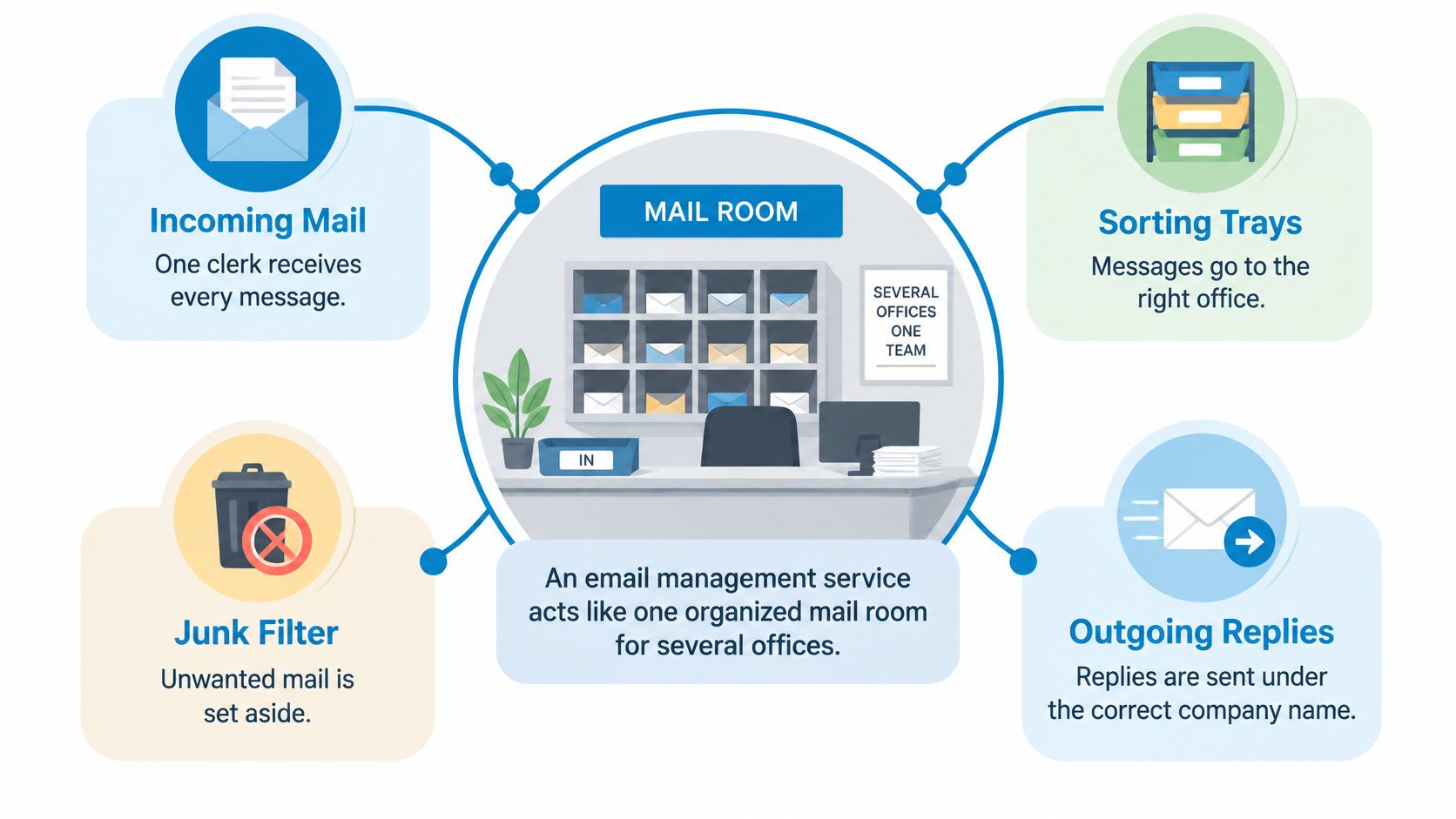
Think of a mail room for several offices. One clerk takes in all the post, sorts it into the right trays, sets junk aside, and sends replies out under the correct company name. An email management service does that job for your mailboxes. It connects your accounts, sorts what arrives, and helps you act without hunting through separate apps.
The Three Layers You'll Meet
Connection brings accounts together. Say you use Gmail for clients, Outlook for your employer and iCloud for personal mail. Instead of opening three apps, you sign in once per account and read them in one window.
Organisation sorts and groups messages. Newsletters from one sender sit in a group, unread counts stay visible per account, and notifications can be quieted so you're not pulled in all day. This is the sorting tray part of the mail room.
Action is where mail changes. You archive a thread, unsubscribe from a list, draft a reply, or let an assistant search and move messages for you. That last step matters most, because acting on mail carries more risk than reading it.
The scale explains why this isn't a passing productivity trend. The Radicati Group figures summarized by DragApp reported more than 4.4 billion people used email worldwide in 2024, with 361.6 billion business and consumer emails sent and received every day in 2024. The same report forecast the user total to exceed 4.9 billion by 2028, with daily traffic projected at 424.2 billion messages by 2028.
A plain mail app helps you read one mailbox. A service manages the workflow across all of them.
That distinction guides every choice below. Don't judge only by how clean the inbox looks. Judge by what the service connects, what it can change, and who else it lets in.
Core Features Compared Side by Side
A feature list works like a menu: every item sounds appealing until you match it to what you need. The table below pairs each common feature with the pain it solves and one concrete check to run before you pay.
| Feature | What it does | Who needs it | What to check |
|---|---|---|---|
| Unified inbox | One window showing several accounts | Professionals with two or more addresses | Unread counts and search span every account |
| Per-account colours | Visual cue for the active identity | Users with similar-looking addresses | Colours are adjustable and visible while composing |
| Email cleaner | Groups mailing lists, old mail and sender groups | Users with newsletter-heavy inboxes | Unsubscribing also clears past messages from that sender |
| Unread-age filter | Isolates mail unread for a set period | Anyone with a backlog | The group can be read in one pass |
| Cross-account search | Finds messages in all connected mailboxes at once | Client-facing roles | A known old message appears in results |
| Keyboard shortcuts | Compose, reply and send without the mouse | Heavy daily users | Shortcuts cover your routine actions |
| Agent connector | Lets an AI assistant search, read and organise mail | Users of AI assistants | Read, change and send permissions can be split and revoked |
How to Read the Check Column
A feature only helps if it covers every account you use. A unified inbox that searches Gmail but not your company IMAP server isn't unified in practice. If you run a self-hosted or smaller provider mailbox, confirm the service accepts any IMAP host, ideally on port 993 with SSL/TLS, and that it uses your full email address as the username. Then test with a real old message you know exists, in the account you use least. If search can't find it, you'll still be opening separate apps.
Cleaning works the same way. Unsubscribing stops future mail, but some tools leave years of past messages sitting in your inbox, so check whether unsubscribing also clears the history from that sender. The age filter has its own wrinkle: some services fix the window, isolating mail unread for more than five days for example, rather than letting you set the number yourself. Make sure the cutoff matches the backlog you have.
Colours sound cosmetic until you send a client reply from a personal address. They need to show while you're composing, not just in the message list, and you should be able to change them so each identity is unmistakable at a glance.
The agent connector sits in a different category from everything else here. A cleaner changes how mail looks. A connector changes who can act on mail, so its check column is about permissions, not convenience. Look for read and change as separate grants: read should cover listing, searching and reading, while change covers marking mail read, moving it and saving drafts. Then ask where your sign-ins live. If the service keeps them under your account, an assistant can reach your mail while your computer is off, which is convenient but means the server handles your credentials. Check how long they're held in memory (some services cap this at a few minutes for repeated calls) and whether fetched mail is retained or passed straight through. If you're also reviewing other operational tools, apply the same verify-before-you-buy discipline you'd use to compare accounting software for small businesses.
Ranking rule: Order features by the pain you felt this week (a backlog, wrong-account replies or handing mail to an assistant), not by what's newest.
How to Score a Service Against Your Workflow
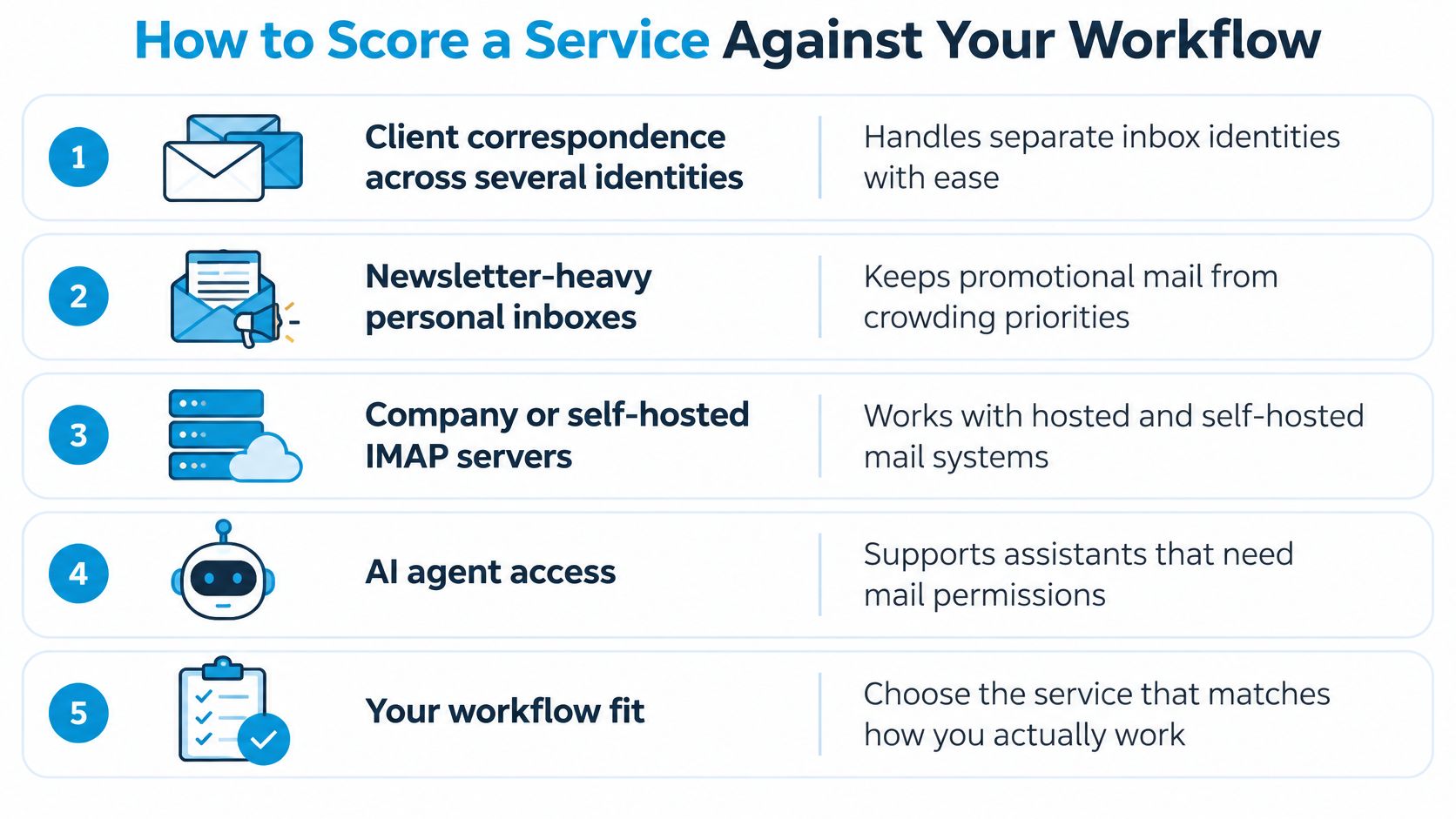
Start with fit, not feature count. This table pairs common workflows with what to prioritise and what should rule a service out.
| Workflow | Features to prioritise | Red flag |
|---|---|---|
| Client correspondence across several identities | Colour-coded accounts, cross-account search, unanswered-thread detection | Replies can go from the wrong address with no warning |
| Newsletter-heavy personal inbox | Email cleaner with unsubscribe and sender grouping, unread-age filter | Unsubscribing leaves past mail in place |
| Company or self-hosted IMAP server | Any IMAP host, port 993 with SSL/TLS | No IMAP support or unclear port settings |
| AI agent access | Scoped keys with separate read, change and send permissions | One all-access key for every tool |
| Shared mailboxes | Documented rules for who can read and send | No documented rules for who can read or send |
A Four Step Scoring Procedure
- List your accounts: Write down every mailbox and its provider, including any self-hosted server.
- Mark your top two pains: Pick from backlog, wrong-account replies, interruptions or cross-account searches.
- Score each service: Rate it only against those pains, and keep gaps visible instead of averaging them away.
- Check permissions first: Confirm revocation and permission controls before connecting anything.
Ranking matters because volume isn't the true enemy. Microsoft's 2025 Work Trend Index, based on 31,000 workers in 31 countries, found employees face about 275 interruptions per day and that 80% of the global workforce lacks sufficient time or energy for effective work. The problem is deciding what deserves attention across identities.
Sort cross-account mail into three tiers before anything else. Tier 1 is a client or personal message waiting more than one working day without a reply, shown with its account colour. Tier 2 is a work thread from a known colleague or vendor. Tier 3 is newsletters and bulk senders, grouped and collapsed. Within a tier, the thread's owning account decides order, so a client reply never leaves from a lookalike address without a visible colour check.
Ask any service to state its ranking rule in plain words and label low-confidence sorting so you can override it. If you're widening the review to adjacent tools, the same scoring habit applies to workflow automation picks from Rankozo. Judge automation by errors avoided, not messages processed.
Permissions and Data Handling for AI Agents
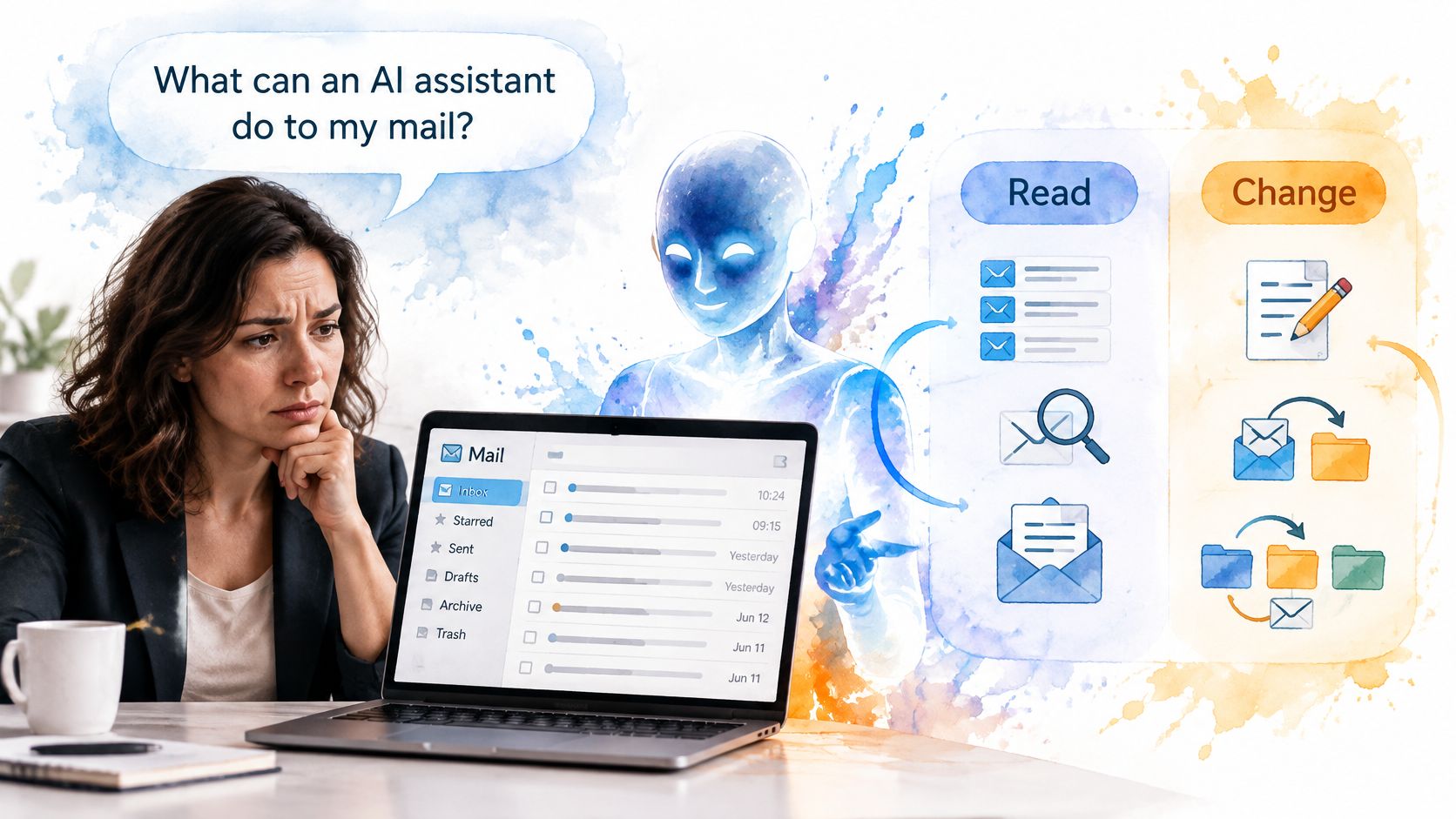
The question readers ask is simple. What can an AI assistant do to my mail? This image shows the kind of reading and organizing tasks people hand over first.
| Permission | Allowed actions | Not allowed |
|---|---|---|
| Read | List, search and read mail | Change or delete anything |
| Change | Mark as read, move, move to Trash, save drafts and attach files to drafts | Permanently delete any message |
| Send | Hand mail to the provider's outgoing server | Leave a copy in the Sent folder |
Connecting an Assistant Isn't One Decision
Agent access may seem like a single yes-or-no choice, but it isn't. Read permission lets an assistant list, search and read mail. Change permission lets it mark mail as read, move it, move it to Trash, save drafts and attach files to them. Send permission hands mail to your provider's outgoing server. Grant them separately, and make send opt-in, because a triage helper rarely needs to send.
Two limits deserve emphasis. No agent tool in Sickle deletes mail permanently, so a mistaken move to Trash is recoverable. If you're unsure what deletion really means across providers, our guide to whether you can delete an email after sending or receiving it explains the boundaries. Also, mail an agent archives disappears from the app because all connected accounts share one mailbox. The assistant isn't editing a copy. It's changing the live mailbox itself.
This short video walks through how agent email access works in practice.
Where Your Data Sits
Data handling should be just as concrete. Our Mac app keeps a cache of your mail on the Mac in its own sandboxed container and erases it when you sign out. When an assistant requests mail through the connector, our servers fetch only what was requested, pass it to the assistant, and don't keep copies. Mailbox credentials used by the connector are held in server memory for up to five minutes to keep repeated calls fast.
Permissions also don't fix sender impersonation. A 2025 Fortra analysis of 10 million domains found only 18.2% had a valid DMARC record, while 81.6% had none, and just 7.6% used an enforcement policy of quarantine or reject. Aggregating mailboxes doesn't stop spoofing. You still need authentication visibility, audit trails and the ability to distinguish legitimate delegated sending from forged traffic. For a broader view of governed automation, see these tools for controllable, auditable AI workflows.
Test revocation before you trust a connector. Can you remove an agent's access yourself, quickly, without deleting your local data?
Connecting Several Accounts Without Misrouted Replies
Switching between providers splits your attention before you've read a single message. Microsoft's 2023 Work Trend Index found employees spent 57% of their time communicating through meetings, email and chat, compared with 43% creating documents, spreadsheets, presentations and other content. Among the heaviest email users, the top 25%, email consumed an average of 8.8 hours per week. The study drew on Microsoft 365 activity over a rolling 28-day period ending in March 2023 and a survey of 31,000 workers across 31 markets.
What Setup Should Look Like
Setup shouldn't require detective work. Gmail, Outlook, iCloud, Yahoo and Mail.ru accounts can be signed in from one sheet, and any IMAP server can be added with a host, a port and a password. We accept IMAP on port 993 with SSL/TLS, which covers most company and self-hosted servers. If a service can't state its port and encryption plainly, don't connect a work account to it.
Sickle is a native Mac mail client that brings Gmail, Outlook, iCloud, Fastmail and any IMAP mailbox into one app, with a colour per account. That colour is the safeguard, not decoration. Similar addresses, say alex@yourfirm.com and alex@yourfirm.co, look identical when you're replying fast. Colour tells you which identity you're in before you type.
Threads make this trickier, because a conversation can pull in several addresses over time. If the structure confuses you, our explainer on how an email thread or chain works covers how replies stay grouped.
A Three Part Check Before You Send
- Confirm the colour: Does the account colour in the compose window match the client?
- Confirm the From address: Read it in full, including the domain ending.
- Confirm the thread owner: Which account did the original message arrive in?
Treat that as a habit, not a warning. It takes two seconds and prevents the one error clients remember.
Be clear about what connection doesn't solve. Merging accounts doesn't stop spoofing or misrouted messages on its own. Sender authentication and permission limits do that work, so check those controls before adding any account, not after something goes wrong.
Cleaning Up and Batching Your Inbox
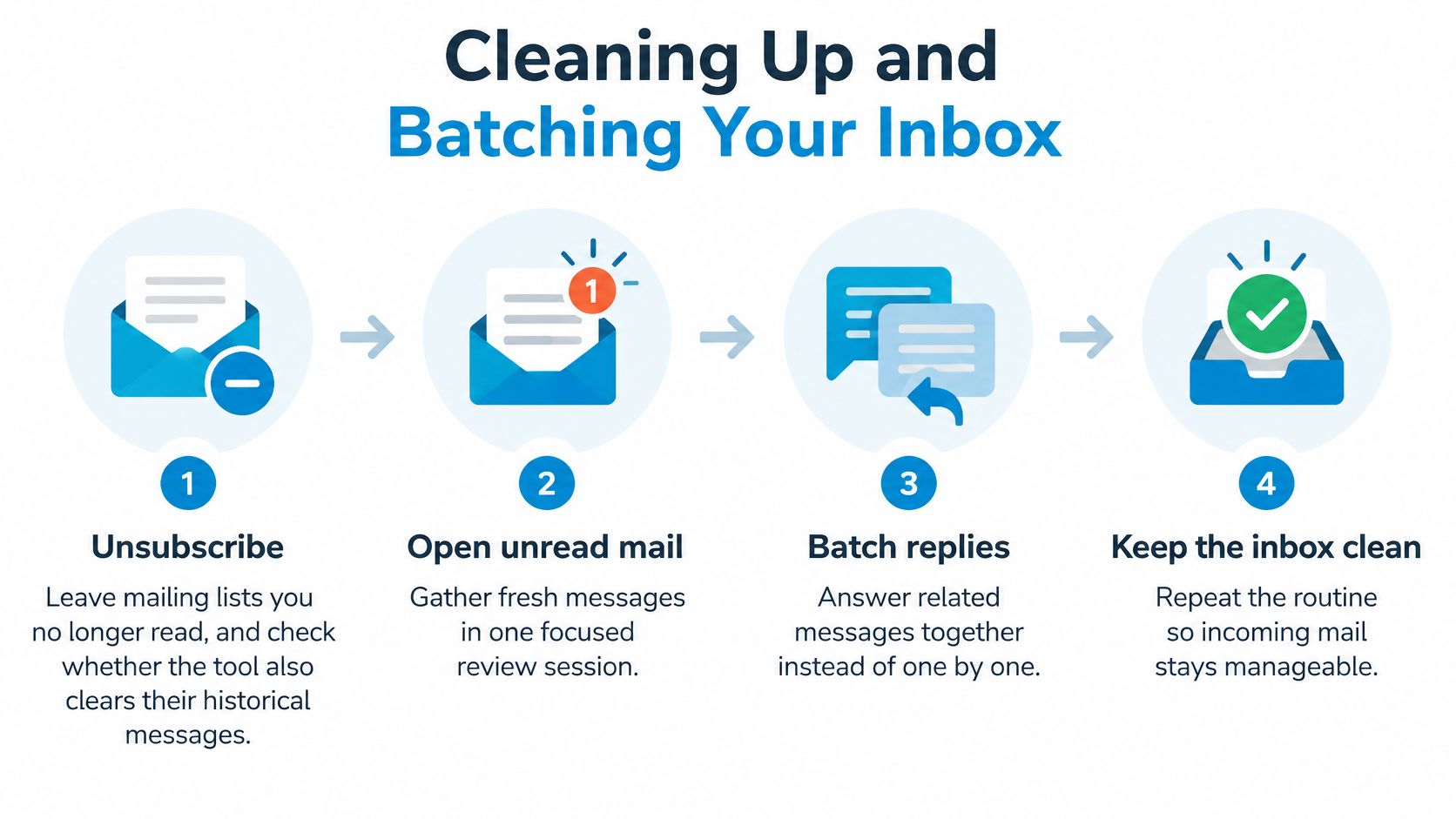
Cleanup fails when it's vague. Run it as a fixed routine instead, in this order.
The Four Step Routine
- Unsubscribe first: Leave mailing lists you no longer read, and check whether the tool also clears their historical messages, so the backlog shrinks today rather than slowly.
- Open the unread filter: Set it to mail unread for more than five days, so stale messages can be read in one pass instead of resurfacing randomly.
- Group by sender: Archive or move the bulk groups together, because sender groups reveal volume you'd never notice one message at a time.
- Fix your review windows: Set two or three review times a day and turn off push alerts between them, so email stops setting your schedule.
Our Email cleaner, opened with ⌘⇧K, lists mailing lists to unsubscribe from, old unread emails and mail grouped by sender. Its unread filter covers emails unread for more than five days, so they can all be read at once. If you're archiving in bulk and want the mechanics clear, our guide on how to archive an email explains where archived mail goes.
Why Batching Works
Batching isn't a preference. It's a control on interruption. In a field study of 40 information workers observed for 12 workdays using computer logs, biosensors and daily surveys, greater daily time spent on email was associated with lower perceived productivity and higher measured stress. Workers who primarily checked email through self-initiated interruptions reported higher productivity than those relying on notifications. Batching was associated with higher rated productivity as email time increased, although it didn't demonstrably reduce stress.
Notification control and batching are productivity mechanisms, not interface preferences.
That evidence doesn't prove batching alone causes better output, and you shouldn't oversell it. What it identifies is measurable risk in uncontrolled interruption and long daily email time. Sender grouping, scheduled windows and notification suppression target exactly that risk.
Track two numbers to see whether the routine is working. First, your daily email time, which should fall or at least stop growing. Second, the ratio of planned review sessions to notification-triggered opens, which shows whether you or your inbox is choosing when you look. If the ratio doesn't move, your settings aren't biting.
Test One Service Before You Commit
Don't connect everything on day one. Start with one work account and one newsletter-heavy account, then run the service for a week. Check colours while composing, search for a known old message, clean one sender group, and set quiet hours. Record your daily email time each day so the decision rests on evidence, not first impressions.
Sickle is one example of how this test applies, as a macOS email client with a hosted agent connector. One subscription covers the Mac app and the agent connector, and the connector isn't a separate add-on. Listed pricing is $8.99 monthly or $30 annually. Checkout requires a payment card, with seven days without charges before automatic billing unless cancelled.
Know how to leave before you start. You can remove mailboxes and revoke AI assistants yourself at sickle.app, without asking support. That exit test matters as much as any feature.
Keep the service if daily email time falls and wrong-account sends stop. If neither improves, return to the feature table, find the check that failed, and test the next option against that specific gap.
If you manage client, work and personal mail across several providers, Sickle brings those accounts into one native Mac app with a colour per account, a cleaner for mailing lists and old mail, and a hosted connector that lets AI assistants search and organise your mail under separate read, change and send permissions you can revoke yourself. Start with two accounts, run the one-week test above, and keep it only if your daily email time drops and every reply leaves from the right address.