How a Mailbox Cleanup Tool Works and Which Features Matter
A mailbox cleanup tool groups, unsubscribes and archives old mail. Learn how it works, which features matter and how to clean up safely.

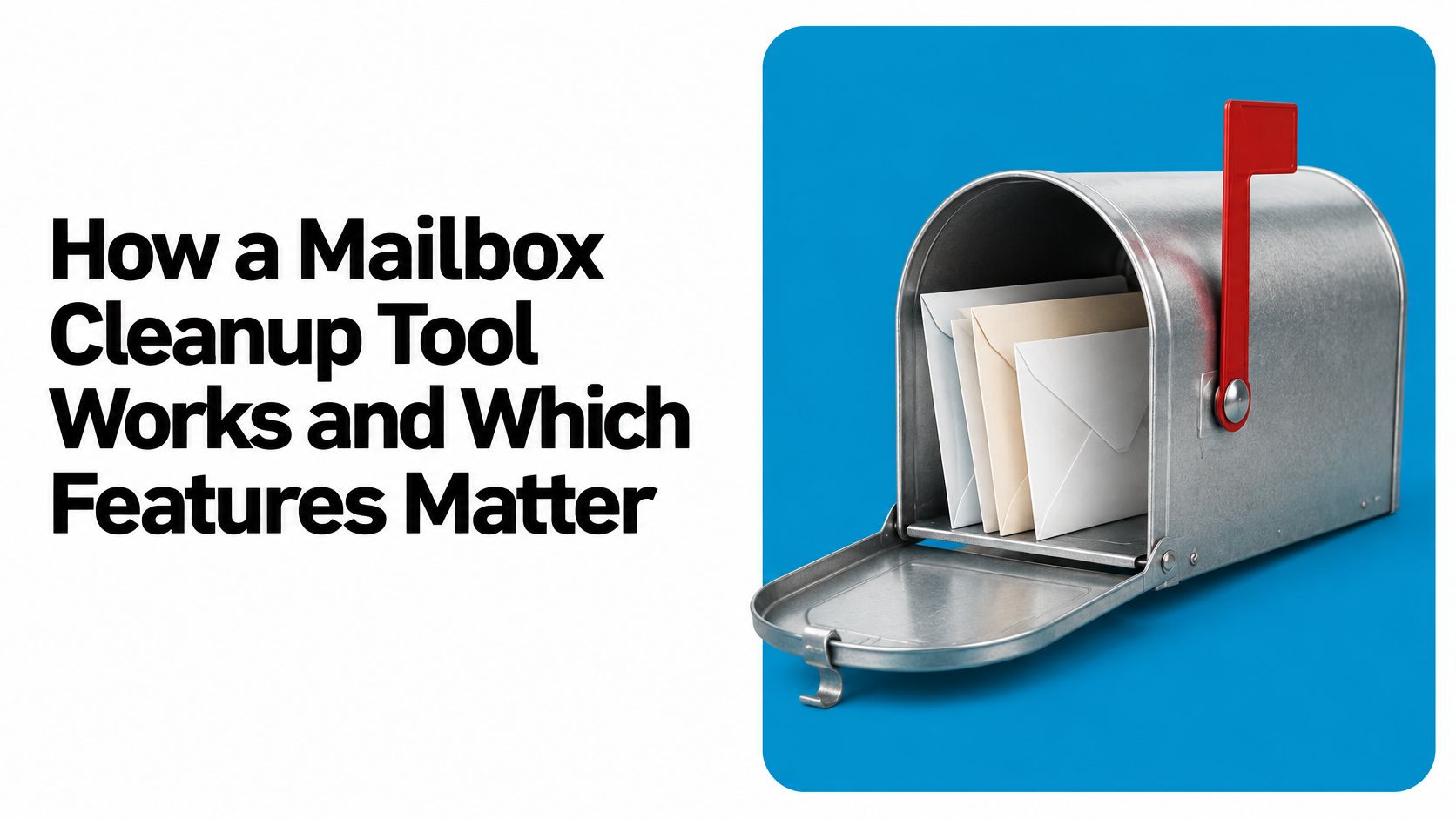
In September 2024, U.S. workers reported receiving an average of 32 emails per day, according to EmailToolTester's survey of 1,125 American adults. Thirty-two a day is a mild nuisance. Thirty-two a day for five years, spread across a work address, a personal address and the one you gave a shop in 2019, is a pile nobody could sort by hand in an afternoon.
That pile is what a mailbox cleanup tool is built for. The good ones don't just hide messages behind a filter or delete blindly; they group thousands of items at once, show you exactly what a group contains, and explain why an action is safe before they run it. Cleanup done well is reversible, auditable and boring.
What a Mailbox Cleanup Tool Does for Your Inbox
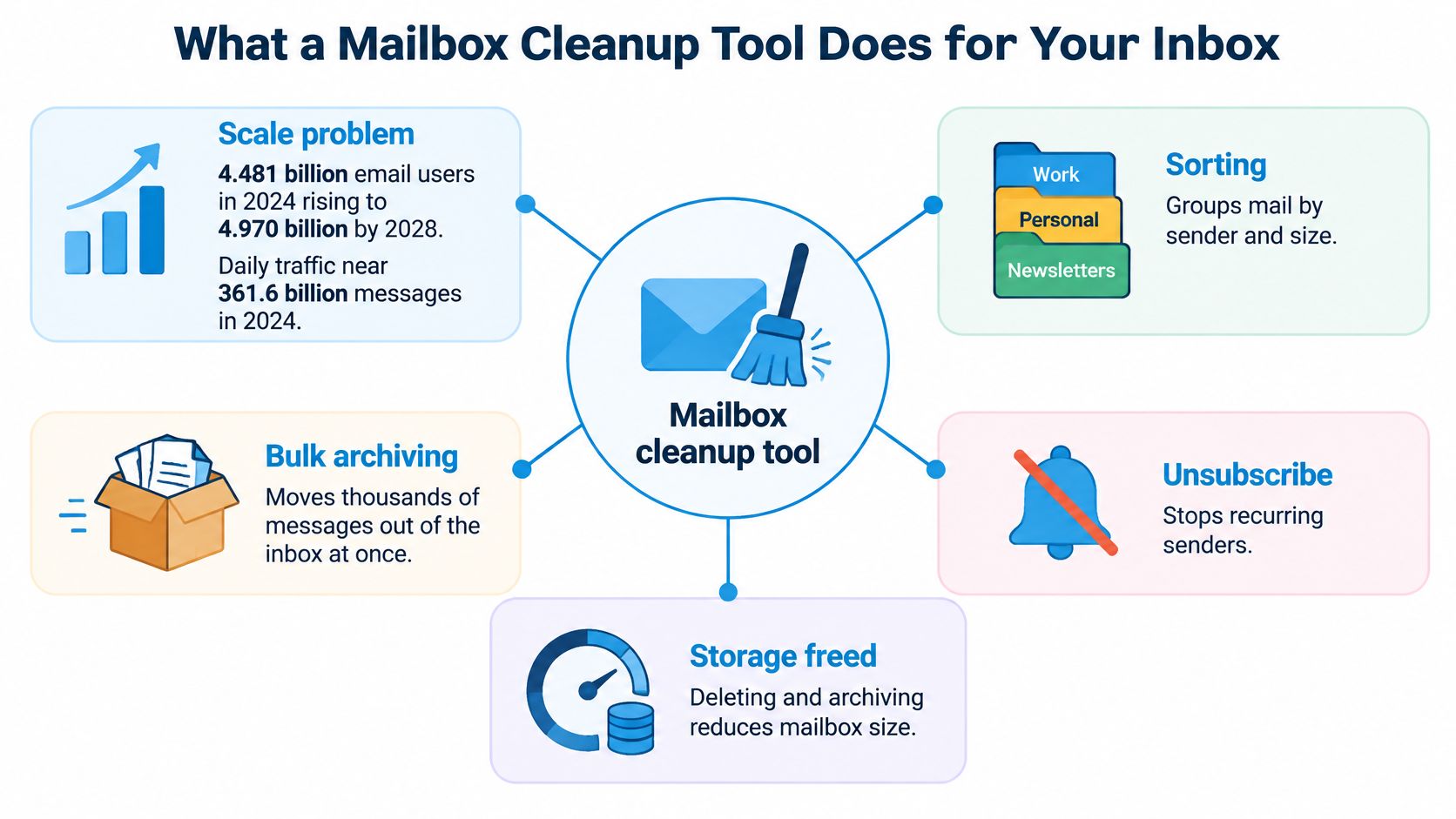
Start with the scale, because it explains why this category of software exists at all. The Radicati Group's Email Statistics Report, 2024 to 2028 puts worldwide email users at approximately 4.481 billion in 2024, projected to reach 4.970 billion by 2028, with worldwide traffic at about 361.6 billion messages per day in 2024, forecast to rise to roughly 424.2 billion per day by 2028. That's a 17.3% growth in traffic against 10.9% growth in users. Message volume is outrunning the number of people creating it.
Picture a sorting desk for a very large pile of post. You don't empty a room by picking up one envelope at a time. You tip the pile onto a surface, split it into stacks by sender, by type and by age, then decide per stack whether it gets kept, filed or binned. A cleanup tool builds those stacks for you.
Where the tool gets its information
The mechanics are less mysterious than the marketing suggests. A cleanup tool connects to each account over IMAP or through the provider's API with OAuth, then pulls an index of what your mail server already knows: sender address, received date, size, read state, folder, and the list headers that identify a mailing list. Grouping happens on that index, which is why sorting forty thousand messages takes seconds rather than hours. Nothing moves until you confirm a specific group.
So, in plain terms, a mailbox cleanup tool is software that groups existing messages by sender, mailing list, age, size or unread state, then clears, archives or unsubscribes from whole groups in one confirmed action.
The distinction that trips people up is search versus cleaning. Search answers one question, "where is that invoice from March". Cleanup answers a different one, "which six thousand messages do I never need to see again". Search works on a message; cleanup works on a pattern.
Cleanup Features and the Clutter Each One Targets
Features only make sense when you know what each one removes, so start with the comparison rather than the sales page.
| Feature | Clutter it targets | How it works | Main risk |
|---|---|---|---|
| Sender grouping | Bulk mail from one sender | Groups all messages by sender address | One sender may serve both work and personal accounts |
| Mailing-list view | Newsletters and promotions | Lists subscriptions with an unsubscribe action | Unsubscribing may leave older messages behind unless history is cleared |
| Old-mail filter | Messages older than a set date | Selects messages by received date | Old receipts or contracts may still be needed |
| Unread filter | Unread mail older than five days | Shows stale unread messages in one batch | Important unread messages can be missed |
| Attachment size finder | Large files taking up space | Sorts messages by attachment size | Attachments may be needed later |
| Duplicate finder | Repeated messages and threads | Matches identical or near-identical messages | Similar threads can be wrongly matched |
| Auto-archive rule | Future accumulation | Moves matching mail out of the inbox | Rules can hide messages you expected to see |
| One-time code finder | Expired verification codes | Lists codes and confirmation links | Codes expire quickly and should not be kept |
Every row exists because of one uncomfortable fact about modern inboxes. Secria's email statistics summary, drawing on Kaspersky spam reporting, puts spam at 44.99% of global email traffic in 2025, down from 47.27% in 2024. Nearly one message in two is something you didn't ask for.
- Sender grouping and mailing-list views handle the biggest backlog, because a single retailer can account for thousands of messages. The risk sits in mixed identities: the same sender address might be a client on one account and a sibling on another, so grouping has to run per mailbox rather than across everything.
- Old-mail and unread filters are the fastest way to shrink a visual mess, and the easiest way to lose something. A receipt from an accountant or a signed contract sits in a three-year-old folder looking exactly like clutter.
- Attachment size and duplicate finders recover the space that matters for quota, though near-identical threads get matched wrongly often enough that you should review before deleting a batch.
- Auto-archive rules and one-time code finders shape future behaviour rather than the current pile. A rule that files a sender out of the inbox will keep working in six months, when you've forgotten you created it.
The Email cleaner, opened with ⌘⇧K, lists mailing lists to unsubscribe from, old unread emails and mail grouped by sender in one view, which is the practical version of the first two rows. Folder structure is the other half of the job, and CodeWords' guide to Gmail organization covers labels, filters and the search operators that make them stick.
Three features deserve checking first: sender grouping, an unsubscribe action that also clears that sender's history, and archiving that you can reverse. If a tool only offers the first and skips the other two, you'll be back at the same pile next month. For a wider view of how delegated inbox work fits together, this guide to an email management service explains what gets handed over and what stays with you.
How Deleted Mail Actually Frees Storage
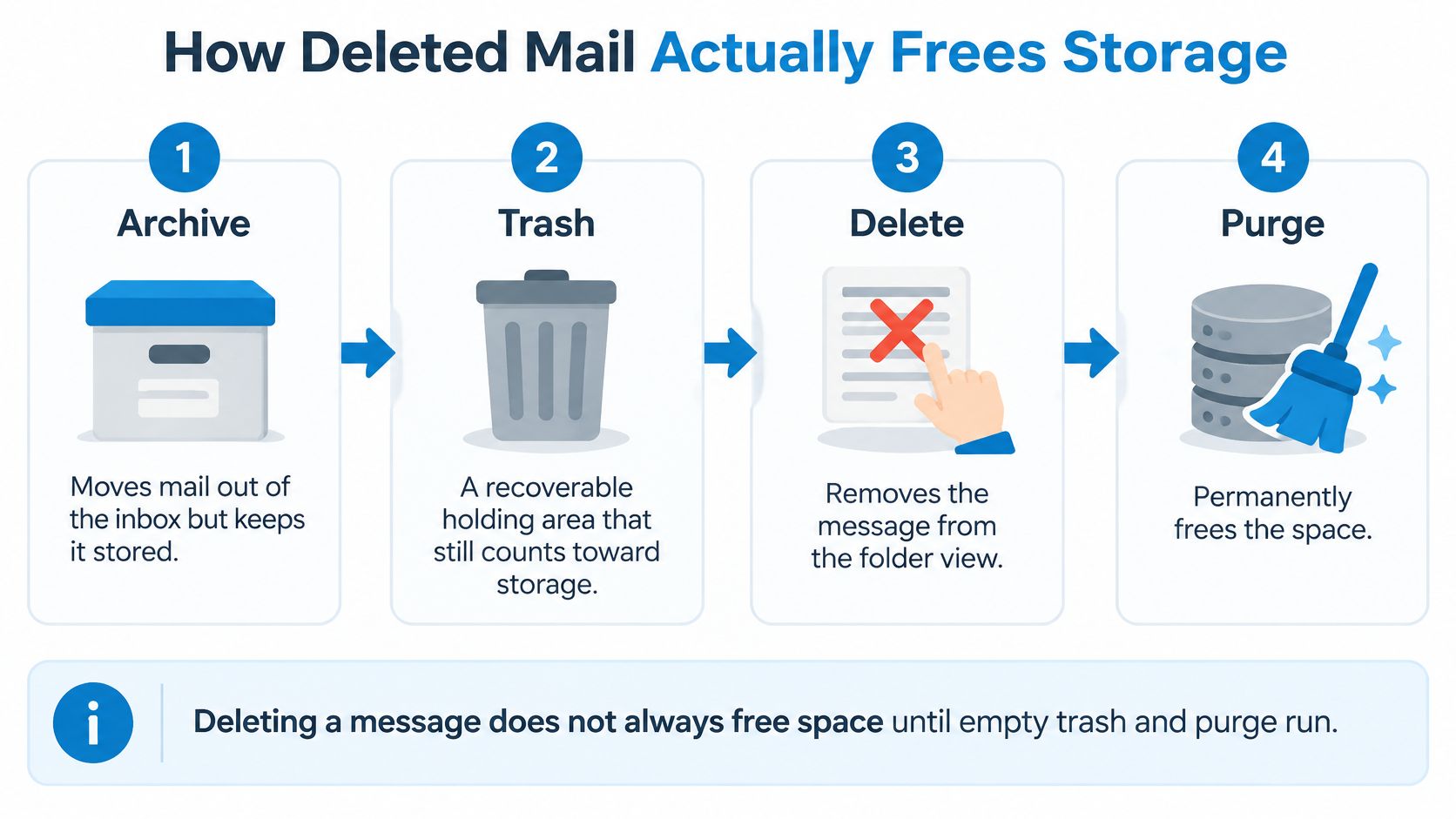
Deleting a message doesn't always free space. Anyone who has spent an afternoon removing thousands of messages and then watched the quota bar refuse to move already knows this, and the explanation is architectural rather than a bug. A mailbox works as four separate states rather than one delete button, and each state changes a different counter.
Archive takes a message out of the inbox and leaves it stored. Trash is a soft delete, meaning the message is recoverable and usually still counts against your storage. Expunge removes the message record from the folder view, typically when the Trash cleanup runs. Purge removes the underlying data from the store once nothing references it any more.
The Stalwart storage maintenance documentation describes a real implementation: Trash is expunged after 30 days by default, the expunge process runs daily, and unreferenced message blobs are purged on their own separate daily schedule. Two jobs on two clocks. Deleting on Monday and checking disk usage on Tuesday can show a gap that looks like failure and is just scheduling.
Why the quota figure and disk usage disagree
| State | What happens | Reduces quota | Reduces disk use |
|---|---|---|---|
| Archive | Message leaves the inbox and stays stored | No | No |
| Trash | Message is soft-deleted and can be recovered | Usually no | No |
| Expunge | Message record is removed, typically after Trash cleanup runs | Yes | Not yet |
| Purge | Unreferenced message data is removed on a separate schedule | Already reduced | Yes, after the purge runs |
Quota counts the message records your account holds. Disk usage counts stored data, and in a deduplicated store the same attachment can be referenced by several messages at once, so the bytes can't leave until the last reference is gone. That's why a quota bar can drop within minutes while server disk space barely moves, or the reverse on a hosted account that reports only one of the two numbers. The practical check before any bulk delete is simple: find out which counter your provider shows you, and how long its Trash cycle runs. Then a flat number tells you something, rather than alarming you.
On a work account, cleanup also has to respect policy. Retention rules, legal holds and compliance archiving can block permanent deletion entirely, which is the correct behaviour and shouldn't be bypassed by a third-party tool. If deleted mail reappears or refuses to leave, policy is the first place to look, before blaming the tool.
When you're weighing a tool, look for three habits: explicit confirmation before anything permanent, a report that shows quota recovery separately from delayed backend reclamation, and awareness of retention rules rather than a cheerful claim that every deletion frees space instantly. Those three tell you the tool understands the four states above. If you want the mechanics of a single message examined properly, this walkthrough of how deletion actually works goes a level deeper. The Sickle Mac app caches your mail in its own sandboxed container on the Mac and erases that cache when you sign out.
Check Security Risks Before Mass Unsubscribing
Unsubscribing from everything is not automatically the safe move. Guides tend to treat every unwanted message as a newsletter you opted into, and that assumption breaks down the moment an account is under attack.
A 2026 ACM study of subscription-bombing attacks examined 46,970 unwanted messages across 24 attacks and found that only 34.4% included an unsubscribe link in the header, while just 16.2% supported one-click unsubscribe. Some services ignored unsubscribe requests, and others answered with a CAPTCHA, an account-creation step or a preference form. None of that is an unsubscribe mechanism you want a bulk tool firing at scale.
Attackers do it to bury critical emails. When someone tries to take over an account, they trigger hundreds of sign-up confirmations and newsletter subscriptions in minutes. The flood hides the one message that matters, the password reset or fraud alert, under a pile the victim will eventually delete in frustration.
The messages you must never bulk-delete are the ones that arrive with no unsubscribe link at all.
| Message type | Usually has unsubscribe option | Safe action |
|---|---|---|
| Newsletter or promotion | Often | Unsubscribe after confirming the sender is known |
| Password reset | No | Keep it and do not act on bulk cleanup |
| Fraud or bank alert | No | Keep it and verify through the provider or bank app |
| Receipt or invoice | Sometimes | Archive rather than delete |
| Burst of messages from one sender | Sometimes | Pause, preserve security messages and review the account |
| Unfamiliar sender with links | Rarely | Do not click links, report or block the sender |
A decision sequence for a suspicious burst
- Confirm the sender is one you recognise, and check the actual address rather than the display name.
- Look for a genuine unsubscribe mechanism before you trigger it, and treat a preference-centre form as a warning sign rather than a feature.
- Pause when volume spikes. Twenty messages from ten senders in an hour is a pattern, not a coincidence.
- Preserve every security message, including resets, alerts and login notifications, before touching anything else.
- Avoid unfamiliar links in a burst, even ones that look like they belong to a brand you use.
- Report through the provider and review active sessions and recovery addresses if the burst looks like an attack rather than a marketing push.
The principle that separates a careful tool from a fast one is simple: it should tell you why an action is safe before it runs, not just report how many messages it removed afterwards.
How to Clean Up a Mailbox Step by Step
Work in a fixed order. The sequence matters more than the tool, because each step makes the next one smaller.

- Sort by sender and count the largest groups. You want to know where the volume sits before you touch it. Common slip: skipping the count and unsubscribing from whatever appears first, which is rarely the biggest source.
- Unsubscribe from the highest-volume mailing lists first. Unsubscribing from a list in Sickle's Email cleaner also clears that list's old messages, so one action handles the backlog and the future. Common slip: unsubscribing and walking away, leaving ten thousand old sends in place.
- Filter unread mail older than five days. The Email cleaner offers an unread filter for messages unread for more than five days, so a season's worth of half-ignored mail gets read in one sitting. Common slip: leaving stale unread mail alone because it feels like homework.
- Archive receipts, contracts and client threads instead of deleting them. Archiving removes the visual noise and keeps the record. Common slip: deleting first and discovering three weeks later that you needed the invoice.
- Clear the remaining messages by sender, one group at a time. Review the group, confirm the count, then act. Common slip: selecting several senders at once and losing track of what went.
- Check the quota and the Trash state before believing space is free. Confirm the Trash has been emptied or scheduled for expunge. Common slip: trusting the quota the instant a purge finishes, then concluding the tool failed.
The order earns its keep because the early steps cut volume before you make irreversible decisions. If you skip to deletion, you're making permanent choices about the largest pile instead of the smallest one.
Here's the same sequence running end to end, which makes the ordering easier to hold onto than a written list.
Speed is part of the reason people abandon cleanup halfway. Nielsen Norman Group's usability research on email newsletters found that the average time required to unsubscribe fell from 3 minutes 5 seconds to 1 minute 38 seconds, an 89% improvement, and observed that users increasingly archive newsletters as storage capacity grows. Friction, not indifference, is what keeps people subscribed.
Four numbers tell you whether your cleanup worked, and none of them is a deleted-message count. Track unsubscribe completion time per list, messages removed per confirmed action, recurring messages over the following three weeks, and your false-positive rate, meaning items you cleared that you later needed. If the fourth number isn't zero, your filters are too broad.
Permissions and Privacy When AI Agents Clean Mail
An agent that can tidy your mail can also read your mail, so set the boundary before you connect anything. The useful questions are plain: what can it reach, what can it change, and how fast can you take access away.
Crossing account boundaries is routine rather than rare. Fortanix's 2025 GenAI data security report found that 66% of respondents used generative AI for work and 64% used personal email accounts to access those tools, which is exactly how a work document ends up inside a personal mailbox.
| Permission | What it allows | Risk | When to grant |
|---|---|---|---|
| Read | List, search and read mail | Exposes message content | For audits and finding unanswered mail |
| Change | Mark as read, move, move to Trash, save drafts, attach files | Moves mail visible in every connected client | After reviewing the account and message set |
| Send | Send mail on your behalf | Sends messages that cannot be recalled | Only for a specific task, with review |
Those three levels are the connector's working vocabulary, scoped per client rather than per mailbox. Read lets an assistant list, search and read mail. Change lets it mark mail as read, move it, move it to Trash, save drafts and attach files to them. Send is separate for a reason: keep it off unless a named task needs it, then check the affected messages directly instead of trusting a count.
The shared mailbox effect
There is no separate copy to hide behind. Mail that an agent archives is gone from the app, because all connected accounts share one mailbox rather than syncing a duplicate somewhere. That keeps every client consistent, and it also means an archive action lands everywhere that mailbox appears. The agent tools do not permanently delete messages, so the destructive step stays with you.
Access also needs a time limit and an exit. Mailbox sign-ins are held by the user's Sickle account, which lets an agent reach the mail without the Mac being on, while the Mac app itself can be skipped by signing in at sickle.app and adding mailboxes there. Connector credentials are held in server memory for up to five minutes to keep repeated calls fast, server logs are rotated and overwritten once they reach a fixed size, and mail fetched, drafted or sent through the connector is not retained. On the desktop side, mail is downloaded from the provider to the Mac, kept in a sandboxed local cache, and erased on sign-out.
Least privilege, in practice: give one client read first, watch what it touches, add change only for the task that needs it, and keep send reserved for a job you can name.
Keep work and personal accounts on separate connections, revoke assistants or remove mailboxes yourself when a job ends, and test the tool on a small folder before a broad cleanup. If you want the wider picture of drafting, triage and agent boundaries, this overview of an AI email assistant shows where cleanup fits without handing over more access than the task needs.
Confirm Your Cleanup Plan Before You Delete Anything
People check email constantly enough that a mistake travels fast. Timewatch's 2024 time-management research found 34% of people checked email at least every hour in 2024, up from 24% in 2022, according to Timewatch's time-management statistics. A wrong bulk action is seen, and sometimes acted on, within the hour.
Seven checks separate a tool you can trust with a mass action from one you can't.
- Grouping per mailbox identity, so one sender is never merged across work and personal accounts.
- An unsubscribe action that also clears that list's history, plus a log of the sender, folders and removed count.
- Reversible archiving available before any deletion.
- Explicit confirmation before permanent deletion, with quota recovery reported separately from delayed reclamation.
- A visible account target for every action, so you always know which identity you're acting on.
- Scoped agent permissions, with send off by default and instant revocation.
- A plain data policy stating what is stored locally, what is stored on a server, and for how long.
Sickle is one option to test against that list: a native Mac mail client that brings Gmail, Outlook, iCloud, Fastmail and any IMAP mailbox into one app, with a colour per account so you can see which identity you're in. The Mac app is optional, since the agent connector works without it by signing in on the web and adding mailboxes there, and one subscription covers both rather than treating the connector as an add-on.
Once a tool passes, take one action today. List your three largest sender groups, decide which ones are safe to unsubscribe from, archive what you need to keep, and run deletions only after you've checked the count on each batch.
Sickle pairs a native Mac mail client with an agent connector, so the mailbox you clean and the mailbox your AI assistant touches are the same one, with the same scoped permissions and no permanent deletion button for agents to press. If you want cleanup you can audit rather than hope through, add your Gmail, Outlook, iCloud, Fastmail or IMAP accounts with a colour each and start with your three largest senders. Visit Sickle to see the Email cleaner and the agent connector in one subscription.