 Sickle
13 October 20264 min readmcpclaude
Connect Claude to your email
Add Sickle as a custom connector in Claude Desktop or Claude on the web, and let Claude search, read and tidy every mailbox you own.
Sickle is a remote MCP server. Claude connects to it over the internet with a URL, so there is nothing to download, no local process to keep running and no API key to paste anywhere. Once it is connected, Claude can see every mailbox in your Sickle account at once — Gmail, Outlook, iCloud, Fastmail, Yahoo and any IMAP host.
Deciding between Sickle, Google’s Gmail MCP server, Claude’s own connectors and the rest? See how they compare.
A connector you add once is available in Claude Desktop and in Claude on the web.
Before you start
- A Sickle account with at least one mailbox connected. If you do not have one yet, start a free trial and add your mailboxes in the Mac app or on the Mailboxes page. There is a step-by-step guide for Gmail, Outlook, iCloud, Fastmail and any other IMAP mailbox.
- A Claude account. Custom connectors work on every Claude plan; the Free plan is limited to one.
- On a Team or Enterprise plan, an owner has to add the connector for the organisation first. See Team and Enterprise below.
Add the connector
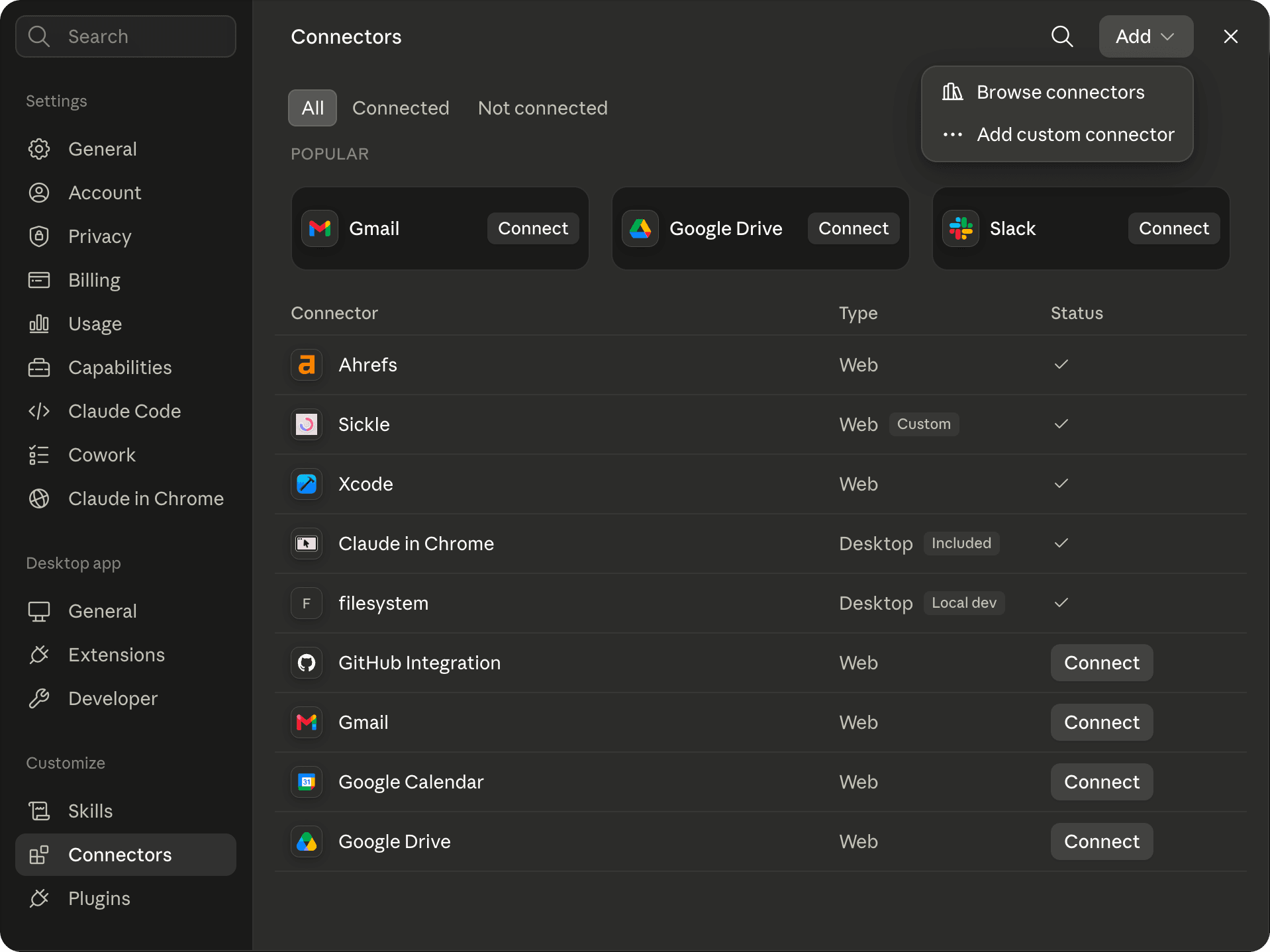
- Open Claude and go to Customize → Connectors. In older versions of Claude Desktop this is Settings → Connectors.
- Open the Add menu and choose Add custom connector.
- Name it
Sickleand paste the server URL:
https://mcp.sickle.app
- Click Add.
If Claude asks which OAuth client to use, choose Register automatically.
Sign in and approve access
Claude opens a Sickle sign-in page in your browser. Sign in with your Sickle account and approve the permissions Claude asks for:
- email_read lets Claude list your mailboxes and folders, search and read messages, and take a file from an email to attach to a draft or to download it once.
- email_change lets Claude mark messages as read, move them between folders, move them to Trash and save drafts, with files attached: Claude uploads each file to a one-time link first, so the file never passes through the conversation. For that, its code execution has to be able to reach mcp.sickle.app: add it to the domains code execution is allowed to reach.
- email_send lets Claude send email from your accounts. Claude asks you to approve each send, and the request shows the whole message. Leave it off if you only want drafts to send yourself.
Turn it on in a chat
Connectors can be switched on and off per conversation. Click + at the bottom left of the message box, open Connectors and make sure Sickle is on.
Check it works
Ask Claude:
Which mailboxes can you see?
Claude calls list_accounts and names every mailbox in your Sickle account. From here, try something real: "What's waiting on a reply from me?" or "Archive last week's newsletters."
Team and Enterprise
An owner adds Sickle once for the whole organisation under Organization settings → Connectors → Add → Custom → Web, with the same URL. Each member then goes to Customize → Connectors, finds Sickle and clicks Connect to sign in with their own Sickle account. Nobody sees anyone else's mail.
Troubleshooting
- Claude says it can't find any email tools. Check that Sickle is switched on for this chat in the + → Connectors menu.
- The sign-in page never opened. Open Customize → Connectors, select Sickle and click Connect.
- Claude only sees some of your mailboxes. It sees exactly the mailboxes in your Sickle account. Add the others in the Mac app or on the Mailboxes page; Claude picks them up on the next request.
Disconnect
Remove the connector in Customize → Connectors, or revoke Claude's access from the Connect AI page in your Sickle dashboard. Revoking there stops Claude reaching your email; access it already holds ends within the hour.